The system pool is arguably the backbone of OneFS. It’s the dedicated diskpool that holds cluster-wide metadata, including the LIN (Logical Inode) tree.
Disk pools represent the smallest unit within the OneFS storage pools hierarchy.

OneFS provisioning works on the premise of dividing similar nodes’ drives into sets, or disk pools, with each pool representing a separate failure domain. In OneFS, a failure domain is the portion of a dataset that can be negatively impacted by a specific component failure. A disk pool comprises a group of drives spread across multiple compatible nodes, and a node usually has drives in multiple disk pools which share the same node boundaries. Since each piece of data or metadata is fully contained within a single disk pool, OneFS considers the disk pool as its failure domain.
Because the OneFS system pool handles the most read and write-intensive metadata operations on the cluster, it is acutely sensitive to disk latency. Any performance inefficiency in the system pool translates directly into metadata latency for every client on the cluster. In OneFS 9.15, administrators gain meaningful control over how the system pool is selected for the first time, through Capability 15648: Configurable System Pool.
Prior to OneFS 9.15, system pool selection followed a fixed rule, inherited from early OneFS design, which stipulated that the system pool must contain diskpools covering at least (N/2)+1 nodes, where N is the total node count. The algorithm prioritized SSD diskpools, but in mixed clusters where only a few nodes are all-flash and the majority are archive (HDD) nodes, covering half the cluster could force slower HDD diskpools into the system pool to satisfy the quorum threshold.
Fast SSD-backed reads and writes on the metadata path could become bottlenecked by slower HDD writes routed through the same system pool, producing metadata latency, lock timeouts, deadlocks, and periodic hangs. Manual resolution (i.e. removing the system flag from archive diskpools via gconfig and running a SmartPools job to migrate metadata back to SSD nodes) typically required both root access and a Dell support engagement.

However, in OneFS 9.15 and later releases, the system pool selection strategy is now configurable via the ‘isi storagepool settings’ CLI command set.
The following four strategies are available

- ‘All-flash’ strategy: Selects SSD diskpools from all-flash node pools only. Hybrid and archive node pools are excluded entirely. This is the maximum-performance configuration and the recommended strategy for any cluster that has all-flash nodes. It is the default for new OneFS 9.15 installs.
- ‘Any-flash’ strategy: Picks all SSD diskpools including from hybrid nodes, while excluding the HDD diskpools within those hybrid pools. Offers more SSD capacity than all-flash at the cost of slightly variable latency, since hybrid-node SSDs share a chassis with HDDs.
- ‘All’ strategy: Includes all non-degraded diskpools regardless of media type. Maximizes system pool capacity but does not prioritize performance. Closest in behavior to the pre-9.15 algorithm, without the N/2+1 quorum constraint.
- ‘Legacy’ strategy: Preserves the original N/2+1 behavior with SSD diskpool prioritization. This is the default assigned to clusters upgrading to OneFS 9.15, ensuring no change to system pool composition during or after the upgrade.
The currently configured pool strategy can be viewed from the CLI as follows:
# isi storagepool settings view | grep -i pool

                System Pool Strategy: all-flash
Under the hood, this selected pool strategy is stored within gconfig under the ‘smartpools.storagepools.systempool_strategy’ key.
Architecturally, the system pool selection mechanism is event-driven, built atop the existing ‘isi_smartpools_d’ daemon. When a cluster admin changes the strategy via CLI, the new value is written to gconfig and a ‘needs_conform’ flag is set in the diskpool database. The ‘isi_smartpools_d’ daemon continuously monitors the diskpool DB for this flag. Upon detecting it, the daemon evaluates the available diskpools against the configured strategy, selects the appropriate set, and writes the result back into the diskpool DB, all without requiring any additional administrator action.
Behavior-wise, the default strategy differs between new OneFS 9.15 installs and upgrades:
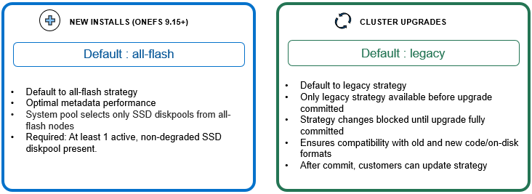
For new clusters running OneFS 9.15 or later, the installer sets the default strategy to all-flash. The intent is that customers get optimal metadata performance immediately, without needing a tuning engagement to discover and configure the better strategy.
For clusters upgrading to OneFS 9.15, the strategy defaults to legacy. More importantly, the strategy is locked to legacy and cannot be changed until the upgrade fully commits. The reason is straightforward: during a non-disruptive upgrade, nodes running different OneFS versions coexist on the cluster. Older nodes would not be able to interpret a new pool layout generated by a strategy that didn’t exist in their version, which could result in panics or data unavailability. Once the upgrade commits and all nodes are on 9.15, the strategy can be freely changed.
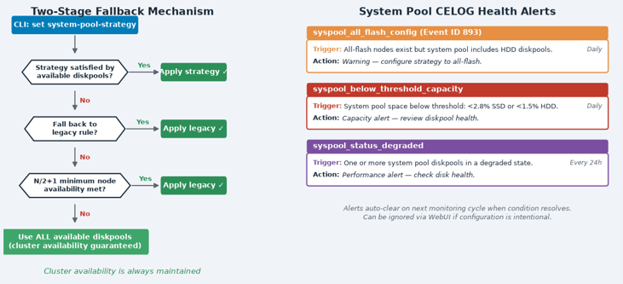
When a strategy is configured via CLI, a sanity check validates it against the current diskpool configuration. If the strategy cannot be satisfied, for example, when requesting all-flash on a cluster with no all-flash node pools, the CLI logs a warning to ‘isi_papi_d.log’, but allows the configuration to proceed. The system does not block the change, but it makes the incompatibility visible.
The ‘isi_smartpools_d’ daemon then performs the authoritative validation when it applies the strategy. If the configured strategy cannot be satisfied, a two-stage fallback ensures cluster availability is always maintained: First to legacy, and if legacy cannot meet its 50% node coverage threshold, to all available diskpools. Fallback events are logged to ‘/var/log/diskpools.log’ with specific messages indicating which strategy was attempted and what fallback was applied.
Pool strategy configuration is generally performed by using the following ‘isi storagepool’ CLI commands.
To view current system pool strategy:
# isi storagepool settings view
For example, to change the system pool strategy:
# isi storagepool settings modify --system-pool-strategy {all-flash | any-flash | all | legacy}
The ‘ISI_PRIV_SMARTPOOLS’ RBAC privilege is required for the new system pool strategy configuration CLI, while also providing access for related SmartPools operations. This privilege is granted by default for a cluster’s admin and root accounts, and no additional cluster license is required beyond the standard SmartPools/Storage Pools license.
Three new CELOG alerts in OneFS 9.15 provide proactive health visibility for the system pool:
| Alert | Details | Message | Frequency |
| syspool_all_flash_config | Warns when cluster has all-flash nodes, but system pool strategy is not set to all-flash. | “System pool is not configured optimally. Configure the system pool strategy to use all-flash.” | 24H |
| syspool_below_threshold_capacity | Alerts when system pool available space drops below configured threshold (typically, 2.8% for SSD and 1.5% for HDD). | “System pool has available space below the required threshold.” | 24H |
| syspool_status_degraded | Notifies when system pool contains nodepools with degraded diskpools (with 2 or fewer nodes) | “System pool has degraded nodepools: {nodepools_name}.” | 12H |
All three alerts can be acknowledged and ignored via the WebUI if the configuration is intentional, for example, if a cluster is deliberately running the ‘legacy’ strategy for compatibility reasons. Once the triggering condition resolves, the alert clears automatically on the next monitoring cycle.
For troubleshooting purposes, the following diagnostic CLI commands can be helpful.
To show current configured strategy:
# isi storagepool settings view
To modify pools with a selected strategy:
# isi storagepool settings modify --system-pool-strategy=<strategy>
With the ‘system-pool-strategy’ argument being one of:
--system-pool-strategy (all-flash | any-flash | all | legacy)]
To list all pools with media type:
# isi storagepool list
If needed, the gconfig value ‘manually_manage_system_flags’ can also be used to override automatic system pool selection by setting its value to ‘true’ from the default of ‘false’:
# isi_gconfig smartpools.diskpools.manually_manage_system_flags=true
One of the most common issues encountered is a strategy that looks correct in gconfig but isn’t being applied for some reason. To diagnose, first examine ‘/var/log/diskpools.log’ to identify whether a fallback was triggered, and then check ‘/var/log/isi_papi_d.log’ for a CLI-level incompatibility warning if the strategy was flagged at configuration time. Example warnings and error messages include the following:
| Issue | Logfile | Message |
| Fallback warning | /var/log/diskpools.log | System pool strategy ‘any-flash’ is not supported by the available nodepools. |
| Unsupported strategy | isi_papi_d.log | Warning: Either there are no hybrid nodepools or the nodepools are degraded; falling back to legacy. |