OneFS S3 Multi Part Upload Completion Status Tracking

The previous article in this series provided an overview of the S3 multipart upload (MPU) functionality in PowerScale OneFS. Now, we’ll turn our attention to extended MPU functionality introduced in OneFS 9.13, which allows PowerScale S3 users to track the status and completion progress of their MPU completion in real time.

MPU Completion is an existing standard S3 API that has been extended to return three additional response headers, Completion‑Id, Fast‑Path, and Completion‑State‑Info, when MPU completion progress tracking is enabled. MPU Completion Progress is a newly added extended S3 API that reports real‑time progress information in the response, including whether the fast path is used, the total number of parts and recovery parts, and the counts of completed and recovered parts.

Disabled by default, MPU completion progress activation on a PowerScale cluster is controlled by the boolean ‘MPUCompletionProgressEnable’ gconfig parameter, which must be set to value ‘1’, followed by a restart of the S3 service, for it to take effect. The CLI syntax for this procedure is as follows:

# isi_gconfig registry.Services.lwio.Parameters.Drivers.s3.MPUCompletionProgressEnable=1

# isi services s3 disable

# isi services s3 enable

Starting with OneFS 9.13, multipart upload (MPU) completion can follow either a fast or slow path based on part integrity and ordering, with fast‑path completion occurring when all parts are the same size except possibly the last, parts are retransmitted only in the event of failure while preserving their original sizes, every uploaded part is included in the final object, and part numbers are contiguous beginning at 1 with no gaps. When these conditions are satisfied, OneFS performs a highly optimized assembly process. If any condition is violated, OneFS falls back to the slow path, which requires more processing time.

OneFS 9.13 and later also include the following completion progress API endpoint:

GET /{bucket}/{object-key}?completionId=<completionId>&uploadId=<uploadId>

When progress tracking is enabled, the ‘CompleteMultipartUpload’ response includes a ‘completionID’, which is especially valuable for very large uploads where completion can take a noticeable amount of time, as it allows clients to determine whether the operation is using the fast or slow path, view the total number of parts involved, and retrieve real‑time completion metrics through the ‘Completion‑State‑Info’ data.

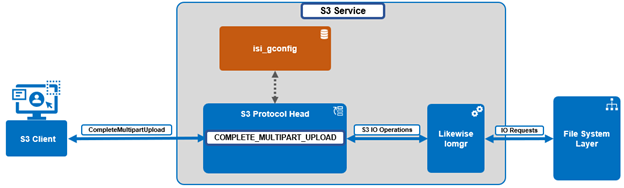
The components marked in green in the following diagram are introduced in OneFS 9.13, with ‘CompleteMultipartUpload’ used to assemble all the uploaded parts, and ‘GetMPUCompletionProgress’ to check the progress.

Component Action
S3 Protocol Head S3 Protocol Head processes requests from S3 clients.
Likewise Iomgr Likewise Iomgr provides IO APIs. Both MPU requests need to call the Iomgr in order to read and write progress status file(s).
FS Layer File system layer performs IO requests from upper layers.
Gconfig Gconfig is in charge of storing user configuration to enable or disable this feature.
Other The other components are mainly responsible for processing the two requests from S3 clients.

The following table details the various completion states:

Scenario Message Progress
Super fast path Super fast path with parts 1..N sequential, will finish quickly and completionID will be useless. No need to check
Fast path Fast path with parts 1..N sequential, but x parts need to be recovered. May fallback to slow path in case of errors. To check recovery progress
Slow path: only one part Not a fast path due to only one part in total and this part needs to be recovered. To check slow path progress
Slow path: part number not contiguous Not a fast path due to non-contiguous part numbers. Please verify intent, or abort and restart the session. To check slow path progress
Slow path: part number not from 1 Not a fast path due to part numbers not starting from 1. Please verify intent, or abort and restart the session. To check slow path progress
Slow path: different part size Not a fast path due to the size of non-last parts differs from the 1st part size. Please verify intent, or abort and restart the session. To check slow path progress

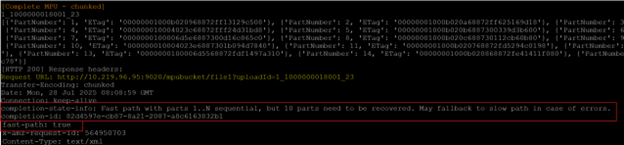
For example, the following shows the HTTP 200 response headers from a fast path MPU operation on a large file:

Pertinent information returned includes:

Attribute Example Output
completion-state-info: Fast path with parts 1..N sequential, but 10 parts need to be recovered. May fallback to slow path in case of errors.
completion-id: 82d4597e-cb87-8a21-2087-a8c6163632b1
fast-path: true

For non‑MPU objects, OneFS can compute MD5-based ETags when configured (use Md5 for Etag and Validate Content Md5).
Note that objects created via multipart upload do not use a simple MD5 hash as the ETag.
As with AWS S3, MPU ETags may be composite values, and applications requiring MD5 semantics must account for this.

When it comes to investigating and troubleshooting S3 MPU issues, the following error response codes can be helpful:

Status Description Troubleshooting
400 Bad Request Unexpected upload Id

Unexpected completion Id format

Check if  upload ID is correct.

Check if completion id is correct (it can be got from CompleteMPU response header), cannot be blank.

403 Forbidden No correct permission. Only bucket owner, MPU completion initiator, or users who have been granted READ/FULL_Control permissions on the bucket can do this operation.
404 NoSuchCompletionId Failed to find MPU complete progress. Check if the completion has already done.

Check if completion ID is correct (ID can be found in the CompleteMPU response header)


It’s also worth nothing that Multipart upload is distinct from SigV4 streaming (chunked upload, available in OneFS 9.3 and later), which controls how payloads are signed and transmitted rather than how objects are partitioned. SigV4 chunked transfer encoding can be used with or without MPU.

Comparison:

Characteristic Multipart Upload SigV4 Chunked Upload
Purpose Breaks object into logical parts Breaks HTTP payload into signed chunks
Identifiers uploadId, part numbers SigV4 per‑chunk signatures
Relationship Independent mechanisms Can be used together


So, in summary, OneFS S3 MPU follows the same client-facing operation and semantics as AWS S3:

CreateMultipartUpload → UploadPart / UploadPartCopy → CompleteMultipartUpload / AbortMultipartUpload, plus listing operations.

Internally, OneFS stores multipart upload segments in ‘.s3_parts_<uploadId>’, assembles those parts into the final object upon completion, and removes the part files after either completion or abort, while OneFS 9.13 and later add MPU enhancements such as fast‑ or slow‑path determination for completion and real‑time progress monitoring via ‘GetMPUCompletionProgress’, including response headers like ‘Completion-Id’ and ‘Fast-Path’.

OneFS S3 Multipart Upload

Within the ubiquitous AWS S3 protocol spec, multipart upload (MPU) allows a large object to be more efficiently accessed by splitting it into smaller parts that are uploaded independently. It is used to improve reliability and performance by enabling parallel uploads and retrying only failed parts instead of restarting the entire operation. MPU is typically employed for objects larger than 5GB, and supports objects up to 5TB in size and 10,000 parts. The process involves initiating a multipart upload to obtain an upload ID, uploading individual parts (which can occur in any order), and completing the upload so the service assembles the parts into a single object, with the option to abort the upload to discard any uploaded parts.

The PowerScale S3 protocol implementation has supported Multipart Upload (MPU) since OneFS 9.0, leveraging the ‘HTTP 100-continue’ header during upload initiation. MPU enables OneFS to ingest or copy large objects in discrete sections, which improves performance, resilience, and workflow flexibility.

Using MPU provides several advantages, including increased throughput by allowing multiple parts to be uploaded in parallel, reduced recovery time because only failed parts must be retransmitted after a network interruption, and the ability to pause and resume uploads over extended periods. There is no automatic expiration for an MPU, so it must be explicitly completed or aborted by the client. MPU also enables upload workflows in which the final object size is not yet known, allowing applications to begin transmitting data as it is generated.

When operating over a stable, high‑bandwidth network, multipart upload maximizes bandwidth utilization by distributing parts across parallel upload threads. On less reliable networks, MPU improves resilience by isolating network failures to individual parts, avoiding the need to restart the entire upload operation. OneFS S3 Multipart Upload allows clients to transfer large objects as a series of independent parts that are later combined into a final object. To support this workflow, OneFS implements the full set of standard S3 MPU operations, including:

Operation Definition
CreateMultipartUpload Initiates a new multipart upload and returns an ‘uploadId’ that uniquely identifies the MPU session. The client must reference this ‘uploadId’ for all subsequent part upload and completion operations.
UploadPart Uploads a single part of the object. The client specifies a ‘part number’ (1–10,000) and the ‘uploadId’. Each part is stored independently until the MPU is completed or aborted.
UploadPartCopy Creates a part by copying a range of bytes from an existing object instead of sending new data. The resulting copied part becomes part of the MPU associated with the specified ‘uploadId’ and ‘part number’.
ListParts Returns metadata for the parts that have already been uploaded for a given MPU. Useful for resuming interrupted uploads or verifying which parts have been received.
CompleteMultipartUpload Finalizes the MPU. The client submits an ordered list of ‘part numbers’ and associated ‘ETags’. The service assembles the parts into the final object and removes temporary part storage.
AbortMultipartUpload Cancels an in‑progress MPU and discards all previously uploaded parts associated with the ‘uploadId’. After aborting, the MPU cannot be resumed.
ListMultipartUploads Returns a list of all in‑progress multipart uploads within a bucket. Useful for monitoring active sessions or identifying abandoned uploads.

OneFS S3 MPU also adheres to the standard S3 limits which include the following:

Item Limit
Maximum number of multipart uploads returned in a list multipart uploads request 1000
Maximum number of parts per upload A maximum of 10,000 parts per object is permitted.
Maximum number of parts returned for a list parts request 1000
Maximum object size 5 TiB
Part numbers 1 to 10,000 (inclusive)
Part size 5 MB to 5 GB. There is no minimum size limit on the last part of a multipart upload.

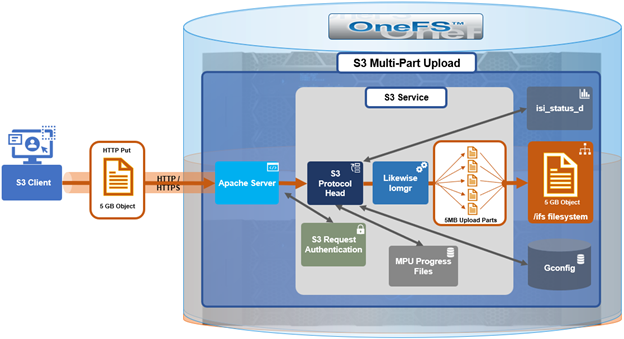
Under the hood, OneFS S3 MPU operates as follows:

Component Action
S3 Protocol Head S3 Protocol Head processes requests from S3 clients.
Likewise Iomgr Likewise Iomgr provides IO APIs.
FS Layer File system layer performs IO requests from upper layers.
Gconfig Gconfig is in charge of storing user configuration parameters.
Other The other components are mainly responsible for processing the two requests from S3 clients.

When an S3 multipart upload is initiated, OneFS creates a hidden ‘dot’ directory to store uploaded parts. The naming convention for this hidden directory is as follows:

.isi_s3_parts_<uploadId>

The hidden directory is placed under the bucket’s backing directory within the /ifs filesystem. For example:

# ls -lh .isi_s3_parts_1_1000000038001_1
total 276961
-rwx------ +   1 root  wheel   595M May 29 07:20 #31214989
-rwx------ +   1 root  wheel   1.0G May 29 07:27 #52428800
-rwx------ +   1 root  wheel     0B May 29 07:15 .1
-rwx------ +   1 root  wheel     0B May 29 07:27 .2
-rwx------ +   1 root  wheel     0B May 29 07:20 .3
-rwx------ +   1 root  wheel    50M May 29 07:37 1

Each uploaded part is saved as an individual ‘dot’ file within this directory and is keyed by its part number. During UploadPart or UploadPartCopy, the part is written to .isi_s3_parts_<uploadId>, associated with its part number (1–10,000), and the ‘uploadId’ returned by ‘CreateMultipartUpload’. Parts remain in this directory until the client completes the MPU, at which point they are assembled into the final object, or the MPU is aborted, which removes the part files and releases the associated space.

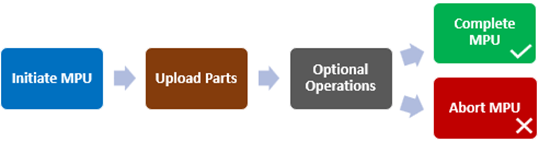
From the S3 client’s perspective, the MPU workflow operates as follows:

Action HTTP Request Details
Initiate MPU POST /bucket/object-key?uploads OneFS returns an uploadID and creates .s3_parts_<uploadId> internally.
Upload Parts PUT /bucket/object-key?partNumber=N&uploadId=<uploadId> Each part is written as a file inside the corresponding parts directory.
Optional Operations GET /bucket/object-key?uploadId=<uploadId>

GET /bucket?uploads

List part and/or List multipart uploads
Complete MPU POST /bucket/object-key?uploadId=<uploadId> The client provides an XML list of part numbers and ETags.
OneFS assembles the final object and removes the .s3_parts_<uploadId> directory and its contents.
Abort MPU DELETE /bucket/object-key?uploadId=<uploadId> OneFS deletes the stored parts and frees the associated space.

In the next article in this series, we’ll take a look at the MPU status tracking and reporting functionality that was introduced in OneFS 9.13.

PowerScale InsightIQ 6.3 Features – Part 2

In this final article in the InsightIQ 6.3 series, we’ll dig into the details of the additional functionality that debuts in this new IIQ release. This includes:

  • Support for monitoring virtual clusters deployed on AWS or Azure, allowing InsightIQ to monitor environments regardless of where the application itself is hosted.
  • Increased performance visibility for file and object workloads with support for granular protocol operations, enabling metrics to be analyzed and broken down by individual file and/or object actions to streamline troubleshooting of protocol-related issues.
  • Enhanced filtering capabilities, allowing multiple values per category, such as IP addresses, hosts, nodes, and protocols, making it easier to compare performance across multiple entities within the same time range.
  • Strengthened security and operational integration with Single Sign-On (SSO) support using SAML-based authentication through Microsoft ADFS or Azure Entra ID.
  • Direct, in-place upgrades from versions 6.1 and 6.2, simplifying the upgrade process for existing Scale and Simple deployments.

Granular Protocol Operations Breakouts

InsightIQ 6.3 introduces enhanced visibility into granular protocol-level operations through the addition of a new breakout for protocol operations. This capability is now available across all performance graphs that support operation class breakouts and includes detailed operation name breakouts for actions across both file and object, such as ‘get bucket’, ‘get object’, ‘get bucket ACL’, and related S3 operations. This is an equivalent set of operations statistics as provided by the following OneFS command:

# isi statistics pstat list --protocol s3

With this enhancement, users can navigate directly to performance graphs and select operation name breakouts to analyze workload behavior at a granular level. This enables identification of specific operations contributing to elevated latency or bandwidth consumption, as well as determining which operations occur most frequently. Such insights can inform operational decisions, including selectively throttling specific operations at the PowerScale layer when required.

Previously, supported graphs provided protocol-level and operation class-level breakouts. InsightIQ 6.3 extends this functionality by adding operation name-level (Op Name) visibility, allowing users to see the exact operations being executed while maintaining consistency with existing views.
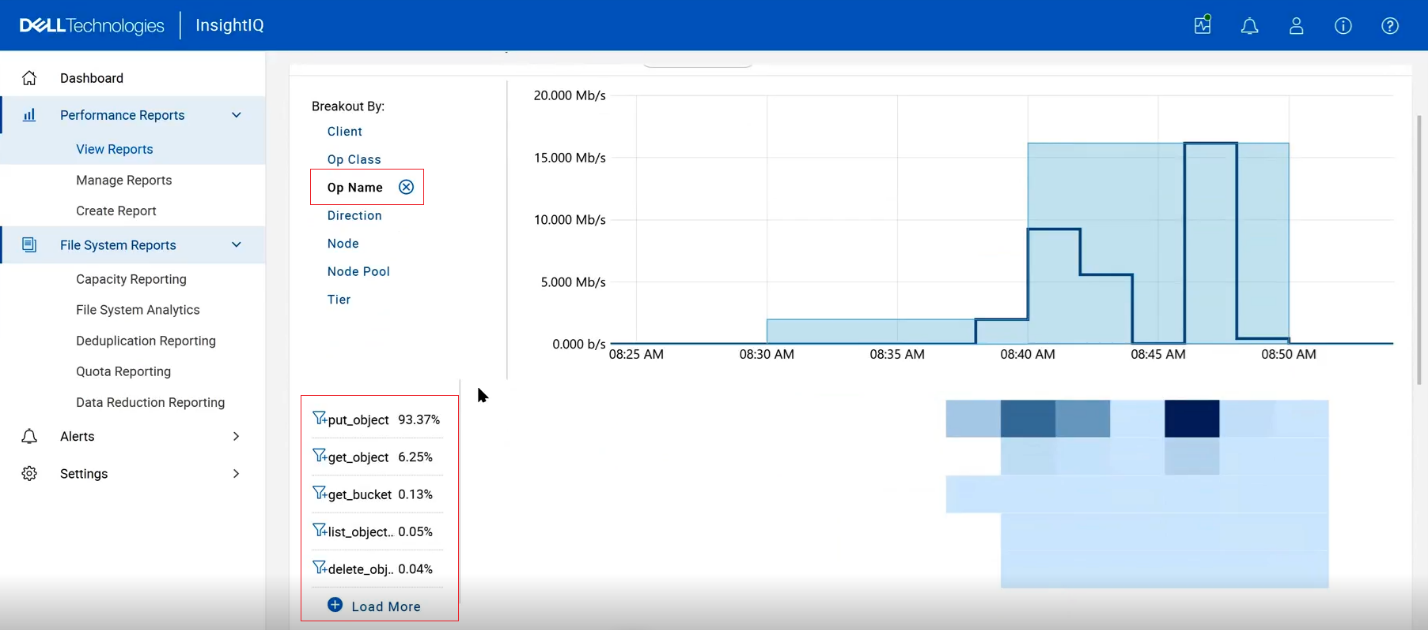
These operation name breakouts are also supported within cluster performance reports, enabling the same level of analysis in both interactive graphs and generated reports.

In addition, InsightIQ alerts can also now be configured using operation name (OP Name) filters with IIQ 6.3.
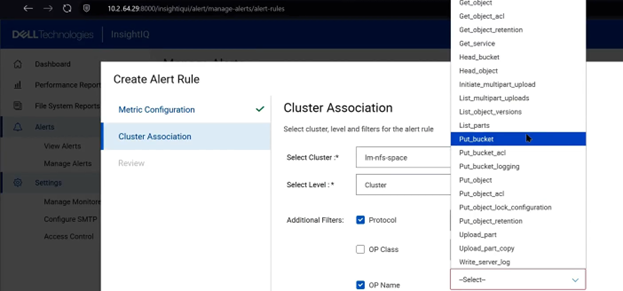
When defining alert rules, users may apply filters based on protocol, operation class, or specific operation names. For example, if an environment experiences a high frequency of access to a particular bucket or object, an alert can be configured specifically for the ‘get bucket’ operation to proactively notify administrators of anomalous or excessive activity.

This added granularity provides customers with significantly improved transparency into storage workloads. By exposing detailed operational metrics, including frequency, latency, and bandwidth consumption, cluster admins can more effectively identify performance bottlenecks, understand the root causes of slowdowns, and correlate workload behavior to observed performance impacts within the PowerScale cluster.

Operation names function as a subset of operation classes, which themselves are a subset of protocol performance data. This hierarchical relationship allows users to combine filters and breakouts to progressively refine analysis. For example, to analyze NFS workloads, a user may apply an NFS protocol filter and review operation class breakouts to determine whether read or write operations dominate performance time. Each operation class can then be further decomposed into individual operation names—such as specific read or object access operations—to gain deeper insight into workload behavior.

By combining protocol filters, operation class breakouts, and operation name breakouts, users can construct a highly detailed performance view that pinpoints which operations, protocols, or workload patterns contribute most significantly to latency or resource utilization.

As with existing protocol and operation class breakouts, operation name filters cannot be used in conjunction with interface-level filters. Additionally, operation name filtering is not supported with client-level filters due to limitations in OneFS telemetry data. Consequently, the system cannot report which specific client is responsible for a given operation, such as identifying which client initiated a particular ‘get object’ request.

The data presented through InsightIQ aligns with existing PowerScale CLI capabilities, such as output from the ‘isi statistics pstat list –protocol <protocol>’ command. However, while the CLI provides operation rates, InsightIQ extends this by presenting operation rates alongside bandwidth and latency metrics within a unified visualization. This delivers a more comprehensive and actionable view of protocol-level performance than was previously available through CLI data alone.

Multi-Value Breakouts

InsightIQ 6.3 introduces support for multi‑value selection within a single filter, enabling users to analyze multiple data sources simultaneously within a unified view. This enhancement allows multi‑line visualizations and aggregated insights to be presented together, simplifying side‑by‑side comparisons without requiring users to switch between views.
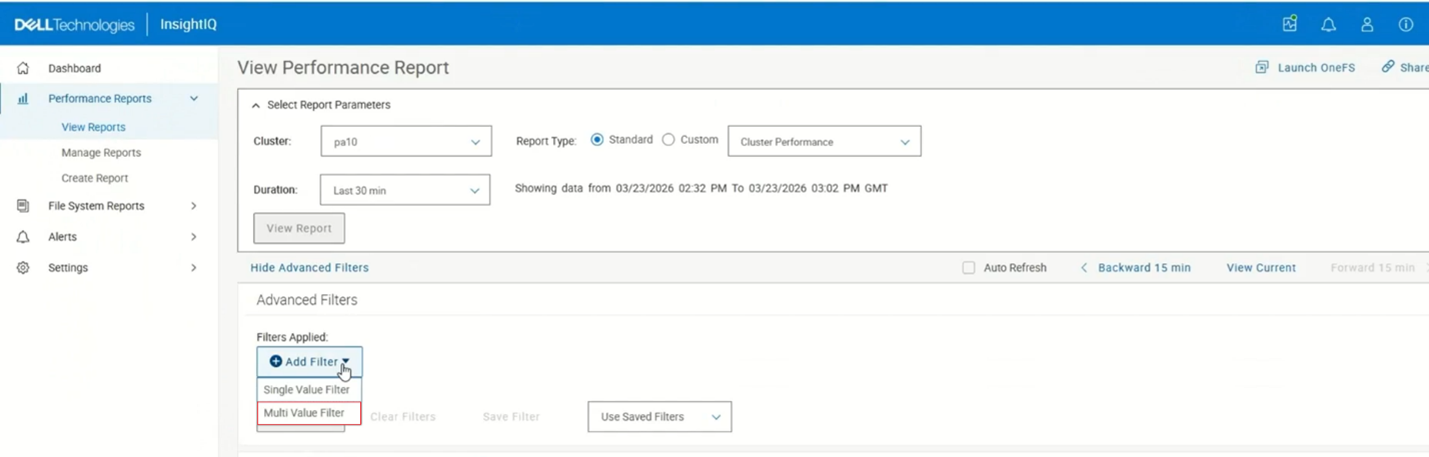
Multi‑value filter selection is supported for the following filter types: protocol, client node, node pool, and tier. For example:
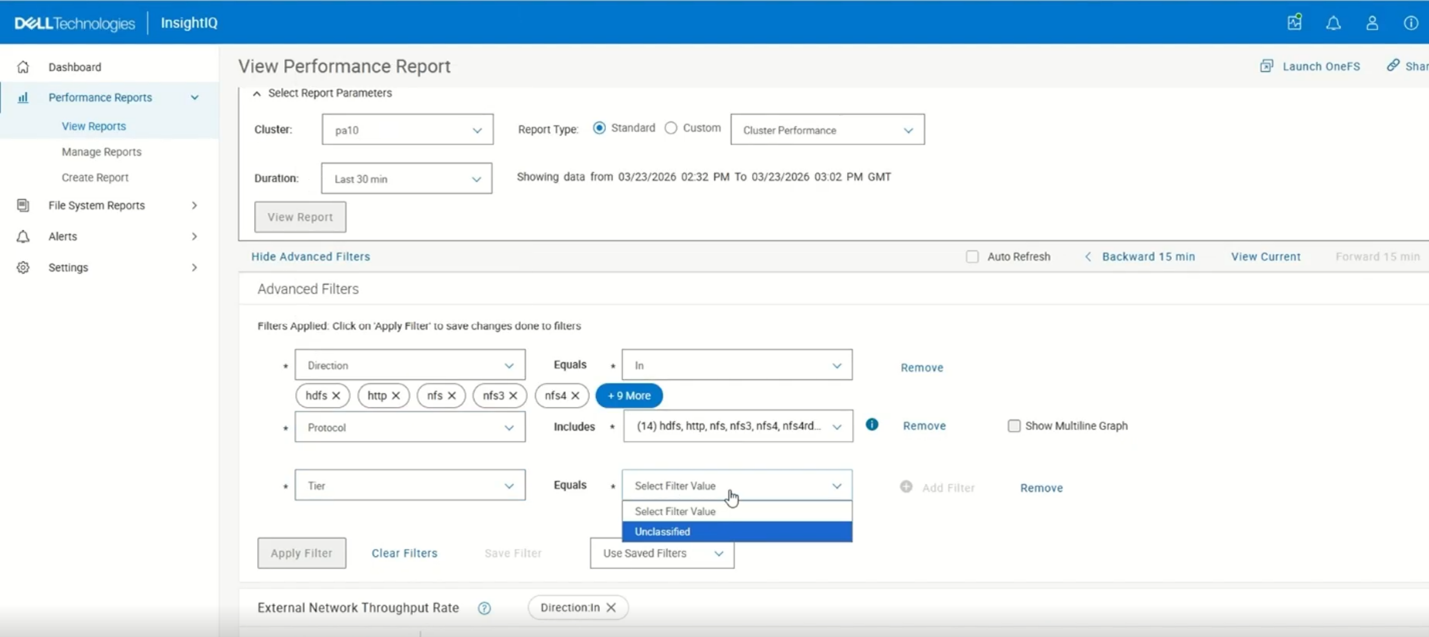
When multi‑value filtering is enabled, the ‘Breakout By’ option is automatically disabled, and the heat map view is hidden. Both features are restored when the user switches back to single‑value filter mode.

In table‑based reports, column‑level filter icons are also hidden while multi‑value filtering is active and reappear when the user reverts to single‑value selection. Download functionality supports both aggregated and multi‑value data, ensuring consistency between the UI and exported results.

When selecting multiple filter values, InsightIQ displays up to five selection ‘pills’, followed by a ‘More’ option. Selecting ‘More’ opens a pop‑up displaying all selected values, where individual entries can be removed using the corresponding remove icon. If more than five values are selected, the ‘Show Multiline Graph’ option becomes unavailable, as this feature supports only two to five filter values. Additionally, InsightIQ enforces a constraint allowing multi‑value selection on only one filter at a time; other filters must remain single‑select.

Once the filter is applied in an aggregated view, the chart presents combined metrics on a single line, with the ‘Breakout By’ option disabled and the heat map hidden.
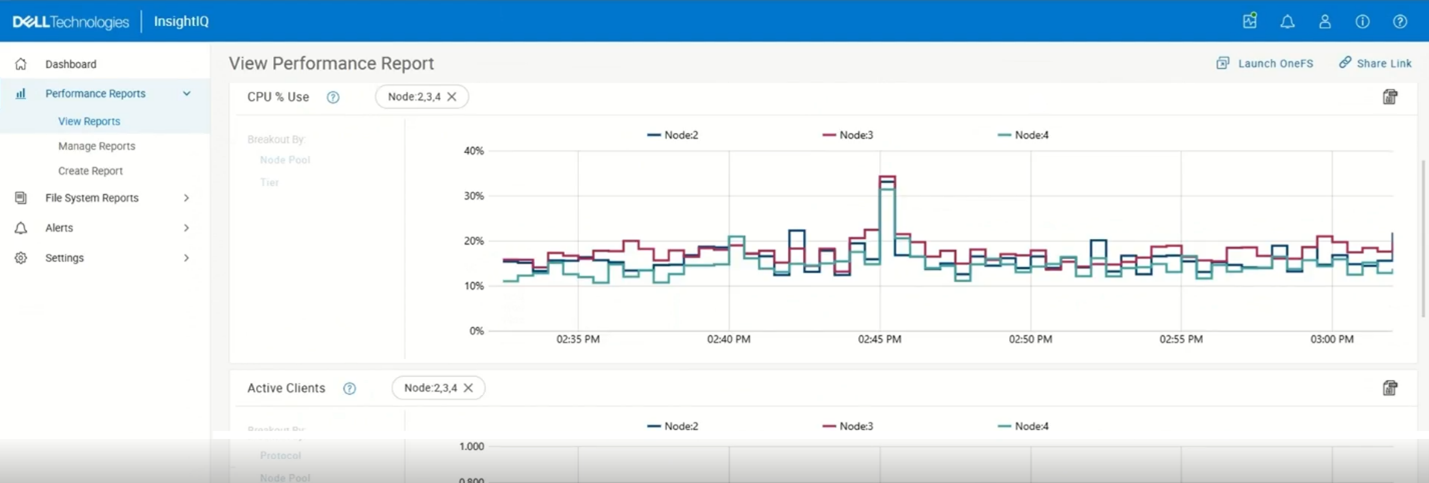
When exporting data from this aggregated view, the resulting CSV includes a column representing the aggregate of the selected filter values, ensuring alignment between the displayed visualization and exported data.

In the multi‑line scenario, users may select between two and five values (eg. multiple nodes) and enable the ‘Show Multiline Graph’ option. The resulting visualization renders a separate line for each selected value. In this mode, while the multi‑line display is preserved in the chart, the ‘Show Multiline Graph’ setting is not retained when saving filters or exporting CSV data. The exported file contains separate columns for each selected filter value, including corresponding minimum and maximum metrics, facilitating side‑by‑side comparison and offline analysis.

When viewing reports that include tabular data, such as the ‘Client Performance’ report, column‑level filter controls for attributes like address, node, and node protocol are hidden while multi‑value filtering is active. These controls are restored once the multi‑value filter is removed, allowing single‑value filtering directly from the table.

In reports where the selected filter is already part of the ‘Breakout By’ configuration (such as ‘Filesystem Cache Performance’) attempting to apply multi‑value filtering results in a notification indicating that the graph does not support this mode. This behavior is expected, as these visualizations already present multi‑line data. However, if multi‑value filtering is applied to a filter that is not used in the breakout configuration, the multi‑line chart remains available, and functions as expected.

In summary, InsightIQ 6.3 preserves the existing behavior for single‑value filtering while introducing multi‑value filtering capabilities that support both aggregated analysis and multi‑line comparisons. These enhancements provide increased analytical flexibility while maintaining consistent behavior across visualizations, reports, and exported data.

Virtual Cluster Support

InsightIQ 6.3 introduces support for monitoring virtual OneFS clusters deployed on public cloud platforms such as AWS and Azure. Historically, InsightIQ monitoring capabilities have been focused on physical PowerScale clusters. However, with the increasing adoption of cloud‑hosted virtual OneFS deployments, extending InsightIQ support to these environments has become essential.

Virtual OneFS clusters differ from physical PowerScale clusters primarily in their licensing model. While PowerScale clusters require feature‑specific licenses—such as SmartQuotas, SmartDedupe, or SmartLock—virtual OneFS clusters rely solely on a OneFS capacity license. This capacity license enables all supported OneFS features without the need for additional feature‑specific licenses.

In a physical PowerScale cluster, licensing information typically reflects multiple dynamically applied, feature‑specific licenses. By contrast, virtual OneFS clusters hosted in AWS or Azure display only the OneFS capacity license, which implicitly covers all supported features. InsightIQ 6.3 now fully understands and accounts for these licensing differences, ensuring accurate license interpretation, proper cluster type detection, and correct enablement of feature‑dependent reporting for cloud‑hosted virtual OneFS clusters.

As a result, InsightIQ now provides expanded monitoring support for customers deploying virtual OneFS clusters in public cloud environments. This enhancement ensures parity in monitoring functionality between on‑premises PowerScale clusters and cloud‑hosted virtual clusters.

Physical OneFS cluster Virtual AWS/Azure based OneFS clusters
•       Feature specific dynamic licensing (SmartQuotas, SmartDedupe etc). •       OneFS Capacity license only

•       No separate feature licenses

To illustrate this capability, consider a comparison of two clusters added to an InsightIQ instance. The first cluster is a standard physical PowerScale deployment. Cluster metadata obtained through CLI commands indicates that it comprises three nodes and is identified as a non‑virtual cluster. Examination of the license information shows multiple feature‑specific licenses, including SmartQuotas, SmartDedupe, and SmartLock. Certain InsightIQ reports—such as quota‑related reports—require a valid feature license to be enabled. In this case, the SmartQuotas license is active, allowing quota reports to be displayed.

The second cluster is a virtual OneFS deployment hosted in the cloud. Cluster metadata identifies it as a virtual cluster consisting of four nodes. License information for this cluster shows only the OneFS capacity license. Despite the absence of individual feature licenses, the capacity license enables full access to all supported OneFS capabilities.

Both clusters can be added to InsightIQ using the same workflow, including credential configuration and cluster registration. Once added, InsightIQ correctly interprets the licensing model for each cluster type. For example, when viewing quota reports, InsightIQ displays the reports for the physical PowerScale cluster based on the presence of a valid SmartQuotas license. When switching to the virtual OneFS cluster, the same quota reports remain available, as the OneFS capacity license inherently enables this functionality.

With this enhancement, InsightIQ 6.3 ensures that reporting behavior remains consistent across physical and virtual deployments, regardless of underlying licensing differences. This capability significantly expands InsightIQ’s monitoring coverage, enabling comprehensive observability for both on‑premises PowerScale clusters and cloud‑hosted virtual OneFS clusters running on AWS or Azure.

SSO Support

InsightIQ 6.3 introduces support for Microsoft Active Directory Federation Services (ADFS) as a new identity provider, enabling Single Sign-On (SSO) for centralized authentication and simplified access management.

In this SSO architecture, InsightIQ functions as a Service Provider (SP) and is provisioned with the required identity claims during deployment. The platform supports full lifecycle management of identity providers, allowing administrators to create, update, delete, and retrieve IdP configurations, upload ADFS federation metadata, perform test connections to validate the integration, and enable or disable the IdP through the access control interface. InsightIQ maintains a consolidated view of all provisioned identity providers along with their operational status. When at least one identity provider is enabled, an SSO login option is automatically displayed on the InsightIQ home page.
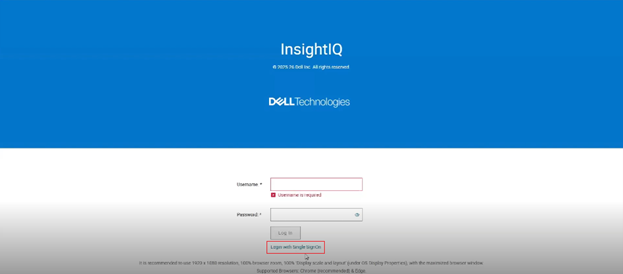
The Launch OneFS workflow has been enhanced to support SSO-based access. When a user authenticates to InsightIQ using SSO and the same SSO configuration is present on the target PowerScale cluster, selecting the ‘Launch OneFS’ option opens the PowerScale dashboard directly without additional authentication prompts.
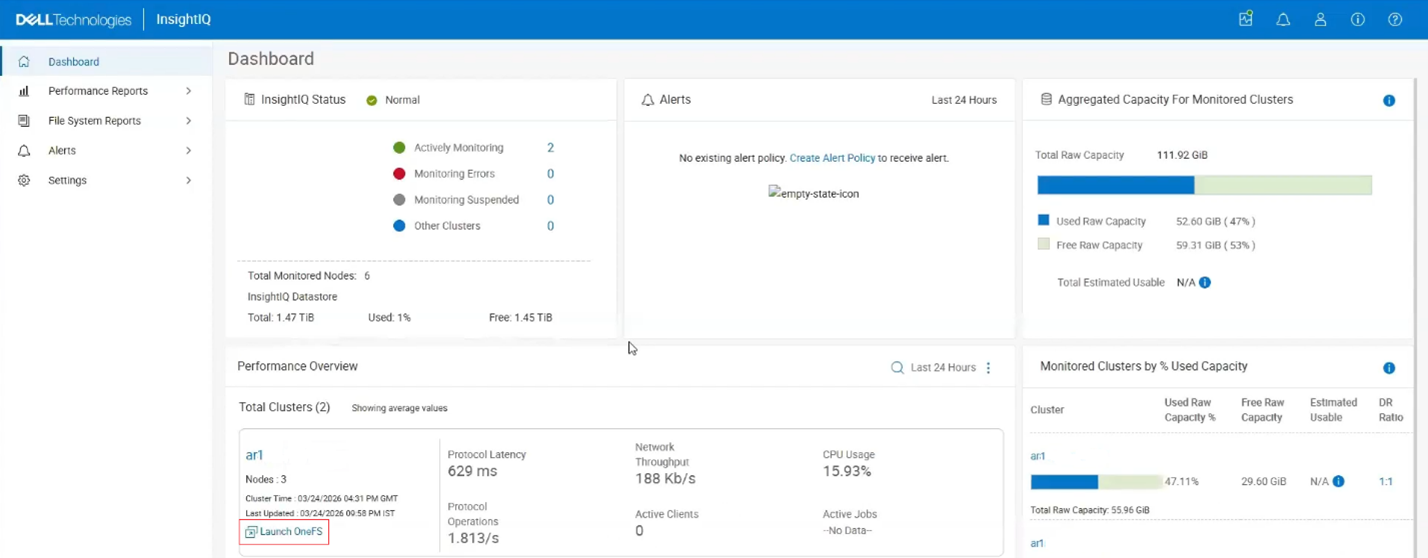
If SSO is not configured on the target cluster, the user is redirected to the PowerScale login page. This behavior change applies only to SSO-based authentication and does not affect existing local, Active Directory, or LDAP login mechanisms.

InsightIQ access control remains group-based and relies on Active Directory group membership. Active Directory administrators are responsible for assigning users from the same or trusted forests to the appropriate groups to grant InsightIQ access. The ADFS administrator must configure the identity provider to integrate correctly with an internal or external LDAP or Active Directory server so that accurate group membership information can be included in authentication claims and passed to InsightIQ for authorization decisions.
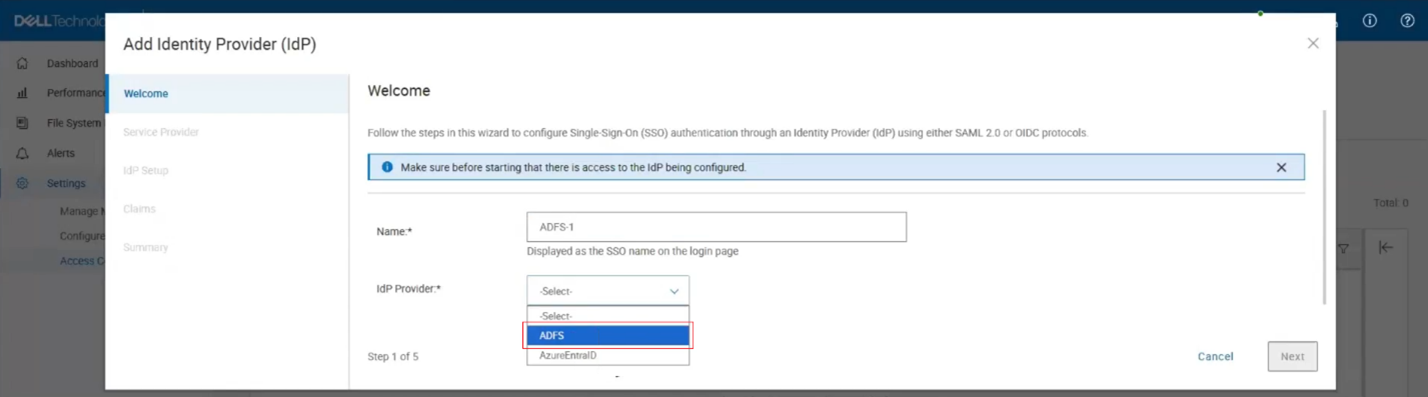
Several prerequisites must be met to enable SSO with ADFS in InsightIQ 6.3. InsightIQ version 6.3 must be installed on a supported Simple or Scale system, and the End User License Agreement must be accepted. An LDAP or Active Directory authentication provider must be configured and enabled in InsightIQ with appropriate group and role mappings defined. Windows Active Directory and DNS infrastructure must be properly configured and operational. Additionally, ADFS must be configured and synchronized with the same LDAP or Active Directory service used by InsightIQ to ensure consistent user and group resolution. Any mismatch in directory configuration between InsightIQ and ADFS can result in SSO authentication failures.

Single Sign-On (SSO) support using Azure EntraID is also added in InsightIQ 6.3 as a new identity provider option, enabling centralized authentication and streamlined access management in PowerScale for Azure Cloud deployments.
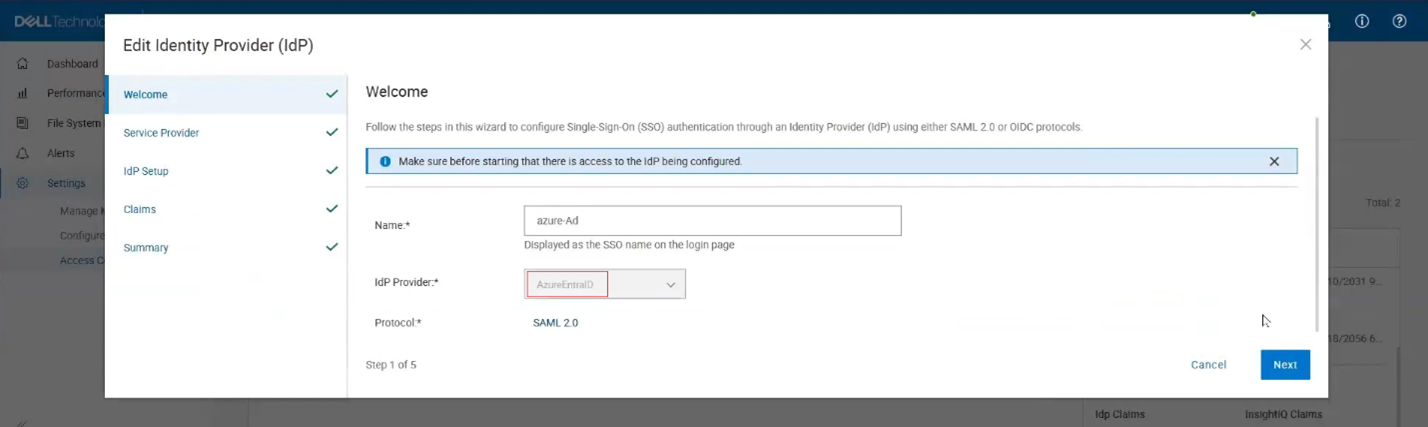
In this configuration, InsightIQ functions as a Service Provider (SP) and is provisioned with the required identity claims during deployment. The platform supports full lifecycle management of identity provider configurations, allowing administrators to create, update, delete, and retrieve IdP definitions, upload Azure EntraID federation metadata, and validate the integration through test connections. Identity providers can be enabled or disabled through the access control interface, and InsightIQ displays all provisioned IdPs along with their current status. When at least one identity provider is enabled, an SSO login option is automatically displayed on the InsightIQ home page. As part of this release, Azure EntraID is available as a newly introduced IdP type during identity provider configuration.

Several prerequisites must be satisfied to enable SSO integration with Azure EntraID. InsightIQ version 6.3 must be installed on a supported Simple or Scale system, and the End User License Agreement must be accepted. An LDAP or Active Directory authentication provider must be configured and enabled in InsightIQ, with appropriate group and role mappings defined. Windows Active Directory and DNS infrastructure must be properly configured and operational. Additionally, Azure EntraID must be configured and synchronized with the same LDAP or Active Directory service that is configured in InsightIQ to ensure accurate user and group synchronization for authentication and authorization.

Partitioned Performance Alignment

InsightIQ has aligned its partition-level performance aggregation logic with PowerScale’s native workload summary calculations. Previously, certain performance graphs in InsightIQ displayed values derived using methods that differed from those used by OneFS CLI tools or the native PowerScale UI, which could result in discrepancies when customers compared InsightIQ metrics with cluster-reported values.

With this update, non-latency metrics, such as IOPS, throughput, CPU reads, and CPU writes, are now computed using the same methodology as OneFS. As a result, InsightIQ metrics closely match those reported directly by the cluster. Latency metrics were already consistent with PowerScale calculations and remain unchanged.

Additionally, a naming update has been introduced in InsightIQ 6.3 to improve clarity. The ‘Workload IOPS’ graph has been renamed to ‘Workload IO Operations’ to more accurately reflect the data represented by the visualization. This change is limited to labeling and does not affect underlying functionality or calculations.

From a support perspective, this enhancement directly addresses previous customer reports regarding inconsistencies between InsightIQ metrics and PowerScale cluster statistics. With the updated aggregation logic, InsightIQ graphs should now closely align with native PowerScale reporting, reducing confusion and improving confidence in performance analysis.

So, in summary, InsightIQ 6.3 offers the following attributes and functionality:

Function Attribute Description
Scope Monitoring scope Up to 20 clusters and 504 nodes
Ecosystem OS support RHEL 8.10, RHEL 9.4, RHEL 10.0, and SLES 15 SP4
Platform Resources Reduced CPUs, memory and disk requirement
    Scale option requires just one node
  Size Smaller package size: OVA package < 5GB
Install and upgrade Installation Installation time:  < 12 mins
  Migration Direct migration from 4.x
    Online migration from InsightIQ 6.3 Simple (OVA) to InsightIQ 6.3 Scale
Resilience Data collection Resilient data collection – no data loss
OS Support Simple ecosystem support InsightIQ Simple 6.3 can be deployed on the following platforms:

·         VMware virtual machine running ESXi version 8.0U3 or 9.0.1.

·         VMware Workstation 17 (free version) InsightIQ Simple 6.3 can monitor PowerScale clusters running OneFS versions 9.7 through 9.14.

·         OpenStack RHOSP 21 with RHEL 9.6

  Scale ecosystem support InsightIQ Scale 6.3 can be deployed on Red Hat Enterprise Linux versions 8.10 or 9.4 (English language versions) and SUSE Enterprise Linux (SLES) 15 SP4. InsightIQ Scale 6.3 can monitor PowerScale clusters running OneFS versions 9.7 through 9.14.
Upgrade In-place upgrade from InsightIQ 5.1.x to 6.x The upgrade script supports in-place upgrades from InsightIQ 5.1.x to 6.x.
Reporting Maximum and minimum ranges on all reports All live Performance Reports display a light blue zone that indicates the range of values for a metric within the sample length. The light blue zone is shown regardless of whether any filter is applied. With this enhancement, users can observe trends in values on filtered graphs.
  Graphing and report visualization Reports are designed to maximize the number of graphs that can appear on each page.

·         Excess white space is eliminated.

·         The report parameters section collapses when the report is run. The user can expand it manually.

·         Graph heights are decreased when possible.

·         Page scrolling occurs while the collapsed parameters section remains fixed at the top.

User interface What’s New dialog All InsightIQ users can view a brief introduction to new functionality in the latest release of InsightIQ. Access the dialog from the banner area of the InsightIQ web application. Click About > What’s New.
  Compact cluster performance view on the Dashboard The IIQ dashboard provides:

·         Summary information for six clusters appears in the initial dashboard view. A sectional scrollbar controls the view for additional clusters.

·         The capacity section has its own scrollbar.

·         The navigation side bar is collapsible into space-saving icons. Use the << icon at the bottom of the side bar to collapse it.

PowerScale InsightIQ 6.3 Features

In this second article in the InsightIQ 6.3 series, we’ll dig into the details of the additional functionality that debuts in this new IIQ release.

When upgrading to the new InsightIQ 6.3 release, the process is largely consistent with previous upgrades, such as InsightIQ 6.2.

The specific deployment options and hardware requirements for installing and running InsightIQ 6.x are as follows:

Attribute InsightIQ 6.3 Simple InsightIQ 6.3 Scale
Scalability Up to 10 clusters or 252 nodes Up to 20 clusters or 504 nodes
Deployment On VMware, using OVA template RHEL, SLES, or Ubuntu with deployment script
Hardware requirements VMware v15 or higher:

·         CPU: 8 vCPU

·         Memory: 16GB

·         Storage: 1.5TB (thin provisioned);

Or 500GB on NFS server datastore

Up to 10 clusters and 252 nodes:

·         CPU: 8 vCPU or Cores

·         Memory: 16GB

·         Storage: 500GB

Up to 20 clusters and 504 nodes:

·         CPU: 12 vCPU or Cores

·         Memory: 32GB

·         Storage: 1TB

Networking requirements 1 static IP on the PowerScale cluster’s subnet 1 static IP on the PowerScale cluster’s subnet

To initiate the upgrade to 6.3, the system must be running an InsightIQ 6.1 or 6.2 Scale or Simple deployment, plus a minimum of 40 GB of available disk space is required.

Once these prerequisites are satisfied, the upgrade process begins by extracting the InsightIQ 6.3 installer package, followed by extraction of the upgrade bundle. The upgrade is then initiated by executing the ‘upgrade-iiq.sh’ script.

Upgrade progress can be monitored using the appropriate status commands to view upgrade locks and overall status. For more detailed information, including lock details and intermediate steps, administrators can review the InsightIQ_upgrade.log file.

The InsightIQ upgrade workflow consists of five distinct stages:

During the pre-check stage, the installer verifies the availability of required Docker commands, validates the existing InsightIQ version, checks for sufficient disk space, confirms that all InsightIQ services are running, and ensures operating system compatibility.

In the pre-upgrade stage, the installer verifies acceptance of the EULA and extracts the required InsightIQ images. The currently running InsightIQ services are then stopped, necessary directories are created, and optional containers are updated as needed.

The upgrade stage includes updating resource limits, upgrading add-on services, installing the CIM component, and upgrading the remaining InsightIQ services. The EULA is updated, followed by a final health check to confirm that all InsightIQ services are running correctly.

During the post-upgrade stage, additional steps are performed depending on the source version. For systems upgrading from InsightIQ 6.1, the Docker network is upgraded, and InsightIQ metadata is then updated.

Finally, the cleanup stage replaces outdated scripts, removes obsolete Docker images, and deletes temporary upgrade and backup directories to complete the upgrade process.

Phase Details
Pre-check •       Docker command

•        InsightIQ version check 6.1.0 or 6.2.0

•       Free disk space

•       InsightIQ services status

•       OS compatibility

Pre-upgrade •       EULA accepted

•       Extract the IIQ images

•       Stop IIQ

•       Create necessary directories

•       Update optional containers

Upgrade •       Update resource limit

•       Upgrade addons services

•       Upgrade IIQ services

•       Upgrade EULA

•       Status Check

Post-upgrade •       Update network (if 6.1.0)

•       Update IIQ metadata

Cleanup •       Replace scripts

•       Remove old docker images

•       Remove upgrade and backup folders

Specific steps in the upgrade process are as follows:

  • Download and uncompress the bundle:
# tar xvf iiq-install-6.3.0.tar.gz
  • From within the InsightIQ directory, un-tar the upgrade scripts as follows:
# cd InsightIQ

# tar xvf upgrade.tar.gz
  • Enter the resulting ‘upgrade’ directory which contains the scripts:
# cd upgrade/
  • Initiate the IIQ upgrade. Note that the usage is same for both the Simple and Scale InsightIQ deployments.
# ./upgrade-iiq.sh -m <admin_email>

Upon successful upgrade completion, InsightIQ will be accessible via the primary node’s IP address.

Quick and easy upgrade progress checks include:

Check Command syntax
Check the latest 100 lines of upgrade log showupg –l or showupg –log
Check the latest 100 lines of upgrade status showupg –s or showupg –status
Check detailed logs cat /usr/share/storagemonitoring/logs/upgrade/log/insightiq_upgrade.log

AI-based Assistant

InsightIQ 6.3 introduces a new AI‑based Assistant. This intelligent, document‑aware AI companion is designed to help users quickly find answers, understand product capabilities, and troubleshoot issues related to InsightIQ and PowerScale. The assistant draws its responses from supported documentation, including InsightIQ and PowerScale documentation, release notes, and knowledge base articles.

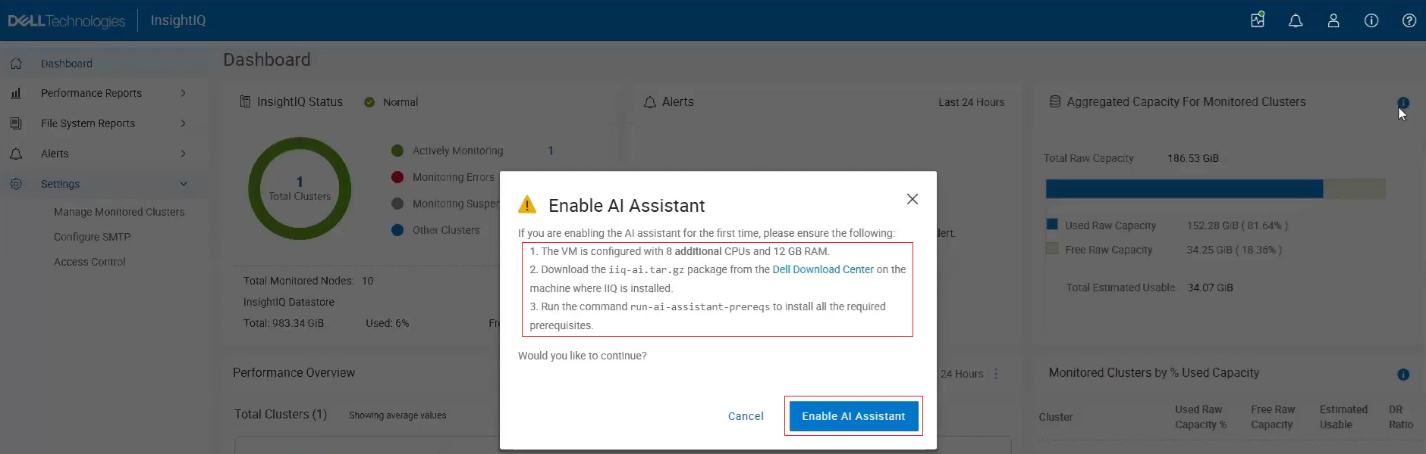
To enable the AI Assistant, several prerequisites must be met. An AI-enabled InsightIQ deployment requires an additional 8 vCPUs or cores and 12 GB of RAM above the general IIQ 6.3 spec, and a separate AI Assistant package must also be installed, which is available in the Download Center and is distinct from the standard InsightIQ Scale and Simple packages.

Note that this feature is not available in the Greater China region due to legal and regulatory restrictions, as it relies on AI models that are not permitted in that geography. Consequently, the option to enable the AI Assistant will not appear if the system is configured for the China region.

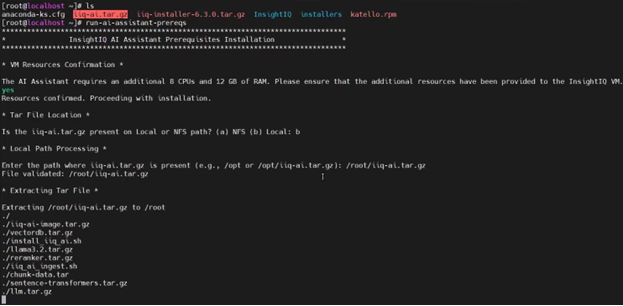
To activate the AI Assistant, users must first download the AI Assistant tar package (iiq-ai.tar.gz) from the Download Center and run the AI Assistant prerequisite command to install all required dependencies.

Note that the IIQ server resources must be updated to include the additional CPU and memory requirements as described above, after which the AI Assistant option can be enabled.

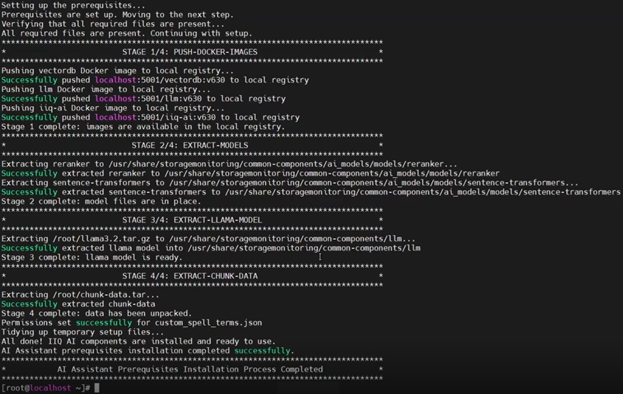
The AI assistance prerequisite installation script ‘run-ai-assistant-prereqs’ comprises four main stages:

Stage Description Location
1 Push docker images ·         Local registry
2 Extract models ·         /usr/share/storagemonitoring/common-components/ai_models/models/reranker

·         /usr/share/storagemonitoring/common-components/ai_models/models/sentence-transformer

3 Extract Llama model ·         /usr/share/storagemonitoring/common-components/llm
4 Extract chunk data ·         /usr/share/storagemonitoring/common-components/custom_spell_terms.json

For example:

IIQ validates that all prerequisites are satisfied before launching the required containers and their respective services, including the Large Language Model (LLM), the vector database, and the InsightIQ AI Assistant controller. Once these services are running, the chatbot becomes available for use.

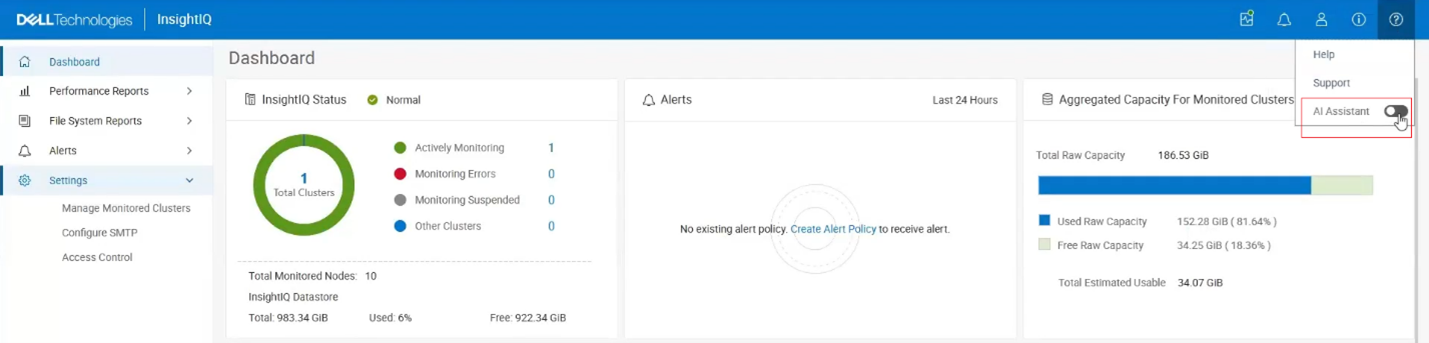
Next, the AI Assistant can be enabled from the InsightIQ masthead as follows:

The following popup window is displayed, reiterating the prerequisites and prompting to ‘Enable AI Assistant’:

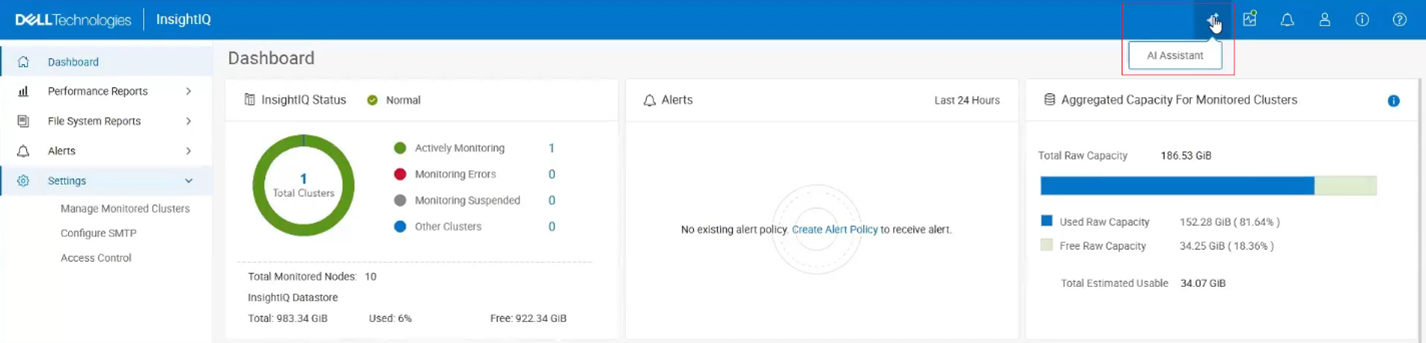
At this point, assuming the prerequisites have been met, an AI Assistant button is added to the UI masthead:

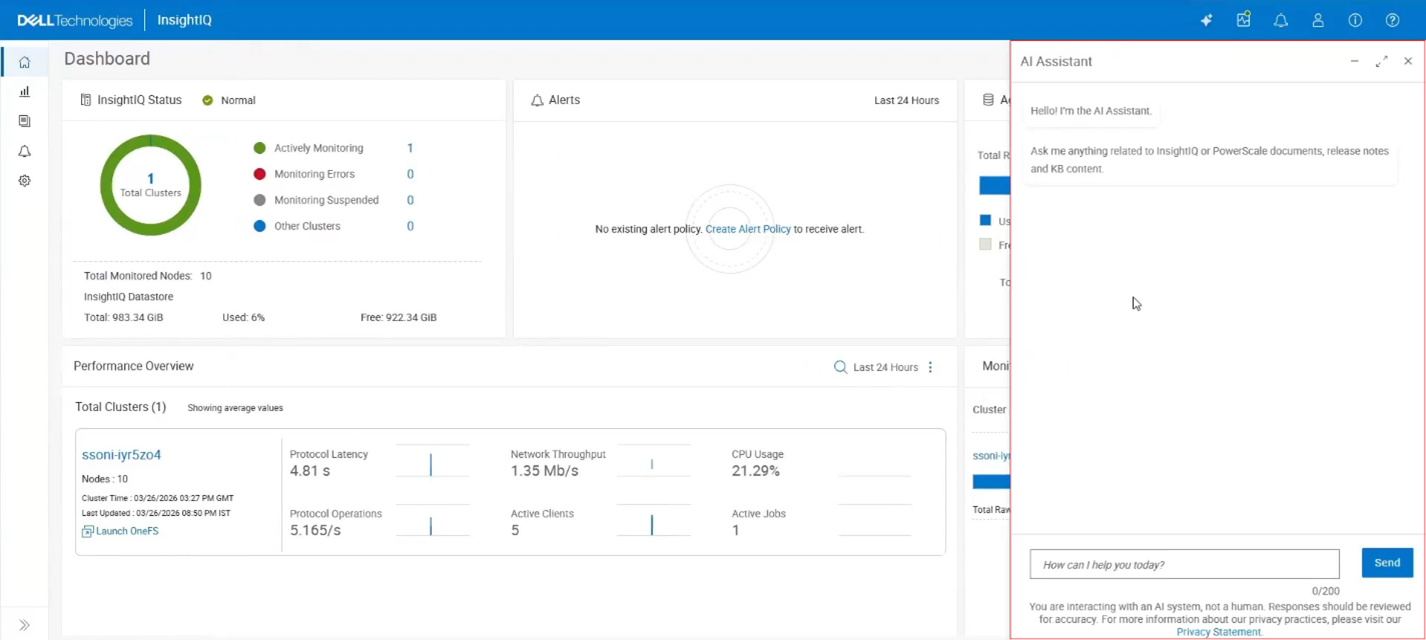
Clicking this button opens the AI Assistant chat window with a ‘How can I help you today?’ prompt:

A warning is displayed noting “You are interacting with an AI system, not a human. Responses should be reviewed for accuracy.” A link is provided for more information on Dell’s Privacy Statement too.

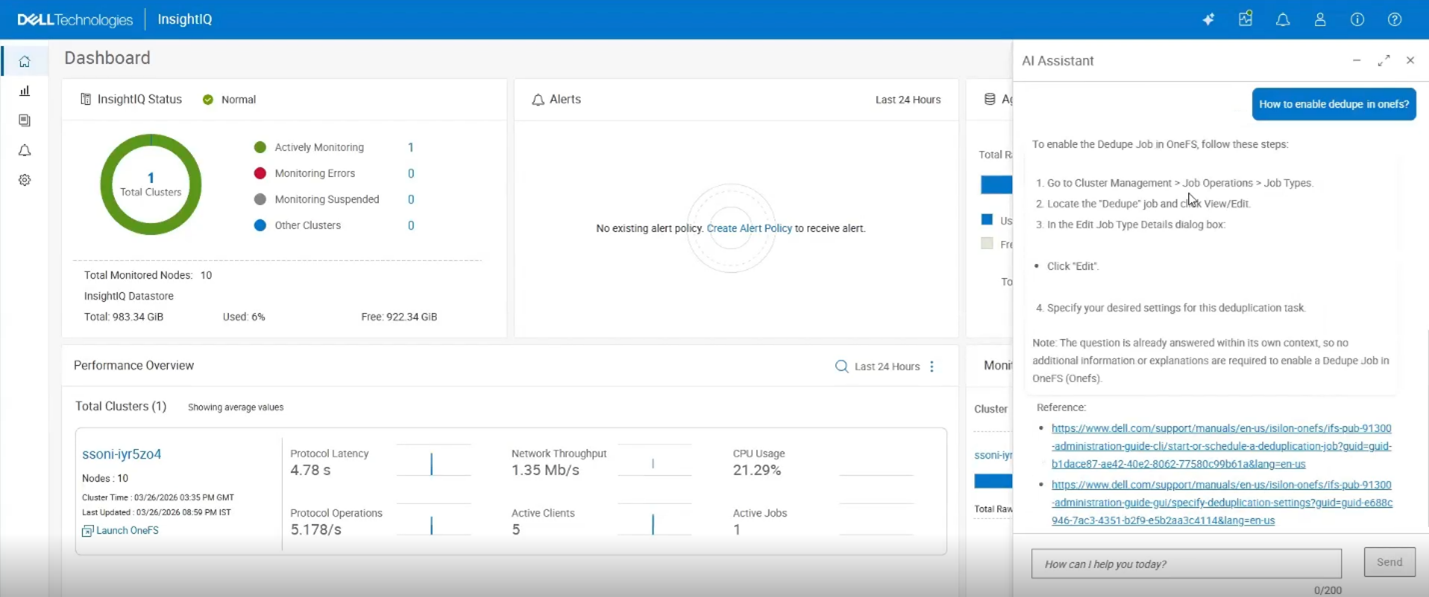
At this point, natural language questions can be entered into the text box. For example, “how to enable dedupe in OneFS?”:

Upon clicking ‘Send’, the AI system parses the instruction and provides its best response, in this case by providing a four-step procedure for enabling OneFS deduplication, plus supporting documentation references and links.

In the next article in the InsightIQ 6.3 series, we’ll focus on the additional functionality that debuts in this new IIQ release, including:

  • Support for monitoring virtual clusters deployed on AWS or Azure.
  • Increased performance visibility for file and object workloads.
  • Enhanced filtering capabilities with multiple values per category.
  • Single Sign-On (SSO) support via Microsoft ADFS or Azure Entra ID.
  • Direct, in-place upgrades from versions 6.1 and 6.2.