The OneFS Health Check Framework (HCF) has long provided a proactive way to monitor cluster health and surface potential issues before they affect data availability or performance. Behind the scenes, the framework periodically checks Dell’s Connectivity Hub portal for updated health check definition packages and repair action patches that have been assigned to the cluster, and when newer versions are found, automatically downloads and installs them without requiring any administrator involvement. For enterprise PowerScale environments in particular, this helps reduces maintenance overhead across large or geographically distributed deployments.
That said, the convenience of automatic updates is not universally applicable. Customers operating in regulated industries, high-security environments, or organizations with formal change management processes have consistently asked for the ability to control when and whether software components on their clusters are updated automatically. For these environments, having a patch silently installed — even a health check definition — can conflict with internal approval workflows, audit requirements, or network policies that restrict outbound connections to external systems. OneFS 9.14 addresses this directly with the introduction of independent controls for automatic download of health check definitions and repair action patches, giving administrators the ability to enable or disable each subsystem’s auto-update behavior without disabling the Health Check Framework itself.
Before looking at the new controls, it helps to understand the existing auto-update flow.
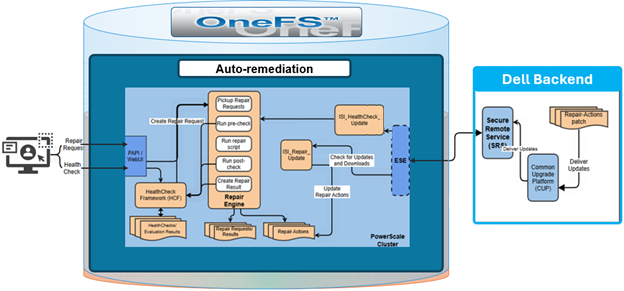
When Dell releases an updated health check definition package or a new repair action patch, it is made available through the Connectivity Hub portal and can be assigned to specific clusters. Once assigned, the cluster’s auto-update scripts, ‘isi_healthcheck_update’ for health check definitions and ‘isi_repair_update’ for repair actions, detect the new version on their next scheduled execution and proceed to download and install the update.
These scripts are the enforcement point for the new configuration, via gconfig control parameters, that the update scripts consult before taking any action. If auto-update is disabled for a given component when the script runs, the script exits cleanly without downloading or installing anything, even if a newer version has been assigned through the portal. This behavior is consistent whether the scripts are triggered by a scheduled job or invoked manually, so there are no edge cases where a manually triggered update bypasses the administrator’s preference.
The new configuration controls follow the same layered architecture used throughout OneFS for platform settings. Both the webUI and the CLI leverage the underlying platform API, which route requests to the Health Check Auto Update Handler and the Repair Settings Handler. Each handler exposes a PUT API endpoint that writes the relevant configuration values into the gconfig tree under the healthcheck and repair subtrees respectively. The update scripts then read these values at runtime to determine whether to proceed with the download and install.
This architecture means there is no change to how assignments are managed through the Connectivity Hub, and no change to how the scripts themselves are scheduled. The only difference in behavior is gated entirely by the gconfig values that the new API surfaces expose.
The new HCF functionality introduces independent controls for two distinct subsystems:
| Subsystem | Details |
| Health Check Definitions | The check packages that define what the HCF tests on the cluster. Auto-update for health check definitions is enabled by default, meaning clusters running OneFS 9.14 or later will continue to receive updated check packages automatically unless this setting is explicitly disabled.
|
| Repair Actions | Automated remediation procedures that can be applied when a health check identifies a problem. The repair service itself is disabled by default in OneFS, and its auto-update setting is also disabled by default. Both must be explicitly configured before any repair-related automatic updates will occur.
|
The separation between these two controls is intentional, allowing a cluster admin who wishes the cluster to always run the latest health checks, while maintaining tighter control over automated remediation, to leave health check auto-update enabled and keep repair auto-update disabled. Alternatively, an environment that prefers to fully lock down all automatic software changes can disable both.
Within the OneFS 9.14 WebUI, the new settings appear under Cluster management > HealthCheck > Settings as two separate checkboxes:
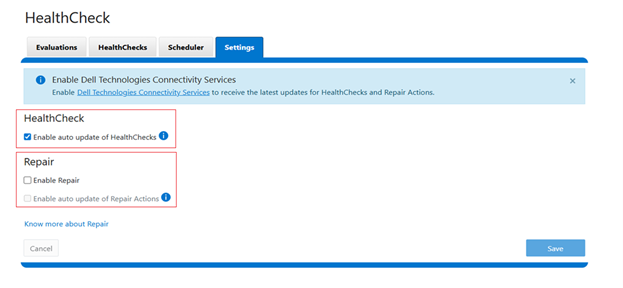
- Auto update for health checks— enabled by default
- Auto update for repair actions— disabled by default
The repair actions checkbox is inactive (grayed out) until the repair service has been separately enabled. Attempting to toggle the repair auto-update setting before enabling the service generates an error indicating that auto-update settings can only be modified when the repair service is active.
These configuration options are also available from the CLI. For example, to disable automatic download of health check definitions from its default enabled state:
# isi healthcheck settings modify --enabled false
And similarly to re-enable it again:
# isi healthcheck settings modify --enabled true
For repair actions, the configuration is a two-step process. First, the repair service must be activated since it is disabled by default:
# isi repair settings modify --repair-enable true
Once the repair service is running, its auto-update behavior can be configured:
# isi repair settings modify --auto-update-enable true
Attempting to set –auto-update-enable without first enabling the repair service will fail with an error. The default value for repair auto-update is false, so simply enabling the repair service does not by itself turn on automatic patch downloads — that remains an explicit opt-in.
To check the currently installed version of repair actions on the cluster:
# isi repair settings view

   Repair Behavior: auto

    Repair Enabled: Yes

Autoupdate Enabled: No
This is useful when verifying that a manually initiated update completed successfully, or when confirming the current baseline before scheduling a maintenance window for a controlled update.
Access control and security-wise, two separate RBAC privileges govern these settings:
| Action | Privilege |
| Health check configuration | Requires the ISI_PRIV_SYS_SUPPORT privilege. |
| Repair configuration | Requires the ISI_PRIV_REPAIR privilege. |
In addition to privileges, there are cluster-state security restrictions that take precedence over the gconfig settings. As such, the automatic download functionality is suppressed entirely when the cluster is operating in any of the following elevated security or transitory states:
- Compliance mode
- Hardening mode (STIG)
- Root Lockdown Mode (RLM)
- Upgrade pre-commit
In these modes, automatic downloads are blocked regardless of the configured auto-update values, ensuring that the cluster’s compliance posture cannot be undermined by a background update process. Note that the gconfig values will not change on clusters transitioning into or out of these modes — only the enforcement behavior changes based on cluster state — so the configured preferences will resume taking effect once the cluster exits the restricted state.
When investigating and troubleshooting auto-update behavior, typically the first diagnostic step is to inspect the relevant gconfig settings directly:
# isi_gconfig -t healthcheck

[root] {version:1}

healthcheck_autoupdate.enabled (bool) = true

healthcheck_autoupdate.compliance_update (bool) = false

healthcheck_autoupdate.alerts (bool) = false

healthcheck_autoupdate.max_download_package_time (int) = 600

healthcheck_autoupdate.max_install_package_time (int) = 3600

healthcheck_autoupdate.number_of_failed_upgrades (int) = 0

healthcheck_autoupdate.last_failed_upgrade_package (char*) =

healthcheck_autoupdate.download_directory (char*) = /ifs/data/auto_upgrade_healthcheck/downloads
This outputs all current health check configuration values, including the auto-update flag. Confirm that the value of the auto-update key reflects the intended setting.
For repair-related issues, a logical first step is to verify that the repair service itself is running:
# isi services –a isi_repair

Service 'isi_repair' is enabled.
If the repair service is not active, any attempt to modify auto-update settings will fail. The relevant gconfig settings can be inspected directly, as follows:
# isi_gconfig -t repair

[root] {version:1}

repair.repair_enabled (bool) = true

repair.repair_behavior (char*) = auto

repair.default_repair_time_limit (int) = 600

repair.autoupdate_enabled (bool) = false

repair.alerts (bool) = false

repair.max_download_package_time (int) = 600

repair.max_install_package_time (int) = 3600

repair.number_of_failed_upgrades (int) = 0

repair.last_upgrade_package (char*) =
Additionally, detailed logs from repair update operations are written to the /var/log/isi_repair.log, and provide granular detail on what occurred during a given update attempt. This info includes whether a remote file was found, whether the download completed, and whether installation succeeded.
Similarly, for health check updates, the ‘isi_healthcheck_update’ script writes to /var/log/ isi_healthcheck.log, the contents of which will indicate whether it exited early due to auto-update being disabled, or whether it proceeded to download and install a package.