OneFS FTP Persistent Custom Configuration

In the spirit of seamless cluster upgrade experience, OneFS 9.12 and later releases enable automatic migration of customized FTP settings during upgrade. This helps avoid potential customer impact caused by lost custom configurations when up-revving a PowerScale cluster.

Prior to OneFS 9.12, edits to the FTP daemon’s template file, vsftpd.conf, were not persistent across OneFS upgrades. As such, any custom configuration changes made by customers to PowerScale’s default supported FTP configuration would be overwritten during a cluster code upgrade operation. This necessitated the manual migration and replacement of the vstftpd.conf file post-cluster upgrade.

Such a situation could have potentially resulted in disruptions to SFTP workflows for a period while the old custom configuration file was retrieved and copied back into place.

This new durable configuration functionality in OneFS 9.12 and later is designed to enhance the customer upgrade experience by ensuring that customized FTP settings are automatically migrated during system upgrades. The primary objective is to prevent disruptions that could occur if custom configuration data is overwritten.

Currently, any changes made to temporary configuration files—such as those supporting customized SFTP settings—are lost during an upgrade. These settings are often essential for workflows that involve scaled content support.

Under the hood, a dedicated template file is introduced to store customized settings, ensuring they are not overwritten during upgrades. Additionally, new migration logic is implemented which transfers existing custom configurations into this new template during the upgrade process.

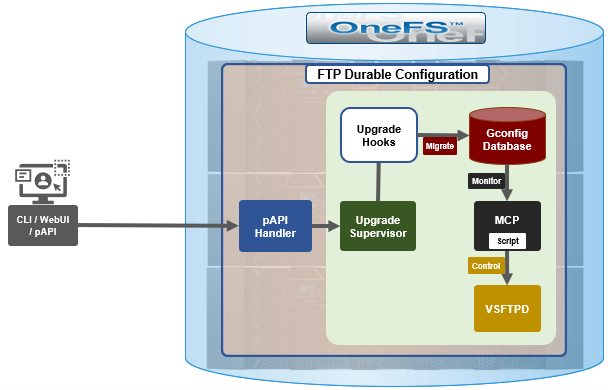
Architecturally, upgrade hooks detect any customized settings and migrate them into the new template file. Additionally, the configuration generation process is enhanced such that the final VSFTP configuration is an amalgam of the original template plus the new custom template.

The FTP upgrade workflow in OneFS 9.12 and later consists of the following components:

Component Description
Pre-Upgrade Phase Identify customized settings.
Post-Upgrade Phase Save these settings into the new template file and apply them.
Backup A backup of all relevant files is created for safety purposes.
Pre-Check Prevent customers from adding unsupported files to the preserved configuration set.
Health Check Detect modifications to temporary files and issue warnings if changes could be lost during downgrade or upgrade.

First, the pre-upgrade phase identifies any customized settings. Next, during the post-upgrade phase, these settings are saved into the new template file and applied. As a precaution, a backup of all relevant files is also created. The pre-check phase prevents customers from adding unsupported files to the preserved configuration set. Furthermore, a health check is introduced to detect modifications to temporary files and issue appropriate warnings if changes could potentially be lost during downgrade or upgrade. Details of this new FTP configuration healthcheck include:

Healthcheck Component Details
Checklist Name check_vsftpd_template_changes
Healthcheck Description The possible outputs of this item are: * OK: The /etc/mcp/templates/vsftpd.conf file is synchronized on all nodes in the cluster and no customized changes are found. * WARNING: File /etc/mcp/templates/vsftpd.conf is included in the /etc/mcp/override/user_preserve_files.xml unexpectedly, The upgrade process will fail if target version is 9.12.0.x or above. Please consider to remove it from the /etc/mcp/override/user_preserve_files.xml file. * CRITICAL: Please ensure /etc/mcp/templates/vsftpd.conf is synchronized and avoid modifying template files. File /etc/mcp/templates/vsftpd.conf should not be included in the /etc/mcp/override/user_preserve_files.xml if cluster version is 9.12.0.x or above. Please consider to remove it from the /etc/mcp/override/user_preserve_files.xml file. * UNSUPPORTED: Unsupported OneFS version to check template conf file: /etc/mcp/templates/vsftpd.conf.
Knowledge Base For further help, please reach out to Dell Technologies Support as the relevant Knowledge Base article is currently unavailable.

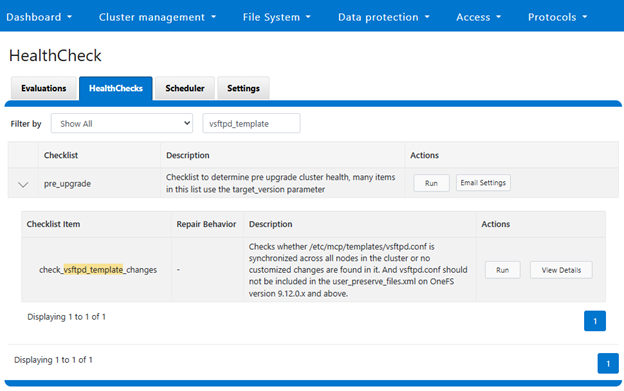
The above healthcheck can be viewed in the WebUI under Cluster management > HealthCheck > HealthChecks:

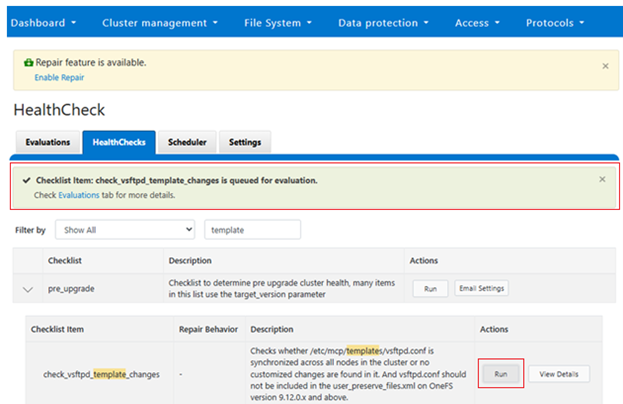
Or to run the healthcheck:

Similarly, from the CLI:

# isi healthcheck items view check_vsftpd_template_changes

              Name: check_vsftpd_template_changes

           Summary: Checks whether /etc/mcp/templates/vsftpd.conf is synchronized across all nodes in the cluster or no customized changes are found in it. And vsftpd.conf should not be

                    included in the user_preserve_files.xml on OneFS version 9.12.0.x and above.

             Scope: Per node

         Freshness: Now

        Parameters: -

       Description:   The possible outputs of this item are:

                    * OK: The /etc/mcp/templates/vsftpd.conf file is synchronized on all nodes in the cluster and no customized changes are found.

                    * WARNING: File /etc/mcp/templates/vsftpd.conf is included in the /etc/mcp/override/user_preserve_files.xml unexpectedly, The upgrade process will fail if target version is 9.12.0.x or above. Please consider to remove it from the /etc/mcp/override/user_preserve_files.xml file.

                    * CRITICAL: Please ensure /etc/mcp/templates/vsftpd.conf is synchronized and avoid modifying template files. File /etc/mcp/templates/vsftpd.conf should not be included in the /etc/mcp/override/user_preserve_files.xml if cluster version is 9.12.0.x or above. Please consider to remove it from the /etc/mcp/override/user_preserve_files.xml file.

                    * UNSUPPORTED: Unsupported OneFS version to check template conf file: /etc/mcp/templates/vsftpd.conf.

        Resolution:   Customized changes may be lost if the cluster are upgrading to 9.11.0.x or lower. Please consider preserve this file and re-apply the customized changes after upgrade. If upgrade target version is 9.12.0.x or above, consider saving customized changes in /etc/mcp/templates/vsftpd_custom.conf

Repair Description: -

    Repair enabled: No

   Repair behavior: -

       Repair risk: -

     Repair script: -

Repair script type: -

For issue investigation and troubleshooting, first review the upgrade logs, which include details of hook execution. Additionally, check the VSFTP logs for configuration generation and template comparison, as well as the project upgrade logs to identify any migration anomalies.

Log file Description
isi_upgrade_logs For upgrade hooks logs
/var/log/vsftpd.log For vsftpd log
/ifs/.ifsvar/upgrade/logs/: For pre-upgrade hook log

PowerScale InsightIQ 6.2 Features

In this second article in the InsightIQ 6.2 series, we’ll dig into the details of the additional functionality that debuts in this new IIQ release. These include:

Feature IIQ 6.2 Functionality
Expanded Ecosystem ·         Ecosystem support extended to include ESXi v9.0.1 and PowerScale OneFS 9.13.
Trusted Domain Support ·         Enables seamless authentication and unified access across domains, while ensuring automatic trust management.
Customizable partitions and networking ·         Enables the user to select datastore path of their choice.

·         Resolves network conflicts.

Datastore Migration ·         Admin can change the datastore path after installation.
Link & Launch ·         Simplifies WebUI access directly from IIQ Dashboard and Reports.
Configurable Network Port ·         Enables monitoring PowerScale with user defined TCP port.

Starting with code updates, the simple and robust InsightIQ 6.2 online upgrade process follows the following flow:

First, the installer checks the current Insight IQ version, verifies there’s sufficient free disk space, and confirms that setup is ready. Next, IIQ is halted and dependencies met, followed by the installation of the 6.2 infrastructure and a migration of legacy InsightIQ configuration and historical report data to the new platform. The cleanup phase removes the old configuration files, etc, followed by the final phase which upgrades alerts and removes the lock, leaving InsightIQ 6.2 ready to roll.

Phase Details
Pre-check •       docker command

•        IIQ version check 6.0.1 or 6.1

•       Free disk space

•       IIQ services status

•       OS compatibility

Pre-upgrade •       EULA accepted

•       Extract the IIQ images

•       Stop IIQ

•       Create necessary directories

Upgrade •       Upgrade addons services

•       Upgrade IIQ services except alerts (if 6.0.1)

•       Upgrade EULA

•       Status Check

Post-upgrade •       Update admin email (if 6.0.1)

•       Update network

•       Update IIQ metadata

Cleanup •       Replace scripts

•       Remove old docker images

•       Remove upgrade and backup folders

Upgrade Alerts and Unlock •       Trigger alert upgrade (if 6.0.1)

•       Clean lock file

The prerequisites for upgrading to InsightIQ 6.2 are either a Simple or Scale deployment with 6.0.1 or 6.1 installed, and with a minimum of 40GB free disk space.

The actual upgrade is performed by the ‘upgrade-iiq.sh’ script:

The specific steps in the upgrade process are as follows:

  • Download and uncompress the bundle:
# tar xvf iiq-install-6.2.0.tar.gz
  • From within the InsightIQ directory, un-tar the upgrade scripts as follows:
# cd InsightIQ

# tar xvf upgrade.tar.gz
  • Enter the resulting ‘upgrade’ directory which contains the scripts:
# cd upgrade/
  • Initiate the IIQ upgrade. Note that the usage is same for both the Simple and Scale InsightIQ deployments.
# ./upgrade-iiq.sh -m <admin_email>

Upon successful upgrade completion, InsightIQ will be accessible via the primary node’s IP address.

Trusted Domain Support

InsightIQ 6.2 introduces Trusted Domain Support, enabling seamless authentication and unified access across multiple domains with automatic trust management. The release adds Active Directory (AD) as a new authentication provider, allowing organizations to leverage existing AD infrastructure for simplified configuration and improved compliance. Joining AD requires three mandatory parameters—domain name, username, and password—along with optional advanced settings such as mapping to the primary domain, ignoring trusted domains, and specifying domains to always recognize or ignore.

Access to InsightIQ is controlled through AD groups, and administrators must assign users from the AD forest or cross-forest to these groups to grant appropriate privileges. InsightIQ supports a single AD connection, and prerequisites include InsightIQ 6.2 installed on Simple or Scale machines, EULA acceptance, and ensuring no conflicting LDAP configuration exists for the same domain. Additionally, Windows AD and DNS servers must be properly configured, and the InsightIQ virtual machine must use the correct DNS server.

With this enhancement, organizations can enable login from multiple trusted domains, providing seamless cross-domain authentication, unified resource access, automatic trust management, and consistent security enforcement.

When investigating troubleshooting AD configurations, the InsightIQ logs can be found under /usr/share/storagemonitoring/logs/iam/, and include krb5_trace.log, error.log, insightiq_iam.log, and insightiq_iam_access.log.

Customizable Partition

InsightIQ 6.2 introduces customizable partition support, allowing dynamic data to be stored in a user-specified local directory on any partition. This capability applies only to fresh installations of InsightIQ Scale; for upgrade scenarios, datastore mobility should be used after the upgrade. NFS configurations remain unchanged. Static data continues to reside under /usr and /var, while dynamic data can now be placed in a user-defined location.  By default, this is under /usr/share/storagemonitoring.

Updated storage prerequisites are as follows: for 0–32 nodes, allocate 75 GB for static data partitions (/usr + /var) and 250 GB for dynamic data; for 32–252 nodes, dynamic data requires 500 GB; and for 252–504 nodes, 1 TB is needed. If /usr and /var are mounted on separate partitions, /usr must have at least 25 GB and /var a minimum of 50 GB.

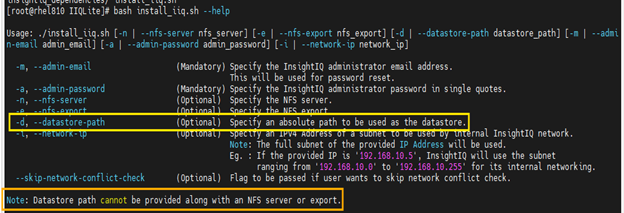
An absolute path for the datastore can be specified in the InsightIQ install script using the ‘-d’ flag, as below:

Customizable Network Config

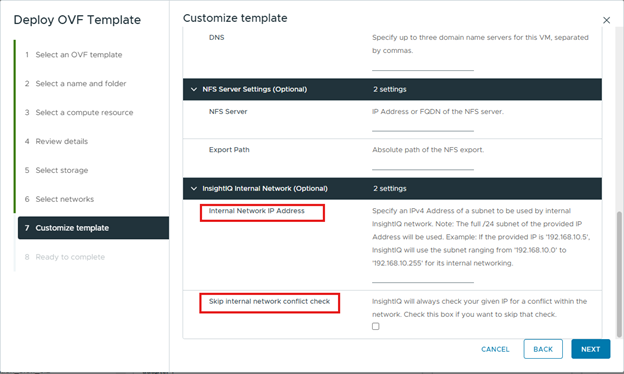
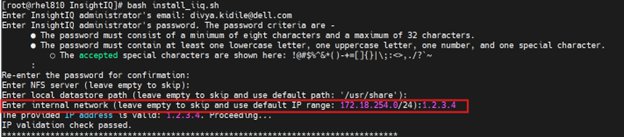
InsightIQ 6.2 introduces a new customizable configuration option for the internal network IP address in both Simple and Scale deployments. A single iiq_network will be used, and the docker0 bridge has been removed. An IP range of 255 addresses is reserved for iiq_network, with a default range of 172.18.254.0/24. If an IP conflict is detected during installation, the user can provide an alternative IP up to three times before the process exits. To bypass the conflict check, use the –skip-network-conflict-check option, for example:

# bash install_iiq.sh -m <admin_email> --skip-network-conflict-check
Installation logs are available at:
/usr/share/storagemonitoring/logs/installer.log.

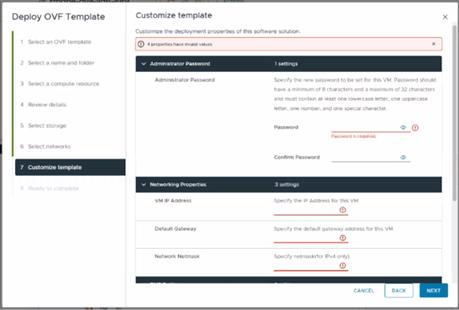
The network IP address can be specified in the OVF template as below:

Or from the Scale installer as follows:

REST APIs

InsightIQ 6.2 now includes RESTful API endpoints for all its configuration and settings, enhancing the existing API framework by adopting the OpenAPI standard and providing comprehensive Swagger documentation. The documentation includes detailed request and response models, endpoint descriptions, and usage examples. These API primitives are version-safe and cover all InsightIQ settings and alerts, including user management, SMTP, LDAP, Active Directory, monitored cluster management, and alert configurations.

The Swagger specification file can be found at /usr/share/storagemonitoring/scripts/insightiq-swagger.json.

Online Migration from Simple to Scale

InsightIQ 6.2 introduces online migration from Simple to Scale within the same version, enabling seamless transfer of data and functionality without downtime. This feature supports migration from InsightIQ 6.2 Simple (OVA) deployments to InsightIQ 6.2 Scale environments, with migration only available for IIQ version 6.2 and later.

Prerequisites for online migration include an InsightIQ Simple machine running v6.2 and an InsightIQ Scale machine with v6.2 installed and the EULA accepted. Migration can be initiated by running the following migration script:

# cd /usr/share/storagemonitoring/scripts/online_migration

# bash iiq_data_migration.sh

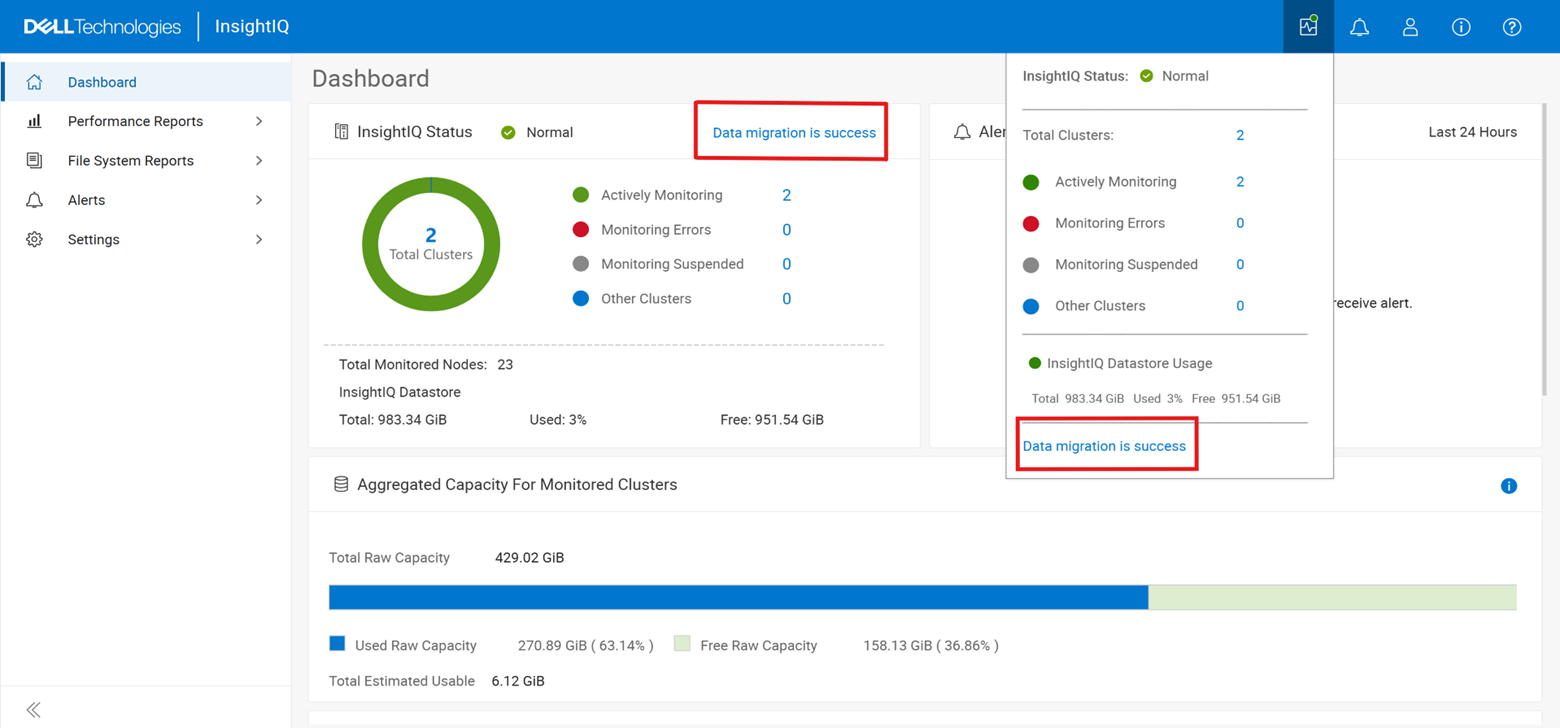
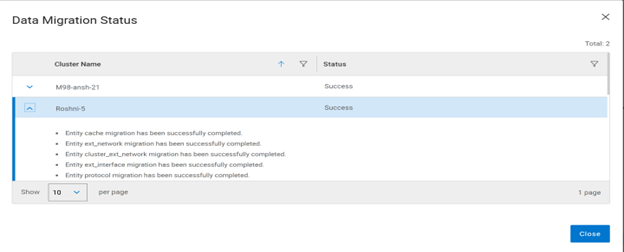
In addition to the script’s output, the migration’s general status and progress can also be monitored from the WebUI as follows:

Datastore Mobility

InsightIQ 6.2 provides deployment support for migrating both Simple and Scale environments. This capability is designed to enable smooth migration across these deployment types without disruption. Migration is supported for configurations that include NFS or non-root partitions. Specifically, the following configurations are supported for each InsightIQ installation type:

Scale Simple
·         Local to NFS

·         NFS to NFS

·         Default partition to non-root partition.

·         Local to NFS

·         NFS to NFS

For NFS-based setups, the NFS directory must be created with validated permissions. For non-root partition movement, the required partition should be created before initiating migration. To perform the migration, navigate to the scripts directory and run the migration script with the following syntax:

# iiq_datastore_change -t nfs -n <x.x.x.x> -p /ifs/

Link and launch

InsightIQ 6.2 introduces the Link and Launch feature, which simplifies access to the OneFS WebUI directly from the InsightIQ dashboard and reports. The objective of this enhancement is to provide a quick-launch button that opens the OneFS WebUI within InsightIQ, reducing the time and effort required for navigation. This integration streamlines workflows by eliminating multiple navigation steps, enhances user productivity, and minimizes the time spent accessing cluster management tools. Overall, it improves the user experience through seamless integration between InsightIQ and a PowerScale OneFS cluster.

Configurable IIQ Listening Port

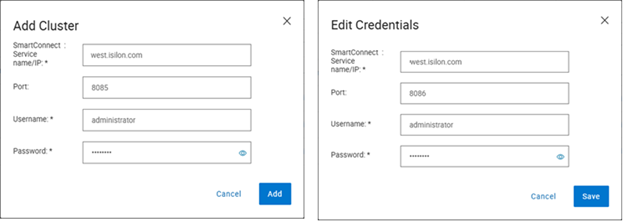
InsightIQ 6.2 introduces support for a configurable listening port, allowing PowerScale WebUI and PAPI to operate on an alternate port. This enhancement enables InsightIQ to monitor PowerScale using a user-defined port rather than the default. When adding a cluster, an additional field is provided to specify the port, which defaults to 8080. The same option is available when editing credentials, and the configured port is preserved during import and export operations. The Link and Launch feature also redirects to the user-defined port. This capability provides flexibility for environments that require monitoring PowerScale on a non-default port.

Download

Meanwhile, the new InsightIQ v6.2 code is available for download on the Dell Support site, allowing both the installation of and upgrade to this new release.

So, in summary, InsightIQ 6.2 offers the following attributes and functionality:

Function Attribute Description
Scope Monitoring scope Up to 20 clusters and 504 nodes
Ecosystem OS support RHEL 8.10, RHEL 9.4, and SLES 15 SP4
Platform Resources Reduced CPUs, memory and disk requirement
Scale option requires just one node
Size Smaller package size: OVA package < 5GB
Install and upgrade Installation Installation time:  < 12 mins
Migration Direct migration from 4.x
Online migration from InsightIQ 6.2 Simple (OVA) to InsightIQ 6.2 Scale
Resilience Data collection Resilient data collection – no data loss
OS Support Simple ecosystem support InsightIQ Simple 6.2 can be deployed on the following platforms:

·         VMware virtual machine running ESXi version 8.0U3 or 9.0.1.

·         VMware Workstation 17 (free version) InsightIQ Simple 6.2 can monitor PowerScale clusters running OneFS versions 9.5 through 9.13, excluding 9.6.

Scale ecosystem support InsightIQ Scale 6.2 can be deployed on Red Hat Enterprise Linux versions 8.10 or 9.4 (English language versions) and SUSE Enterprise Linux (SLES) 15 SP4. InsightIQ Scale 6.2 can monitor PowerScale clusters running OneFS versions 9.5 through 9.13, excluding 9.6.
Upgrade In-place upgrade from InsightIQ 5.1.x to 6.x The upgrade script supports in-place upgrades from InsightIQ 5.1.x to 6.x.
Direct database migration from InsightIQ 4.4.1 to InsightIQ 6.x Direct data migration from an InsightIQ 4.4.1 database to InsightIQ 6.2.0 is supported.
Reporting Maximum and minimum ranges on all reports All live Performance Reports display a light blue zone that indicates the range of values for a metric within the sample length. The light blue zone is shown regardless of whether any filter is applied. With this enhancement, users can observe trends in values on filtered graphs.
Graphing and report vizualzation Reports are designed to maximize the number of graphs that can appear on each page.

·         Excess white space is eliminated.

·         The report parameters section collapses when the report is run. The user can expand it manually.

·         Graph heights are decreased when possible.

·         Page scrolling occurs while the collapsed parameters section remains fixed at the top.

User interface What’s New dialog All InsightIQ users can view a brief introduction to new functionality in the latest release of InsightIQ. Access the dialog from the banner area of the InsightIQ web application. Click About > What’s New.
Compact cluster performance view on the Dashboard The IIQ dashboard provides:.

·         Summary information for six clusters appears in the initial dashboard view. A sectional scrollbar controls the view for additional clusters.

·         The capacity section has its own scrollbar.

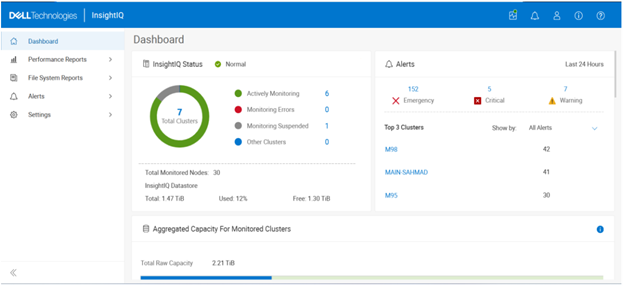
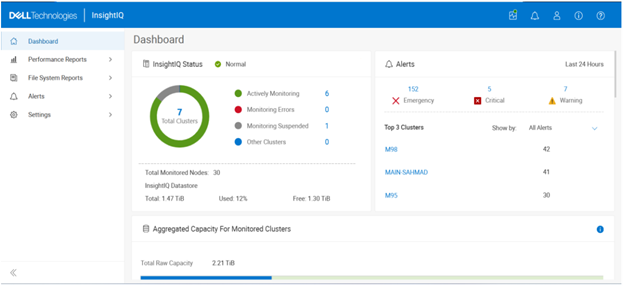
·         The navigation side bar is collapsible into space-saving icons. Use the << icon at the bottom of the side bar to collapse it.


PowerScale InsightIQ 6.2

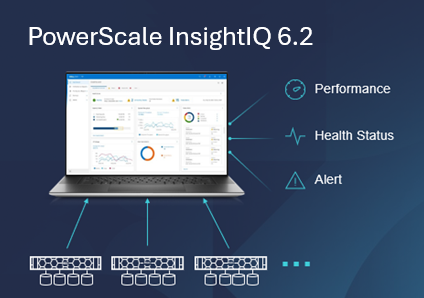
Hot on the heels of the OneFS 9.13 launch comes the unveiling of the innovative new PowerScale InsightIQ 6.2 release.

InsightIQ provides powerful performance and health monitoring and reporting functionality, helping to maximize PowerScale cluster efficiency. This includes advanced analytics to optimize applications, correlate cluster events, and the ability to accurately forecast future storage needs.

So what new goodness does this InsightIQ 6.2 release add to the PowerScale metrics and monitoring mix?

Additional functionality includes:

Feature IIQ 6.2 Functionality
Expanded Ecosystem ·         Ecosystem support extended to include ESXi v9.0.1 and PowerScale OneFS 9.13.
Trusted Domain Support ·         Enables seamless authentication and unified access across domains, while ensuring automatic trust management.
Customizable partitions and networking ·         Enables the user to select datastore path of their choice.

·         Resolves network conflicts.

Datastore Migration ·         Admin can change the datastore path after installation.
Link & Launch ·         Simplifies WebUI access directly from IIQ Dashboard and Reports.
Configurable Network Port ·         Enables monitoring PowerScale with user defined TCP port.

The PowerScale InsightIQ 6.2 release introduces several significant enhancements aimed at improving flexibility, security, and usability. One of the key features is Trusted Domain, which enables seamless authentication and unified access across multiple domains while ensuring automatic trust management for secure and efficient operations. Another important enhancement is Customizable Partition and Network Settings, allowing administrators to select a preferred data store path and configure network settings to resolve potential conflicts, thereby providing greater control over system configuration.

The release also includes Data Store Migration, which gives administrators the ability to change the data store path after installation. This feature offers improved flexibility and operational advantages, which will be demonstrated in the upcoming walkthrough and demo sessions. Additionally, the Link and Launch capability simplifies navigation by enabling direct access to the web UI from the InsightIQ dashboard and reports, reducing the complexity of switching between InsightIQ and PowerScale applications. Finally, the introduction of a Configurable IQ Listening TCP Port allows users to customize the listening port for InsightIQ, enabling tailored monitoring of PowerScale environments.

InsightIQ 6.2 continues to offer the same two deployment models as its predecessors:

Deployment Model Description
InsightIQ Scale Resides on bare-metal Linux hardware or virtual machine.
InsightIQ Simple Deploys on a VMware hypervisor (OVA).

The InsightIQ Scale version resides on bare-metal Linux hardware or virtual machine, whereas InsightIQ Simple deploys via OVA on a VMware hypervisor.

InsightIQ v6.x Scale enjoys a substantial breadth-of-monitoring scope, with the ability to encompass 504 nodes across up to 20 clusters.

Additionally, InsightIQ v6.x Scale can be deployed on a single Linux host. This is in stark contrast to InsightIQ 5’s requirements for a three Linux node minimum installation platform.

The specific deployment options and hardware requirements for installing and running InsightIQ 6.x are as follows:

Attribute InsightIQ 6.2 Simple InsightIQ 6.2 Scale
Scalability Up to 10 clusters or 252 nodes Up to 20 clusters or 504 nodes
Deployment On VMware, using OVA template RHEL, SLES, or Ubuntu with deployment script
Hardware requirements VMware v15 or higher:

·         CPU: 8 vCPU

·         Memory: 16GB

·         Storage: 1.5TB (thin provisioned);

Or 500GB on NFS server datastore

Up to 10 clusters and 504 nodes:

·         CPU: 8 vCPU or Cores

·         Memory: 16GB

·         Storage: 500GB

Up to 20 clusters and 504 nodes:

·         CPU: 12 vCPU or Cores

·         Memory: 32GB

·         Storage: 1TB

Networking requirements 1 static IP on the PowerScale cluster’s subnet 1 static IP on the PowerScale cluster’s subnet

The InsightIQ ecosystem itself is also expanded in version 6.2 to also include VMware ESXi v9.0.1 in addition to VMware v8 OU3, Ubuntu 24.04 Online deployment and OpenStack RHOSP 21 with RHEL 9.6, SLES 15 SP4, and Red Hat Enterprise Linux (RHEL) versions 9.6 and 8.10. This allows customers who have standardized on VMware to now run an InsightIQ 6.2 Scale deployment image on an ESXi 9.0.1 hypervisor to monitor the latest OneFS versions.

Qualified on InsightIQ 6.1 InsightIQ 6.2
OS (IIQ Scale Deployment) RHEL 8.10, RHEL 9.6, and SLES 15 SP4 RHEL 8.10, RHEL 9.6, and SLES 15 SP4
PowerScale OneFS 9.5 to 9.12 OneFS 9.5 to 9.13
VMware ESXi ESXi v8.0U3 ESXi v8.0U3, and ESXi v9.0.1
VMware Workstation Workstation 17 Free Version Workstation 17 Free Version
Ubuntu Ubuntu 24.04 Online deployment Ubuntu 24.04 Online deployment
OpenStack RHOSP 21 with RHEL 9.6 RHOSP 21 with RHEL 9.6

Similarly, in addition to deployment on VMware ESXi 8 and 9, the InsightIQ Simple version can also be installed for free on VMware Workstation 17, providing the ability to stand up InsightIQ in a non-production or lab environment for trial or demo purposes, without incurring a VMware licensing charge.

Additionally, the InsightIQ OVA template is now under 5GB in size, and with an installation time of generally less than 12 minutes.

In the next article in this series, we’ll dig into the details of the additional functionality that debuts in this new InsightIQ 6.2 release.

OneFS S3 Data Protection Mode Management and Troubleshooting

One of the object protocol enhancements introduced in OneFS 9.12 is the S3 Data Protection Mode (DPM). This feature integrates OneFS Multi-Party Authorization (MPA) with S3 data services to deliver stronger security controls, reducing risks associated with both accidental errors and malicious actions.

In the previous article in this series, we looked at the configuration and management of OneFS S3 Data Protection Mode from the WebUI. Now, we’ll turn our attention to the usage of DPM from the S3 API, plus some issue investigation and troubleshooting options.

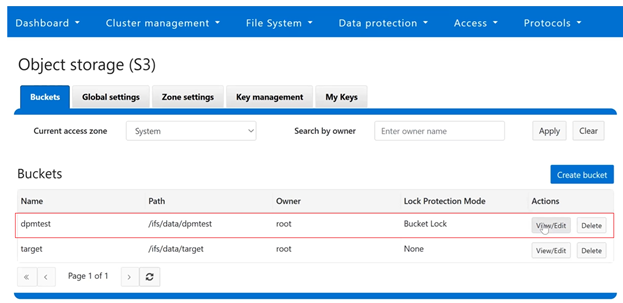
In the following example, ‘dpmtest’ has been created and configured as an immutable S3 bucket, with its lock protection mode configured to ‘Bucket Lock and its retention period currently set to ‘10 days’:

Or from the CLI:

# isi s3 buckets list

Bucket Name  Path                Owner  Object ACL Policy  Object Lock Enabled  Lock Protection Mode  Description

-------------------------------------------------------------------------------------------------

s3bucket     /ifs/data/dpmtest   root   replace            Yes                  Bucket Lock

s3buckettgt  /ifs/data/target    root   replace            No                   -

-------------------------------------------------------------------------------------------------

Using the S3 API endpoints, the following example shows the DPM auto-creation method, with a ‘PUT’ request to reconfigure the access logging for a bucket, creative named named ‘dpmtest’.

PUT  http:// {{S3_ENDPOINT}} /dpmtest/?logging

<BucketLoggingStatus>

      <LoggingEnabled>

            <TargetBucket>target2</TargetBucket>

            <TargetPrefix>newlog</TargetPrefix>

      </LoggingEnabled>

</BucketLoggingStatus>

The response includes an HTTP 403 error code notifying that the ‘modify_server_access_login_config’ action request is pending approval, plus the unique ID number of the associated MPA request:

403 Forbidden

<?xml version=”1.0” encoding=”UTF-8”?>

<Error>

      <Code>AccessDenied</Code>

      <Message>AccessDenied</Message>

      <Resource></Resource>

      <RequestId>675969624</RequestId>

      <MpaRequestId>paareqf2c58360e0ce84cd</MpaRequestId>

      <DpmMessage>Action  ‘modify_server_access_login_config’  pending approval  -  request [paareqf2c58360e0ce84cd]  submitted.</DpmMessage>

Similarly, an S3 auto-creation method to reduce retention for the ‘dpmtest’ immutable bucket from 10 days to 2 days:

PUT  http:// {{S3_ENDPOINT}} /dpmtest/?object_lock

<ObjectLockConfiguration>

      <ObjectLockEnabled>Enabled</ObjectLockEnabled>

      <Rule>

            <DefaultRetention>

                  <Mode>GOVERNANCE</Mode>

                  <days>2</Days>

            </DefaultRetention>

</Rule>

</ObjectLockConfiguration>

Followed by a similar MPA approval pending HTTP 403 error response:

403 Forbidden

<?xml version=”1.0” encoding=”UTF-8”?>

<Error>

      <Code>AccessDenied</Code>

      <Message>AccessDenied</Message>

      <Resource></Resource>

      <RequestId>675969625</RequestId>

      <MpaRequestId>paareqc00c7e920e0ce8413</MpaRequestId>

      <DpmMessage>Action  ‘reduce_immutable_bucket_retention’  pending approval  -  request [paareqc00c7e920e0ce8413]  submitted.</DpmMessage>

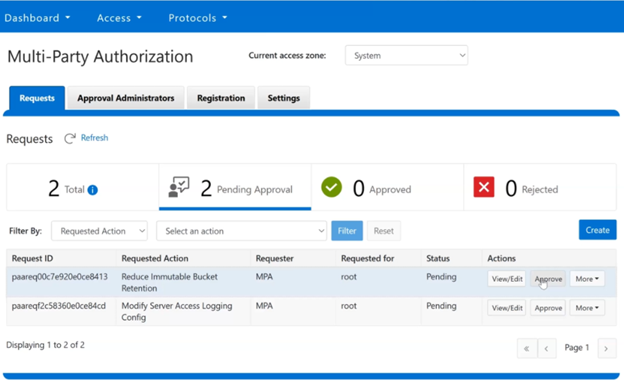
After logging in as an MPA approver, pending MPA requests can be viewed and approved via the WebUI under Access > Multi-Party Authorization > Requests, and clicking on the pertinent ‘Approve’ buttons. For example:

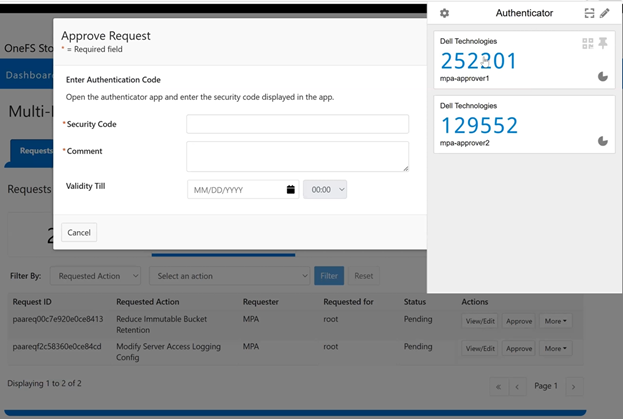
The approver(s) uses their preferred TOTP authenticator application to generate a security code:

This security code is then added to the approval request, plus and additional comment and expiration time, if desired:

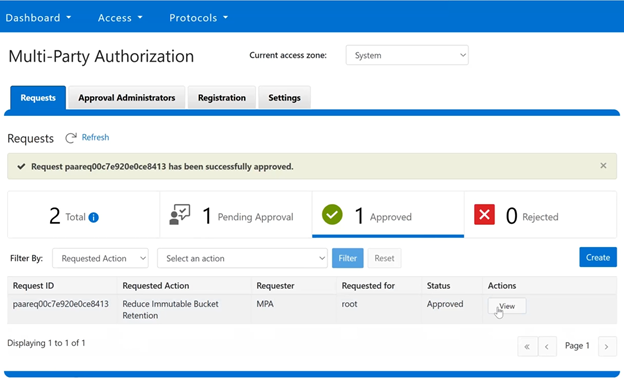
Once approved, the WebUI displays the success banner, and reports the current request status. In this case, one request approved and one still pending:

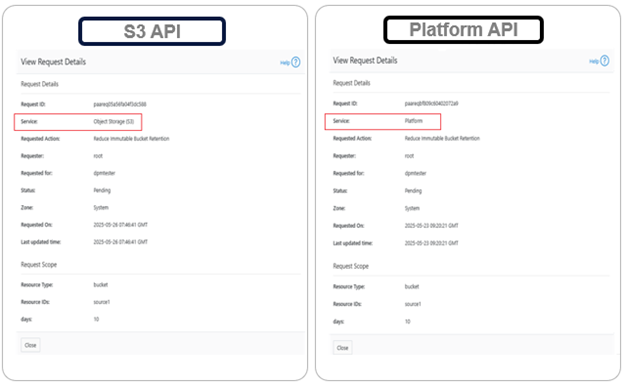
One caveat to be aware of is that MPA requests are service-sensitive. This means that, for, MPA treats the ‘S3’ and ‘platform’ services as separate requests, even if all their other fields are identical. For example:

This distinction is important when users create MPA requests manually. For example, if a user creates a request and selects the ‘S3’ service, approval of that request will only allow privileged actions through the S3 API. The user will not be able to perform those actions via the platform API (or OneFS WebUI or CLI). The same applies in reverse, where requests created for platform services will only work through their respective APIs.

When investigating or troubleshooting S3 DPM issues, the preferred course of action is typically to enable and increase the verbosity of both the platform API log and S3 log. This can be done via the CLI with the following command syntax:

# isi_ilog -a papi --level debug+

# /usr/likewise/bin/lwsm set-log-level s3 - debug

Once done, check both isi_papi.log and s3.log for pertinent MPA and DPM debug messages.

OneFS S3 Data Protection Mode Configuration and Usage

One of the object protocol enhancements introduced in OneFS 9.12 is the S3 Data Protection Mode (DPM). This feature integrates OneFS Multi-Party Authorization (MPA) with S3 data services to deliver stronger security controls, reducing risks associated with both accidental errors and malicious actions.

In the previous article in this series, we looked at the architecture and underpinnings of OneFS S3 Data Protection Mode. Now, we’ll turn our attention to the configuration and management of DPM.

From the OneFS WebUI, the S3 bucket configuration can be found under Protocols > S3 > Buckets. In the following example, ‘dpmtest’ has been created and configured as an immutable S3 bucket, with its lock protection mode configured to ‘Bucket Lock’:

Clicking on the adjacent ‘View/Edit’ button reveals that its retention period is currently set to ‘100 days’, and access logging is ‘enabled’:

Next, the retention period is reduced to 50 days, and access logging is disabled:

Or from the CLI:

# isi s3 buckets modify dpmtest –-default-retention-days 50 –-access-loging 0

Since there are both S3 protected actions, the WebUI displays the following warning banner, notifying that the actions are paused pending approval, and recommending checking the MPA request status:

After logging into the WebUI with an MPA approver account and navigating to Access > Multi-Party Authorization > Requests, the two above S3 privileged action requests are displayed, one for reducing the immutable bucket retention period and the other for disabling server access logging:

Or from the CLI:

# isi mpa requests list

The approver(s) then use their time-based one-time password (TOTP) authenticator application to generate a security code: 

This TOTP code is then entered into the approval request’s ‘security code’, plus an additional comment and expiration time, if desired:

Or via the CLI:

# isi mpa requests list

# isi mpa requests approve <id> <comment> <approved> --totp-code <******> --approval-valid-before <timestamp> --zone <zone>

Once approved, the WebUI displays the success banner, and reports the current request status. In this case, one request approved and one still pending:

Or from the CLI:

# isi mpa requests list

Moving on to the pending ‘disable access logging’ request:

Or from the CLI:

# isi mpa requests view <id>

After approving the above request in the same way, the MPA status shows both requests successfully approved:

Or from the CLI:

# isi mpa requests list

Reviewing the request details from the S3 bucket status page under Protocols > S3 > Buckets > Requests, reveals that the bucket retention period has been successfully reduced to ’50 days’ and access logging disabled, as expected:

Or from the CLI:

# isi s3 buckets view dpmtest

In the next article in this series, we’ll turn our attention to the usage of DPM from the S3 API, plus some issue investigation and troubleshooting options.

OneFS S3 Data Protection Mode

Tucked among the object protocol enhancements that were introduced in OneFS 9.12 lies S3 data protection mode (DPM). DPM integrates OneFS Multi-Party Authorization (MPA) into the S3 data services to provide enhanced security control, mitigating risks caused either by mistakes or by malicious intent.

In OneFS 9.12 and later, the DPM functionality is not independently configurable. Rather, it is implicitly enabled when MPA is activated. As such, once MPA is enabled, all S3 privileged actions need to be approved before executed. The MPA activation and configuration process is covered in-depth within the following article:   http://www.unstructureddatatips.com/onefs-multi-party-authorization-configuration

The two primary DPM capabilities that are introduced in OneFS 9.12 are:

Function Details
Reduction in bucket retention for an immutable bucket. •      Immutable Bucket is a bucket with lock-protection mode set to BucketLock.

•      Reduction of the retention period is only supported in governance mode.

S3 Server Logs Support


•      Disabling or reconfiguring the target bucket or target prefix is protected by DPM.

•      All these reconfiguration operations are treated as the same MPA request and are not distinguished.


Reducing the retention period for an immutable bucket is only supported when the bucket is in governance mode. An immutable bucket is defined as a bucket with its lock-protection mode set to ‘BucketLock’.

For S3 server logs, disabling or reconfiguring the target bucket or target prefix is protected by DPM. All such reconfiguration operations are treated as a single MPA request and are not distinguished individually.

The MPA level should be set to the bucket protection level. This is because any modification to an object is governed by the immutable bucket’s retention period, so there is no need for separate MPA approval.

S3 DPM takes effect when both MPA and S3 service are enabled on a cluster running OneFS 9.12 or later, and the specific S3-related MPA privileged actions that are supported include:

Service/

Component

Action Description 
S3 reduce_immutable_bucket_retention Reduction in bucket retention for an immutable bucket.
S3 modify_server_access_logging_config Changing configuration of access logging for a bucket.
Platform reduce_immutable_bucket_retention Reduction in bucket retention for an immutable bucket.
Platform modify_server_access_logging_config Changing configuration of access logging for a bucket.

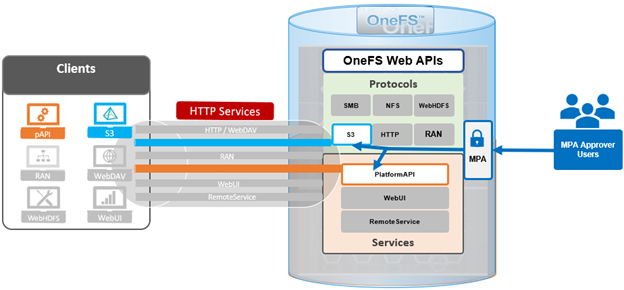
Under the hood, the S3 DPM workflow can be represented as follows:

As such, the basic flow involves the following steps:

  1. First, the client initiates a protected action, either from posting an S3 API or platform API request, or a CLI or WebUI action.
  2. Next, OneFS checks whether MPA is enabled.
  3. If MPA is disabled, the privileged action executes directly without the protection of DPM.
  4. If MPA is activated, a request is auto-generated via ‘isi_mpa_common’.
  5. If the request is approved, the operation proceeds. If not approved or pending, the requesting user will receive a notification with an HTTP 403 response code.

DPM auto-creation privileged actions can be configured through WebUI under Protocols > Object Storage (S3) > Buckets.

When a privileged action is not approved for a s3 user. MPA requests can be created manually through editing the bucket configuration. The MPA requests will be created automatically if the internal system found there is not an approved request in system.

Users can also generate a privileged action request manually via the WebUI under Access > Multi-Party Authorization > Requests:

For example, to create a ‘Platform’ service request to reduce the retention for an immutable bucket to 2 days:

In the next article in this series, we’ll take a closer look at the configuration and management of S3 Data Protection Mode.

PowerScale OneFS 9.13

Dell PowerScale ushers in the holiday season with the release of OneFS 9.13, launched on December 16, 2025. This latest version introduces comprehensive enhancements across security, serviceability, synchronization, and protocol support, reinforcing PowerScale’s position as a unified software platform for both on-premises and cloud deployments.

OneFS 9.13 is designed for a broad range of workloads, including traditional file shares, home directories, and vertical applications such as media and entertainment, healthcare, life sciences, and financial services, as well as emerging use cases in generative AI, machine learning, deep learning, and advanced analytics.

PowerScale’s scale-out architecture offers deployment flexibility across on-site environments, co-location facilities, and customer-managed instances in AWS and Microsoft Azure, delivering core-to-edge-to-cloud scalability and performance for unstructured data workflows.

Recognizing the critical importance of security and resilience in today’s threat landscape, OneFS 9.13 introduces advanced features to enhance data protection, monitoring, and availability.

Protocol Enhancements: The release includes significant improvements to the S3 object protocol, featuring fast-path functionality for optimized multipart upload completion times. Administrators can now reconfigure the S3 HTTPS port from the default TCP 443 to any port within the range of 1024–65,535 via WebUI or CLI, with warnings provided if port 443 is already in use by the PowerScale HTTP service.

Data Management: OneFS 9.13 delivers SmartSync enhancements for incremental file-to-object replication, supporting multiple policies per bucket and improved telemetry for cloud replication jobs. Cloud tiering capabilities are expanded through CloudPools URI support for Amazon VPC endpoints, enabling more secure and efficient cloud integration.
Security: To strengthen ransomware protection and secure data paths, OneFS 9.13 introduces TLS 1.3 support for HTTP transport within Apache-based services, including RESTful Access to Namespace (RAN), WebDAV, and WebHDFS components. TLS 1.3 is now enabled by default across these interfaces.

Usability: The release provides official support for the PowerScale SDK, offering tools, documentation, and code samples for developers to build applications that interact with PowerScale clusters. The SDK includes Python bindings for programmatic access to OneFS APIs, simplifying integration with both the Platform API (pAPI) and RESTful Access to Namespace (RAN).

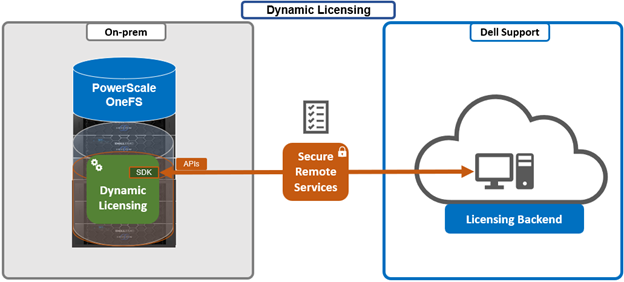
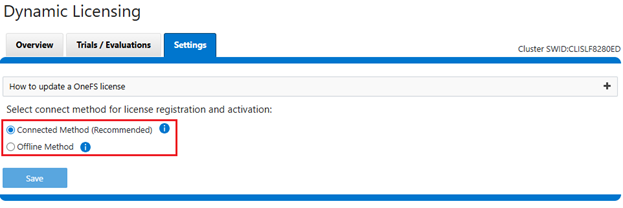
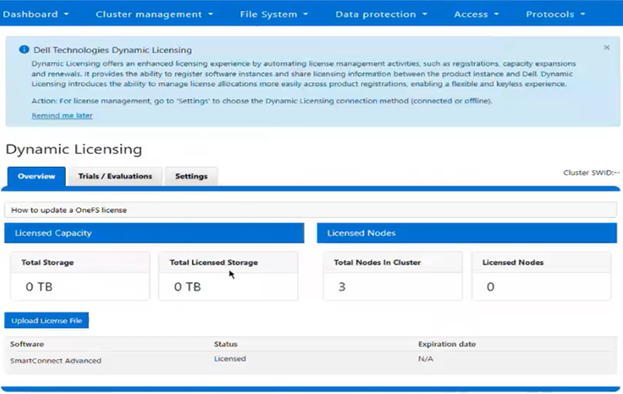
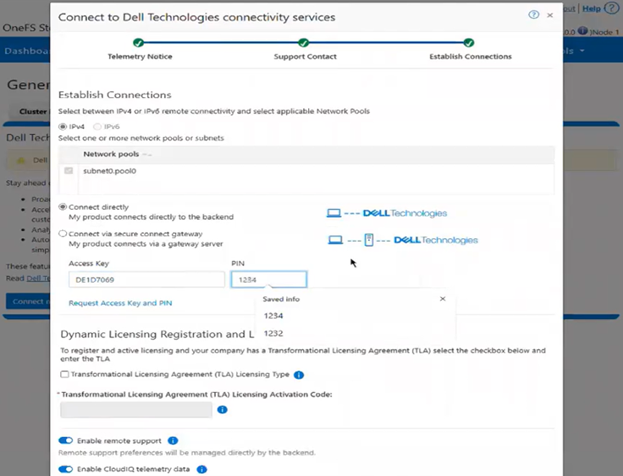
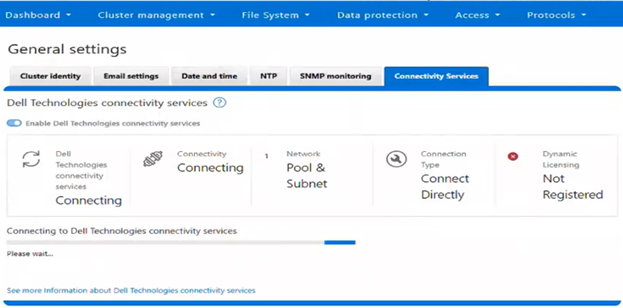
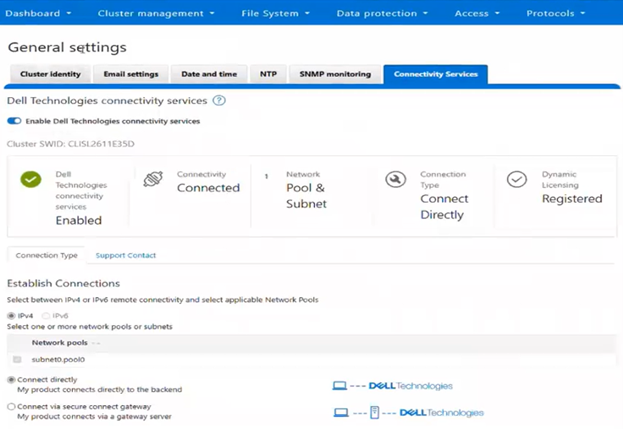
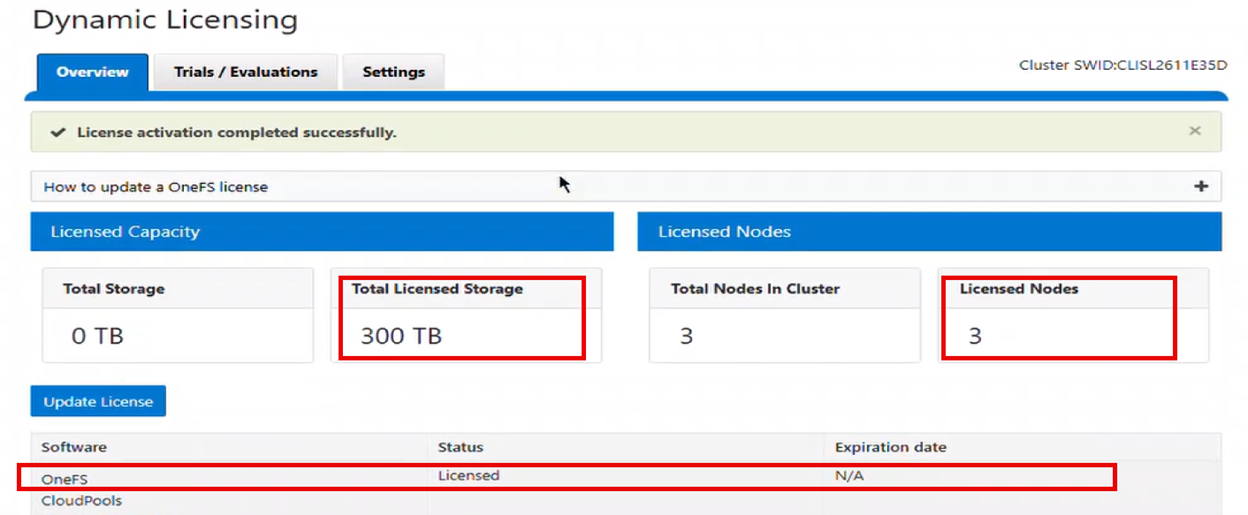
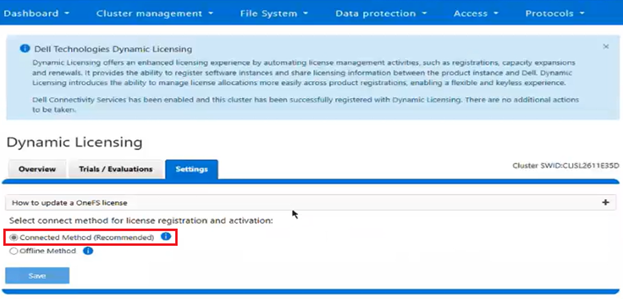
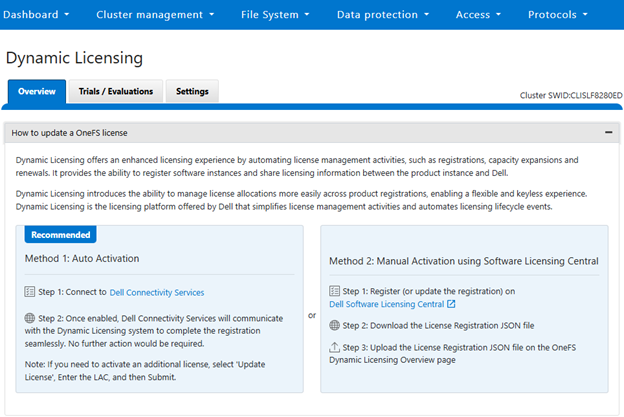
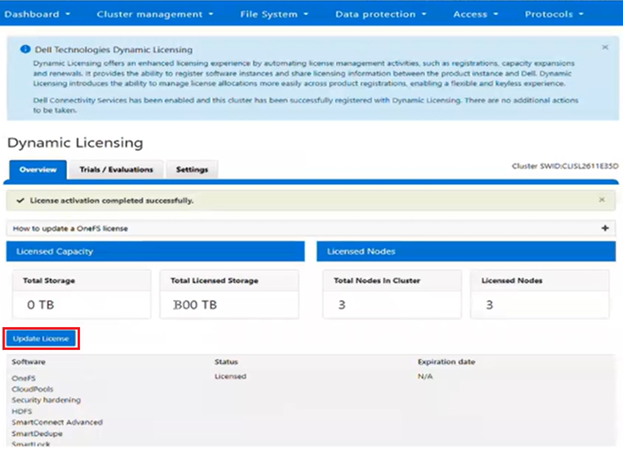
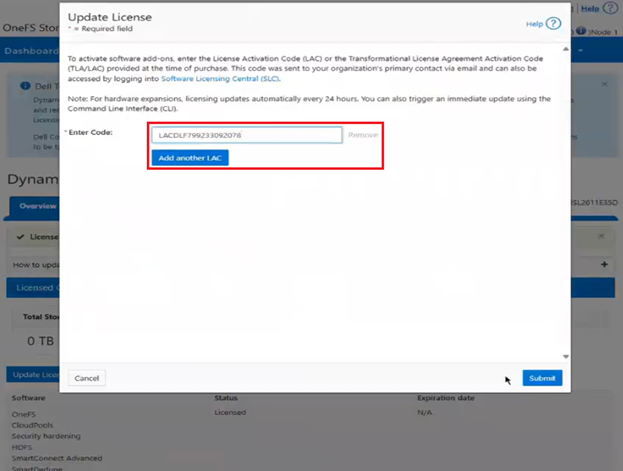
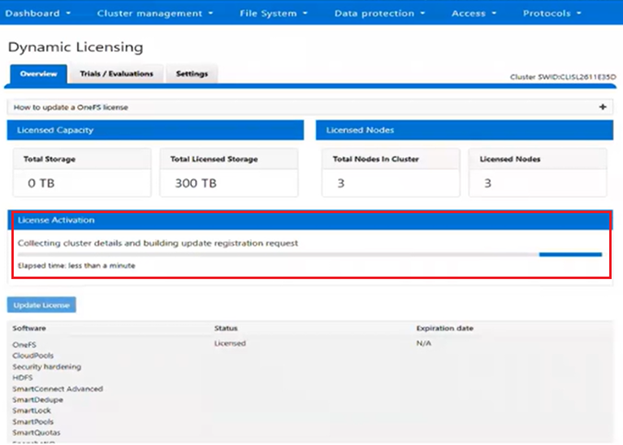
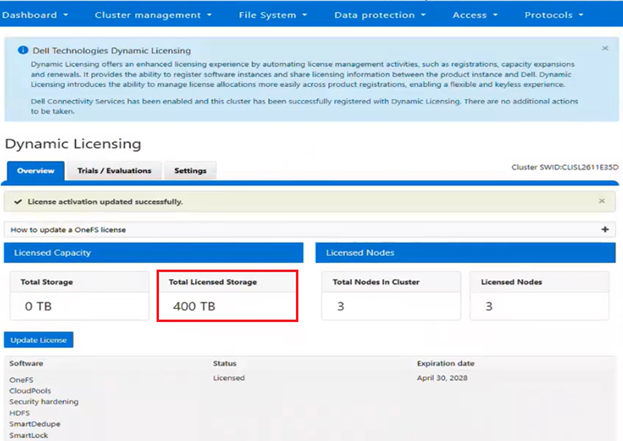
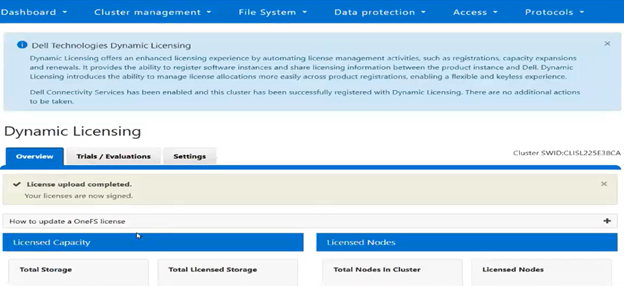
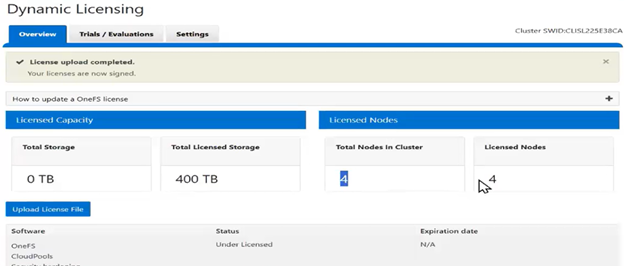
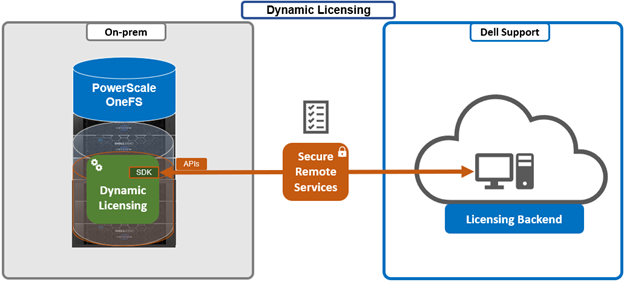
Support and Licensing: OneFS 9.13 introduces Dell Dynamic Licensing, a modern licensing framework that eliminates manual activation, supports appliance, hybrid, and cloud deployments, and enables seamless asset movement between clusters without licensing friction. This replaces traditional key-based licensing for PowerScale.

Hardware Innovations: On the hardware front, OneFS 9.13 adds support for 400Gb Ethernet connectivity on the all-flash PowerScale F910 platform and introduces in-field backend NIC swap capabilities for previous-generation all-flash platforms, including F900, F600, and F200 storage nodes, plus the B100 and P100 accelerator nodes.

With these advancements, OneFS 9.13 delivers enhanced security, operational simplicity, and performance scalability, making PowerScale an ideal solution for organizations managing diverse and demanding unstructured data workloads across hybrid and multi-cloud environments.

In summary, OneFS 9.13 brings the following new features and functionality to the Dell PowerScale ecosystem:

Area Feature
Platform ·         400Gb Ethernet support for PowerScale F910 front-end and back-end networking.

·         In-field support for back-end NIC changes for F900, F600, F200, B100, and P100

Protocol ·         S3 multi-part uploads.

·         S3 port configuration.

Security ·         HTTP transport layer security TLS 1.3 enhancements.
Replication ·         SmartSync incremental file to object enhancements.
Support ·         Dynamic cluster licensing.
Usability ·         Software developer kit (SDK) official support.

We’ll be taking a deeper look at OneFS 9.13’s new features and functionality in future blog articles over the course of the next few weeks.

Meanwhile, the new OneFS 9.13 code is available on the Dell Support site, as both an upgrade and reimage file, allowing both installation and upgrade of this new release.

For existing clusters running a prior OneFS release, the recommendation is to open a Service Request with to schedule an upgrade. To provide a consistent and positive upgrade experience, Dell is offering assisted upgrades to OneFS 9.13 at no cost to customers with a valid support contract. Please refer to Knowledge Base article KB544296 for additional information on how to initiate the upgrade process.

OneFS Auto-Remediation Configuration and Management

As we saw in the prior article in this series, the auto-remediation capability introduced in OneFS 9.12 implements an automated fault recovery mechanism to enhance cluster availability and reduce administrative overhead. Leveraging the HealthCheck framework, the system continuously monitors for OneFS anomalies and triggers corrective workflows without operator intervention. Upon detection of a known failure signature, auto-remediation executes a predefined repair procedure—such as service restarts or configuration adjustments—to restore operational integrity. By orchestrating these recovery actions programmatically, the feature minimizes manual troubleshooting and reduces mean time to repair (MTTR).

Auto-remediation is disabled by default in OneFS 9.12 to ensure administrators maintain full control over automated repair operations. Cluster administrators have the ability to enable or disable this functionality at any time through system settings. When a cluster is upgraded to OneFS 9.12, the WebUI HealthCheck page provides a notification banner informing users of the newly available auto-remediation capability:

This banner serves as an entry point for administrators to activate the feature if desired. If selected, the following enablement option is displayed:

Checking the ‘Enable Repair’ box provides the option to select either ‘Auto-repair’ or ‘Manual Repair’ behavior, with ‘Manual’ being the default:

Selecting ‘Auto-Repair’ will allow OneFS to automatically trigger and perform remediation on regular healthcheck failures:

Or from the CLI:

# isi repair settings view

Repair Behavior: manual

Repair Enabled: No

# isi repair settings modify --repair-enabled True --repair-behavior Auto

# isi repair settings view

Repair Behavior: auto

 Repair Enabled: Yes

# isi services -a | grep -i repair

   isi_repair           Repair Daemon                            Enabled

Once enabled, auto-remediation can automatically trigger repair actions in response to HealthCheck failures, reducing the need for manual intervention and improving operational efficiency.

The following repair actions are currently available in OneFS 9.12:

Repair Action Description
fix_leak_freed_blocks Disables the ‘leak_freed_blocks’ settings on all nodes where it is enabled, allowing the cluster to claim free disk space on file deletions. Note that if there is an active SR then this leak_freed_blocks must be enabled intentionally, in such case do not run this repair
fix_igi_ftp_insecure_upload Disables insecure FTP upload of ISI gather
fix_mcp_running_status Enables the MCP service
fix_smartconnect_enabled Enable the SmartConnect service
fix_flexnet_running Enable the flexnet service
fix_synciq_service_suggestion Disables the SyncIQ service
fix_job_engine_enabled Enables the ‘isi_job_d’ Job Engine service

These can also be viewed from the WebUI under Cluster management > HealthCheck > HealthChecks, and filtering by ‘Repair Available’:

This will display the following checklist, each of which contain ‘Repair Available’ healthchecks:

For example, the ‘basic’ checklist can be expanded to show its seven health checks which have the ‘repair available’ option. In addition to the description and actions, there’s a ‘repair behavior’ field which indicates a check’s repair type – either ‘auto’ or ‘manual’:

Under the hood, these repair actions are defined in the ‘/usr/libexec/isilon/repair-actions/mapping.json’ file on each node. For example, the repair action for the job engine, which has a ‘cluster’ level scope and ‘auto’ repair behavior:

"job_engine_enabled": {

            "script": "fix_job_engine_enabled.py",

            "script_type": "python",

            "enabled": true,

            "behavior": "auto",

            "risk": "low",

            "description": "This repair will enable isi_job_d service",

            "scope": "cluster"

        }

Note that any repair actions which are considered ‘high-risk’ will still need to be manually initiated, even with the repair behavior configured for ‘auto’. The ‘smartconnect_enabled’ repair action is an example of a high-risk action, so it has a ‘manual’ behavior type, as well as a node-level repair type, or scope, as can be seen in its definition:

“smartconnect_enabled”: {

      “script”: “fix_smartconnect_enable.py”,

      “script_type”: “python”,

      “enabled”: true,

      “behavior”: “manual”,

      “risk”: “high”,

      “description”: “This repair will enable the smartconnect service”,

      “scope”: “node”

},

The principal auto-remediation configuration, definition, and results files can typically be found in the following locations:

FIles Location
repair_actions /usr/libexec/isilon/repair-actions
mapping.json /usr/libexec/isilon/repair-actions/mapping.json
global_request /ifs/.ifsvar/modules/repair/requests
global_result /ifs/.ifsvar/modules/repair/results
node_requests /ifs/.ifsvar/modules/repair/requests/<devID>/
node_results /ifs/.ifsvar/modules/repair/results/<devID>/

Auto-remediation is disabled when the PowerScale cluster operates in certain restricted modes. These include Compliance, Hardening, Read-Only, Upgrade Pre-Commit, and Root Lockdown Mode (RLM). These restrictions are in place to maintain security and compliance during critical operational states, ensuring that automated changes do not compromise system integrity.

Since auto-remediation is implemented as a new ‘isi_repair’ service within OneFS 9.12, the first step in troubleshooting any issues is to verify that the service is running and to check its operational status.

The service status can be checked using the following CLI command syntax:

# isi services -a isi_repair

Service 'isi_repair' is enabled.

Additionally, repair logs are available for review in the following location on each node:

/var/log/isi_repair.log

These utilities help to provide visibility into repair operations and assist in diagnosing issues related to auto-remediation.

OneFS Auto-Remediation

The new PowerScale Auto-Remediation feature introduced in OneFS 9.12 delivers an automated healing capability designed to improve cluster resilience and reduce operational overhead. This functionality leverages the HealthCheck framework to detect failures and initiate corrective actions without requiring manual intervention. When a known failure is identified, the system executes a predefined repair action to restore normal operation. By automating these processes, auto-remediation significantly reduces the number of incoming service requests and accelerates recovery times. Furthermore, repair actions can be delivered independently of the OneFS release cycle, enabling rapid deployment of critical fixes without waiting for a major upgrade.

Auto-remediation relies on the following key concepts:

Component Description
Repair Action Repair script/executable that fixes an issue.
Repair Behavior Settings per repair action that determines if repair can run automatically or can only be invoked manually:

·         Manual Repair: Type of repair that will always be manually initiated by user.

·         Auto Repair: Type of repair that will be automatically triggered when required conditions are met and global auto repair setting is enabled.

Cluster Level Repair Repair that requires cluster level resolution and does not need node level execution.
Node Level Repair Repair that needs to run on each node that needs it.

A ‘repair action’ refers to a script or executable that resolves a specific issue within the cluster. Each repair action is governed by ‘repair behavior’, which determines whether the action runs automatically or requires manual initiation. Repairs classified as ‘manual’ must always be triggered by the user, whereas ‘auto’ repairs execute automatically when the required conditions are met and the global auto repair setting is enabled. Repairs may also be scoped at different levels: ‘cluster-level repairs’ address issues affecting the entire cluster and do not require node-level execution, while ‘node-level repairs’ run individually on each affected node.

The OneFS auto-remediation feature provides administrators with flexible control over repair operations. Users can enable or disable the global auto repair setting at any time. When enabled, repairs can be triggered automatically in response to HealthCheck failures, ensuring timely resolution of issues. Administrators also retain the ability to manually initiate repairs for failed HealthChecks when necessary. The system supports both node-level and cluster-level repairs, offering comprehensive coverage for a wide range of failure scenarios. Additionally, repair actions can be updated outside the standard OneFS release cycle, allowing for rapid deployment of new fixes as they become available.

The auto-remediation architecture in OneFS 9.12 is designed to enhance system reliability by automating the detection and resolution of known failures. This architecture operates by leveraging the HealthCheck framework to identify issues within the cluster.

Once a failure is detected, the system executes a series of scripts and executables—referred to as repair actions—to restore normal functionality. By automating these processes, the architecture significantly reduces the number of incoming service requests, thereby improving operational efficiency and minimizing downtime.

OneFS 9.12 includes several repair actions to address common failure scenarios. The architecture is designed for continuous evolution, so additional repair actions will be incorporated both within and independent from future releases to expand coverage and improve resilience. As such, a key feature of this design is its ability to deliver repair actions outside the standard OneFS release cycle. This is achieved through updates to the HealthCheck package, allowing new repair actions to be added without waiting for a major software upgrade. As new repair actions become available, storage admins can update their cluster via Dell Connectivity Services (DTCS), ensuring timely access to the latest remediation capabilities.

The auto-remediation architecture in OneFS 9.12 consists of two primary components: the PowerScale cluster residing within the customer’s data center, and the Dell Secure Remote Services (SRS) backend. OneFS utilizes the HealthCheck framework to detect issues within the cluster. When a failure is identified, the HealthCheck framework invokes the Repair Engine, a newly introduced service responsible for applying the appropriate corrective action for the detected issue.

The repair process supports two operational modes: automatic and manual.

Repair Mode Description
Auto Triggered automatically when required conditions are met and global auto repair setting is enabled.
Manual Repair will always be invoked manually by user.

This dual-mode approach provides flexibility, allowing organizations to balance automation with administrative oversight based on their operational policies.

In an automatic scenario, the cluster admin initiates a HealthCheck, and if the check fails, the OneFS determines whether the conditions for auto repair are met. The Repair Engine is then called immediately to execute the corresponding repair action without user intervention. In contrast, the manual scenario requires explicit admin input. After a HealthCheck fails, OneFS waits for the administrator to either click the repair button in the WebUI or submit a repair request through the CLI. Once the request is received, the Repair Engine begins its workflow.

The Repair Engine follows a structured sequence to ensure accuracy and reliability. First, it retrieves the repair request and performs a ‘pre-check’ to validate the current state of the system. This step is particularly important for manual repairs, where the initial HealthCheck may have been executed several days earlier. If the pre-check confirms that the issue persists, the engine proceeds to execute the repair script associated with the failed HealthCheck. Each repair action is mapped one-to-one with a specific HealthCheck, ensuring precise remediation. The repair script is stored locally on the PowerScale cluster and is executed directly from that location.

After the repair script completes, the engine runs a ‘post-check’ to verify that the corrective action resolved the issue. If the post-check is successful, the system generates a repair result and stores it in the file system for future reference and reporting. This ensures transparency and provides administrators with a historical record of remediation activities.

In addition to the core repair workflow, the architecture includes an automated repair update mechanism. A scheduled ‘isi_repair_update’ process runs daily (by default) to check for new repair action packages available for the cluster. This process requires DTCS to be enabled on the cluster, and communicates with the SRS backend to retrieve updates. By decoupling repair action updates from the OneFS release cycle, the system ensures that customers can access the latest remediation capabilities without waiting for a major upgrade.

The Repair Engine’s workflow begins when a repair request is received. The trigger for this request can originate from two sources:

  • Automated HealthCheck failure
  • User-initiated repair action.

When the request is received, the engine first determines whether it was triggered by the HealthCheck framework (HCF) or by the user. An HCF-triggered request indicates an automatic repair scenario, while a user-triggered request corresponds to a manual repair.

For automatic repairs, the engine bypasses the pre-check phase because the HealthCheck failure has just occurred, and the system state is already validated. In contrast, manual repairs require an additional verification step. The engine performs a pre-check to confirm that the issue detected by the original HealthCheck still exists. This step is critical because the initial HealthCheck may have been executed some time ago, and the system state could have changed.

If the pre-check confirms that the issue persists, the engine proceeds to execute the repair script associated with the failed HealthCheck. Each repair script is mapped one-to-one with a specific HealthCheck, ensuring precise remediation. Upon successful execution of the repair script, the engine performs a post-check to validate that the corrective action resolved the issue. If the post-check passes, the engine updates the repair status and records the outcome in the system, marking the repair as successful.

In the next article in this series, we’ll focus on the configuration and management of OneFS auto-remediation.

OneFS S3 Object Lock and Bucket Lock Configuration and Management

As we saw in the previous article in this series, OneFS 9.12 introduces support for S3 Object Locks. This feature enables write-once-read-many (WORM) protection for objects, ensuring critical data remains immutable and safeguarded against accidental or malicious deletion. By applying Object Locks, organizations can prevent object deletion or modification for a specified duration, or indefinitely, helping maintain data integrity and meet regulatory retention requirements. This capability is particularly valuable for industries such as finance services, where compliance and secure data preservation are essential.

The S3 bucket and object locking features become available after the OneFS 9.12 release has been committed, and no additional licensing is required. To enable them, the pertinent access zone is configured to support bucket or object locks, during which, if not already active, the compliance clock is automatically enabled in support of locking. Within the S3 zone configuration, three new options are introduced.

Name Value Description
Object lock support boolean Allows Object Lock or Immutable Buckets to be created in the zone
Default lock protection mode ObjectLock | BucketLock Default object lock mode for Buckets with object lock enabled.
Compliance clock support NULL Automatically enables compliance clock if not already enabled

‘Object-lock-support’ is disabled by default and must be enabled to allow the creation of locked buckets, while ‘default-lock-protection-mode’ determines the default lock type when none is specified in an API call. ‘Compliance-clock-support’ enables the compliance clock if it is not already active, and these are all represented in the OneFS 9.12 S3 CLI as follows:

# isi s3 settings zone modify -h | grep -i lock

[--object-lock-support <boolean>]

[--default-lock-protection-mode (ObjectLock | BucketLock)]

[--compliance-clock-support]

For example:

# isi s3 zone settings modify –object-lock-support 1

Similarly, the new S3 bucket settings include:

Name Value Description
Object lock enabled boolean Enable Locking on the bucket. Cannot be disabled afterwards.
Lock protection mode ObjectLock | BucketLock Bucket Lock Mode
Default Retention Mode GOVERNANCE | COMPLIANCE Only Governance is supported in OneFS 9.12
Default Retention Days Int Retention period in days. Mutually exclusive with years.
Default Retention Years Int Retention period in years. Mutually exclusive with days.

These can be configured in the S3 CLI with the following arguments:

# isi s3 buckets modify <bucket>

        [--object-lock-enabled <boolean>]

        [--lock-protection-mode (ObjectLock | BucketLock)]

        [--default-retention-mode (GOVERNANCE | COMPLIANCE)]

        [--default-retention-days <integer>]

        [--default-retention-years <integer>]

The OneFS S3 per-access zone configuration settings can be viewed from the WebUI under Protocols > Object Storage (S3) > Zone Settings, as follows:

Or from the CLI:

# isi s3 settings zone view

                   Root Path: /ifs/data

                 Base Domain: tme.isilon.com

           Object ACL Policy: replace

Bucket Directory Create Mode: 0777

            Use Md5 For Etag: Yes

        Validate Content Md5: Yes

         Object Lock Support: Yes

       Syslog Access Logging: No

Default Lock Protection Mode: Object Lock

These settings can modified, for example to change the default lock protection mode from object to bucket:

# isi s3 settings zone view | grep -i protection

Default Lock Protection Mode: Object Lock

# isi s3 settings zone modify --default-lock-protection-mode=BucketLock

# isi s3 settings zone view | grep -i protection

Default Lock Protection Mode: Bucket Lock

At the bucket level, new settings include ‘object-lock-enabled’, which, once set, cannot be disabled. The ‘lock-protection-mode’ setting specifies whether Object Lock or Bucket Lock is used. The default-retention-mode is currently limited to ‘Governance’ mode, since ‘Compliance’ mode is not currently supported in the OneFS 9.12 release. Retention periods can be specified in either days or years, with a maximum duration of 100 years.

From the WebUI, object or bucket locks and their retention period can be configured on buckets as follows:

Followed by a warning that locking cannot be disabled and confirmation:

Then confirmation of creation:

Or from the CLI:

# isi s3 buckets create test-bkt /ifs/data/zone-a --owner rlm --object-lock-enabled 1 --lock-protection-mode BucketLock

The S3 buckets and their lock status can be reported as follows:

# isi s3 buckets list

Bucket Name  Path                                    Owner  Object ACL Policy  Object Lock Enabled  Lock Protection Mode  Description

--------------------------------------------------------------------------------------------------------------------------------------

test-bkt     /ifs/data/zone-a                        rlm    replace            Yes                  Bucket Lock 

test-bkt-b   /ifs/data/zone-b                        rlm    replace            Yes                  Bucket Lock

--------------------------------------------------------------------------------------------------------------------------------------

Total: 4

And to view the details of a specific bucket:

# isi s3 buckets view test-bkt

         Bucket Name: test-bkt

                Path: /ifs/data/zone-a

               Owner: rlm

   Object ACL Policy: replace

 Object Lock Enabled: Yes

Lock Protection Mode: Bucket Lock

         Description:

Default Retention

                 Mode: GOVERNANCE

                Years: -

                 Days: 1

Access Logging Enabled: Yes

         Target Bucket: test-bkt

            Log Prefix:

Additionally, the following CLI syntax can be used to confirm the presence of a lock on the bucket:

# isi get -DDD /ifs/data/zone-a | grep -i ObjectLock

 IFS Domain IDs:     {2.0100(Snapshot), 1d.0900(ObjectLock) }

The following error will be displayed if attempting to create a bucket lock on a target bucket:

There are a couple of caveats and proclivities to bear in mind with S3 bucket and object locking in OneFS 9.12. Specifically, certain S3 clients may require additional configuration to support custom headers for BucketLock buckets.

Header Description
x-amz-bypass-governance-retention PutObjectLockConfiguration when lowering retention for BucketLock bucket
x-isi-lock-protection-mode Specifying the lock-protection-mode of a bucket

Standard tools might require modification in order to support these special headers. For example, with the ubiquitous Boto3 client, callback handlers may need to be registered using the Boto toolkit to include these headers in requests.
If a client HTTP request is invalid, or goes awry, OneFS follows the general AWS S3 error codes format – albeit with modifications to remove any AWS-specific info. The OneFS S3 implementation also includes some additional error codes for its intrinsic behaviors. These include:

Since OneFS S3 Object Lock does not support legal hold and compliance retention mode, any attempts to use it will return an HTTP 501 ‘Not Implemented’ error. Additionally, due to the current absence of versioning support, attempts to overwrite a locked object will result in an HTTP 403 ‘Access Denied’ error.

For investigative and troubleshooting purposes, all relevant operations are logged in the standard S3 server logs, located at /var/log/s3.log.

In summary, the general behavior of the new OneFS S3 object locking feature in OneFS 9.12 includes the following:

OneFS S3 Specific Behavior AWS S3-compliant Behavior
·         Object locks may not be enabled for older buckets or non-empty buckets.

·         Only a bucket’s owner can enable object lock for the bucket. The owner must match the file system directory owner of the directory bucket since there’s no concept of directory ownership in AWS S3.

·         Unlike AWS S3 where lock modes (i.e. Governance and Compliance) are directly linked to S3 objects, in OneFS they are bucket-specific, with the same mode applying to all objects within a bucket.

·         Compliance mode for buckets is not supported when the system is in enterprise state.

·         Compliance mode buckets are not supported in OneFS 9.12.

·         Object locks will be enabled at “Bucket” level.

·         Once Object locks are enabled, they CANNOT be disabled.

·         Every S3 bucket will have a default retention that will apply to all objects inside the bucket.

·         Objects inside a bucket can have different retention periods.

·         Retention period can be extended or lowered (privileged action) for S3 objects.


As a further level of Bucket lock security, OneFS multi-party authorization (MPA) includes the following S3 privileged actions that, if enabled, require an additional administrator to approve the reduction of an immutable bucket’s retention time configuration and/or changes to a bucket’s access logging configuration.

Service /

Component

Action Description 
S3 reduce_immutable_bucket_retention Reduce bucket retention for an immutable bucket.
S3 modify_server_access_logging_config Change a bucket’s access logging configuration.

MPA helps to mitigate the risk of data loss or system configuration damage from critical actions, by vastly reducing the likelihood of accidental or malicious execution of consequential operations. MPA enforces a security control mechanism wherein operations involving critical or sensitive systems or data require explicit approval from multiple authorized entities. This ensures that no single actor can execute high-impact actions unilaterally, thereby mitigating risk and enhancing operational integrity through enforced oversight. As such, many enterprises require MPA in order to meet industry data protection requirements, in addition to internal security mandates and best practices.

MPA S3 privileged actions supporting immutable bucket retention and logging are available for selection in the MPA configuration, for example from the WebUI MPA Requests dropdown menu, located under Access > Multi-Party Authorization > Requests:

Introduced in OneFS 9.12, MPA can be configured and managed from the CLI, WebUI or platform API, but the feature is not enabled by default. Once MPA is enabled and configured, all predefined ’privileged actions’ require additional approval from an authorizing user. So this is markedly different from earlier OneFS releases, where the original requester would likely have had the basic rights and been able to execute that action in its entirety themselves.

Note that MPA is incompatible with, and therefore not supported on, a PowerScale cluster that is already running in Compliance Mode.