In this second article in the InsightIQ 6.2 series, we’ll dig into the details of the additional functionality that debuts in this new IIQ release. These include:
| Feature | IIQ 6.2 Functionality |
| Expanded Ecosystem | · Ecosystem support extended to include ESXi v9.0.1 and PowerScale OneFS 9.13. |
| Trusted Domain Support | · Enables seamless authentication and unified access across domains, while ensuring automatic trust management. |
| Customizable partitions and networking | · Enables the user to select datastore path of their choice.
· Resolves network conflicts. |
| Datastore Migration | · Admin can change the datastore path after installation. |
| Link & Launch | · Simplifies WebUI access directly from IIQ Dashboard and Reports. |
| Configurable Network Port | · Enables monitoring PowerScale with user defined TCP port. |
Starting with code updates, the simple and robust InsightIQ 6.2 online upgrade process follows the following flow:

First, the installer checks the current Insight IQ version, verifies there’s sufficient free disk space, and confirms that setup is ready. Next, IIQ is halted and dependencies met, followed by the installation of the 6.2 infrastructure and a migration of legacy InsightIQ configuration and historical report data to the new platform. The cleanup phase removes the old configuration files, etc, followed by the final phase which upgrades alerts and removes the lock, leaving InsightIQ 6.2 ready to roll.
| Phase | Details |
| Pre-check | • docker command
• IIQ version check 6.0.1 or 6.1 • Free disk space • IIQ services status • OS compatibility |
| Pre-upgrade | • EULA accepted
• Extract the IIQ images • Stop IIQ • Create necessary directories |
| Upgrade | • Upgrade addons services
• Upgrade IIQ services except alerts (if 6.0.1) • Upgrade EULA • Status Check |
| Post-upgrade | • Update admin email (if 6.0.1)
• Update network • Update IIQ metadata |
| Cleanup | • Replace scripts
• Remove old docker images • Remove upgrade and backup folders |
| Upgrade Alerts and Unlock | • Trigger alert upgrade (if 6.0.1)
• Clean lock file |
The prerequisites for upgrading to InsightIQ 6.2 are either a Simple or Scale deployment with 6.0.1 or 6.1 installed, and with a minimum of 40GB free disk space.
The actual upgrade is performed by the ‘upgrade-iiq.sh’ script:

The specific steps in the upgrade process are as follows:
- Download and uncompress the bundle:
# tar xvf iiq-install-6.2.0.tar.gz
- From within the InsightIQ directory, un-tar the upgrade scripts as follows:
# cd InsightIQ

# tar xvf upgrade.tar.gz
- Enter the resulting ‘upgrade’ directory which contains the scripts:
# cd upgrade/
- Initiate the IIQ upgrade. Note that the usage is same for both the Simple and Scale InsightIQ deployments.
# ./upgrade-iiq.sh -m <admin_email>
Upon successful upgrade completion, InsightIQ will be accessible via the primary node’s IP address.
Trusted Domain Support
InsightIQ 6.2 introduces Trusted Domain Support, enabling seamless authentication and unified access across multiple domains with automatic trust management. The release adds Active Directory (AD) as a new authentication provider, allowing organizations to leverage existing AD infrastructure for simplified configuration and improved compliance. Joining AD requires three mandatory parameters—domain name, username, and password—along with optional advanced settings such as mapping to the primary domain, ignoring trusted domains, and specifying domains to always recognize or ignore.
Access to InsightIQ is controlled through AD groups, and administrators must assign users from the AD forest or cross-forest to these groups to grant appropriate privileges. InsightIQ supports a single AD connection, and prerequisites include InsightIQ 6.2 installed on Simple or Scale machines, EULA acceptance, and ensuring no conflicting LDAP configuration exists for the same domain. Additionally, Windows AD and DNS servers must be properly configured, and the InsightIQ virtual machine must use the correct DNS server.
With this enhancement, organizations can enable login from multiple trusted domains, providing seamless cross-domain authentication, unified resource access, automatic trust management, and consistent security enforcement.
When investigating troubleshooting AD configurations, the InsightIQ logs can be found under /usr/share/storagemonitoring/logs/iam/, and include krb5_trace.log, error.log, insightiq_iam.log, and insightiq_iam_access.log.
Customizable Partition
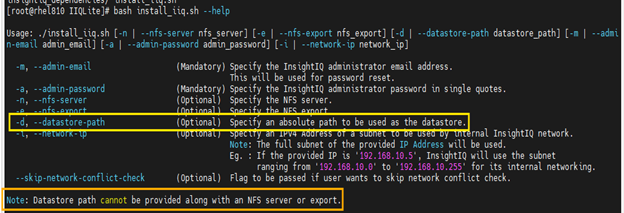
InsightIQ 6.2 introduces customizable partition support, allowing dynamic data to be stored in a user-specified local directory on any partition. This capability applies only to fresh installations of InsightIQ Scale; for upgrade scenarios, datastore mobility should be used after the upgrade. NFS configurations remain unchanged. Static data continues to reside under /usr and /var, while dynamic data can now be placed in a user-defined location. By default, this is under /usr/share/storagemonitoring.
Updated storage prerequisites are as follows: for 0–32 nodes, allocate 75 GB for static data partitions (/usr + /var) and 250 GB for dynamic data; for 32–252 nodes, dynamic data requires 500 GB; and for 252–504 nodes, 1 TB is needed. If /usr and /var are mounted on separate partitions, /usr must have at least 25 GB and /var a minimum of 50 GB.
An absolute path for the datastore can be specified in the InsightIQ install script using the ‘-d’ flag, as below:
Customizable Network Config
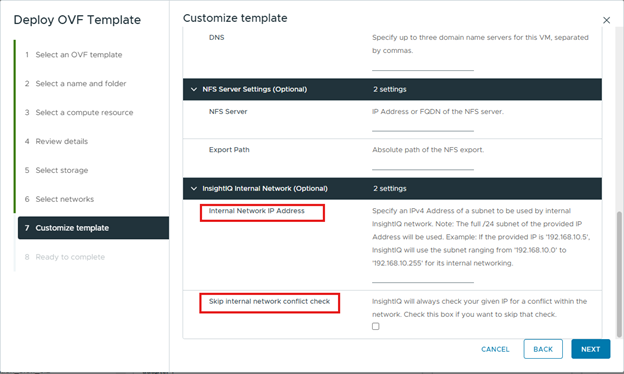
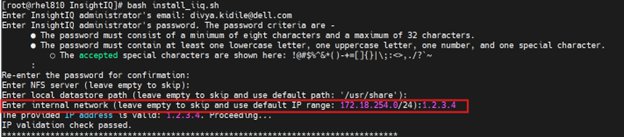
InsightIQ 6.2 introduces a new customizable configuration option for the internal network IP address in both Simple and Scale deployments. A single iiq_network will be used, and the docker0 bridge has been removed. An IP range of 255 addresses is reserved for iiq_network, with a default range of 172.18.254.0/24. If an IP conflict is detected during installation, the user can provide an alternative IP up to three times before the process exits. To bypass the conflict check, use the –skip-network-conflict-check option, for example:
# bash install_iiq.sh -m <admin_email> --skip-network-conflict-check
Installation logs are available at:
/usr/share/storagemonitoring/logs/installer.log.
The network IP address can be specified in the OVF template as below:
Or from the Scale installer as follows:
REST APIs
InsightIQ 6.2 now includes RESTful API endpoints for all its configuration and settings, enhancing the existing API framework by adopting the OpenAPI standard and providing comprehensive Swagger documentation. The documentation includes detailed request and response models, endpoint descriptions, and usage examples. These API primitives are version-safe and cover all InsightIQ settings and alerts, including user management, SMTP, LDAP, Active Directory, monitored cluster management, and alert configurations.
The Swagger specification file can be found at /usr/share/storagemonitoring/scripts/insightiq-swagger.json.
Online Migration from Simple to Scale
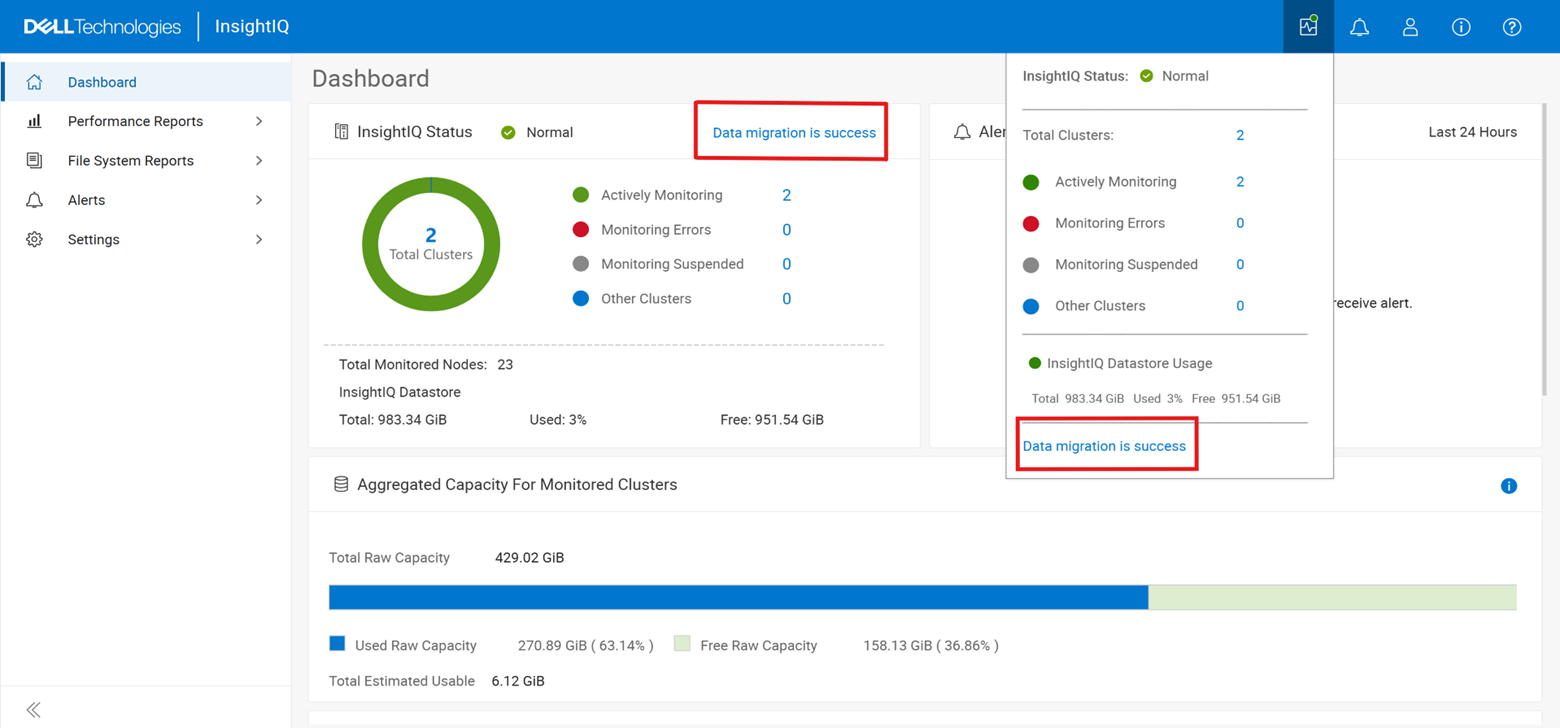
InsightIQ 6.2 introduces online migration from Simple to Scale within the same version, enabling seamless transfer of data and functionality without downtime. This feature supports migration from InsightIQ 6.2 Simple (OVA) deployments to InsightIQ 6.2 Scale environments, with migration only available for IIQ version 6.2 and later.
Prerequisites for online migration include an InsightIQ Simple machine running v6.2 and an InsightIQ Scale machine with v6.2 installed and the EULA accepted. Migration can be initiated by running the following migration script:
# cd /usr/share/storagemonitoring/scripts/online_migration

# bash iiq_data_migration.sh
In addition to the script’s output, the migration’s general status and progress can also be monitored from the WebUI as follows:
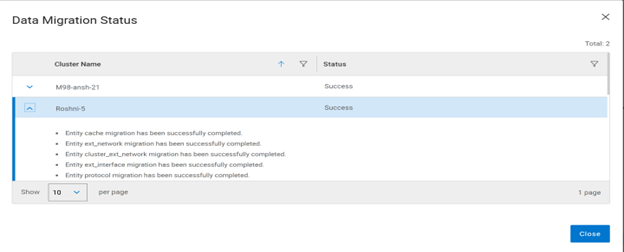
Datastore Mobility
InsightIQ 6.2 provides deployment support for migrating both Simple and Scale environments. This capability is designed to enable smooth migration across these deployment types without disruption. Migration is supported for configurations that include NFS or non-root partitions. Specifically, the following configurations are supported for each InsightIQ installation type:
| Scale | Simple |
| · Local to NFS
· NFS to NFS · Default partition to non-root partition. |
· Local to NFS
· NFS to NFS |
For NFS-based setups, the NFS directory must be created with validated permissions. For non-root partition movement, the required partition should be created before initiating migration. To perform the migration, navigate to the scripts directory and run the migration script with the following syntax:
# iiq_datastore_change -t nfs -n <x.x.x.x> -p /ifs/
Link and launch
InsightIQ 6.2 introduces the Link and Launch feature, which simplifies access to the OneFS WebUI directly from the InsightIQ dashboard and reports. The objective of this enhancement is to provide a quick-launch button that opens the OneFS WebUI within InsightIQ, reducing the time and effort required for navigation. This integration streamlines workflows by eliminating multiple navigation steps, enhances user productivity, and minimizes the time spent accessing cluster management tools. Overall, it improves the user experience through seamless integration between InsightIQ and a PowerScale OneFS cluster.
Configurable IIQ Listening Port
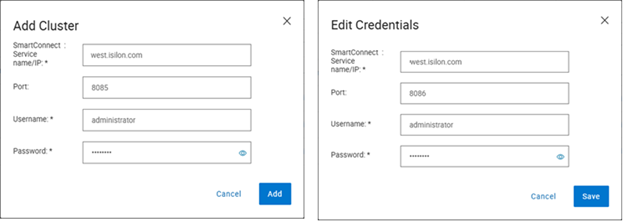
InsightIQ 6.2 introduces support for a configurable listening port, allowing PowerScale WebUI and PAPI to operate on an alternate port. This enhancement enables InsightIQ to monitor PowerScale using a user-defined port rather than the default. When adding a cluster, an additional field is provided to specify the port, which defaults to 8080. The same option is available when editing credentials, and the configured port is preserved during import and export operations. The Link and Launch feature also redirects to the user-defined port. This capability provides flexibility for environments that require monitoring PowerScale on a non-default port.
Download
Meanwhile, the new InsightIQ v6.2 code is available for download on the Dell Support site, allowing both the installation of and upgrade to this new release.
So, in summary, InsightIQ 6.2 offers the following attributes and functionality:
| Function | Attribute | Description |
| Scope | Monitoring scope | Up to 20 clusters and 504 nodes |
| Ecosystem | OS support | RHEL 8.10, RHEL 9.4, and SLES 15 SP4 |
| Platform | Resources | Reduced CPUs, memory and disk requirement |
| Scale option requires just one node | ||
| Size | Smaller package size: OVA package < 5GB | |
| Install and upgrade | Installation | Installation time: < 12 mins |
| Migration | Direct migration from 4.x | |
| Online migration from InsightIQ 6.2 Simple (OVA) to InsightIQ 6.2 Scale | ||
| Resilience | Data collection | Resilient data collection – no data loss |
| OS Support | Simple ecosystem support | InsightIQ Simple 6.2 can be deployed on the following platforms:
· VMware virtual machine running ESXi version 8.0U3 or 9.0.1. · VMware Workstation 17 (free version) InsightIQ Simple 6.2 can monitor PowerScale clusters running OneFS versions 9.5 through 9.13, excluding 9.6. |
| Scale ecosystem support | InsightIQ Scale 6.2 can be deployed on Red Hat Enterprise Linux versions 8.10 or 9.4 (English language versions) and SUSE Enterprise Linux (SLES) 15 SP4. InsightIQ Scale 6.2 can monitor PowerScale clusters running OneFS versions 9.5 through 9.13, excluding 9.6. | |
| Upgrade | In-place upgrade from InsightIQ 5.1.x to 6.x | The upgrade script supports in-place upgrades from InsightIQ 5.1.x to 6.x. |
| Direct database migration from InsightIQ 4.4.1 to InsightIQ 6.x | Direct data migration from an InsightIQ 4.4.1 database to InsightIQ 6.2.0 is supported. | |
| Reporting | Maximum and minimum ranges on all reports | All live Performance Reports display a light blue zone that indicates the range of values for a metric within the sample length. The light blue zone is shown regardless of whether any filter is applied. With this enhancement, users can observe trends in values on filtered graphs. |
| Graphing and report vizualzation | Reports are designed to maximize the number of graphs that can appear on each page.
· Excess white space is eliminated. · The report parameters section collapses when the report is run. The user can expand it manually. · Graph heights are decreased when possible. · Page scrolling occurs while the collapsed parameters section remains fixed at the top. |
|
| User interface | What’s New dialog | All InsightIQ users can view a brief introduction to new functionality in the latest release of InsightIQ. Access the dialog from the banner area of the InsightIQ web application. Click About > What’s New. |
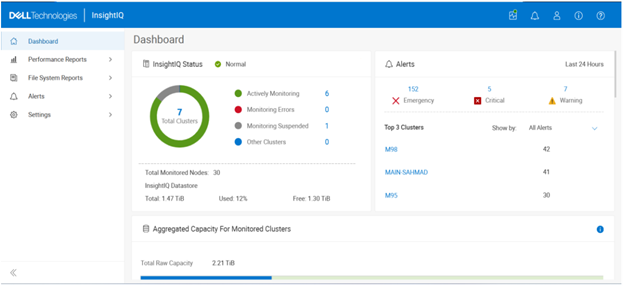
| Compact cluster performance view on the Dashboard | The IIQ dashboard provides:.
· Summary information for six clusters appears in the initial dashboard view. A sectional scrollbar controls the view for additional clusters. · The capacity section has its own scrollbar. · The navigation side bar is collapsible into space-saving icons. Use the << icon at the bottom of the side bar to collapse it. |