OneFS Dynamic Licensing Management and Troubleshooting

In the previous article in this series, we looked at configuring Dynamic Licensing from the WebUI and CLI. In this article, we’ll focus on the management and troubleshooting of Dynamic Licensing.

Note that the OneFS 9.13 WebUI only supports the configuration and monitoring of Dynamic Licensing. Additional operations such as license reduction, deregistration, etc, can only be performed via the CLI or WebUI.

A cluster’s product registration may be expanded with additional features, capacity, quantity, or term via an updated registration request, which adds or removes entitlements from the pool, resulting in the intended action.

Action Details
Hardware expansion When a new node is added to the cluster, the Dynamic Licensing cron job detects the change and initiates the registration process using the Service Tag of the newly added node.
Hardware reduction When a node is removed from the cluster, the cron job detects the change and initiates the reduction process using the Service Tag of the removed node.
Software expansion When a customer purchases additional capacity or term, they need to provide the License Activation Code (LAC) to update the registered installation with more entitlements.

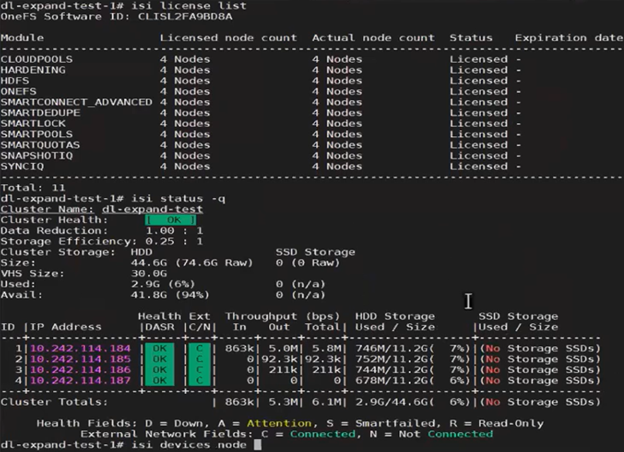
For example, the following cluster is configured for Dynamic Licensing, and all four nodes are registered:
Next, one of the nodes is SmartFailed, removing it from the cluster:

# isi devices node smartfail –lnn 4
You are about to begin smartfailing node lnn 4. Are you sure? (yes/[no]): yes

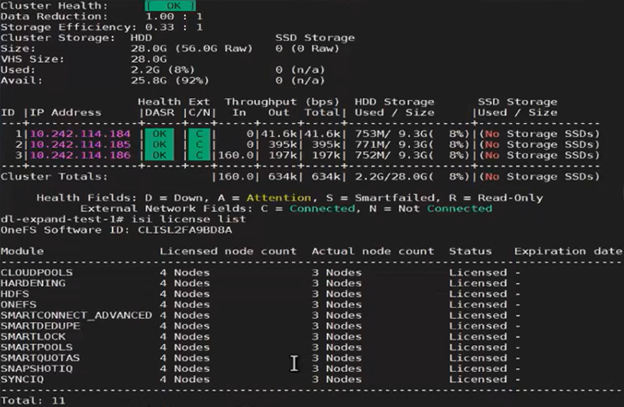
However, Dynamic Licensing still reports the cluster as having four registered nodes:
Next, the ‘isi license modify’ CLI command can be used to remove the SmartFailed node’s license:

# isi license modify
Product licensing process initiated.
Use ‘isi license status’ to monitor.
# isi license status
Product update registration completed successfully.

The output above indicates that the product registration has been successfully executed, and the reduced node count is now reflected in the ‘isi license output’:
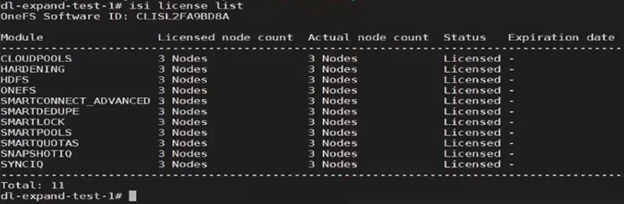
Note that a Dynamic Licensing runs a cron job to capture licensing updates from cluster changes, but this job is only run once daily. The CLI options can be used for a more timely, on-demand cluster license update.

A similar process can be employed for cluster expansion. For example, re-adding the fourth node to the same cluster:
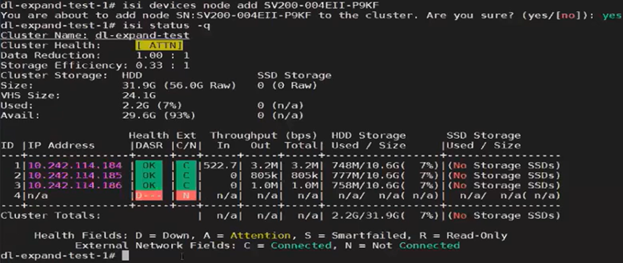
The licensing CLI now reports four cluster nodes, but only three are licensed:
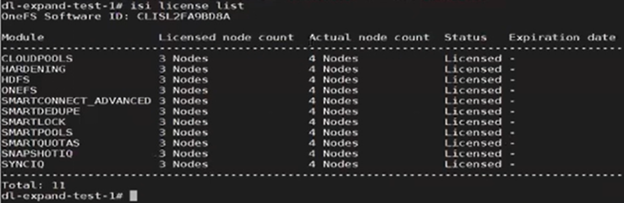
The ‘isi devices’ CLI command now shows the fourth node up and joined to the cluster:
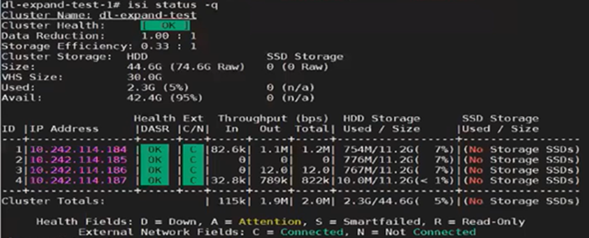
Next, the ‘isi license modify’ CLI command is used to re-run the registration update process, which reports the ‘perform_expansion’ task as ‘IN_PROGRESS’:

# isi license modify
Product licensing process initiated.
Use ‘isi license status’ to monitor.
# isi license status
Dynamic_license_update_registration is IN_PROGRESS state, sub state : perform_expansion.

Once the registration update process has successfully completed, Dynamic Licensing reports that all four nodes are available and licensed:
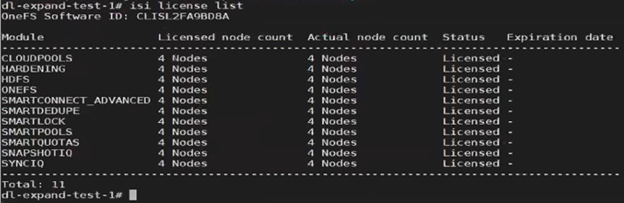
For changes to cluster capacity, composition, and/or licensed data service modules, the ‘–lacs=’ argument can be used with the ‘isi license modify’ CLI command. For example:

# isi license modify –-lacs=LACPSA210920250504
Product licensing process initiated.
Use ‘isi license status’ to monitor.
# isi license status
Product update registration completed successfully.

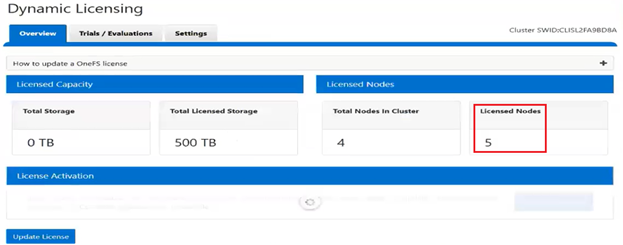
In this case, we’ve added an additional OneFS license to the entitlements, so the ‘Licensed node count’ now reports five nodes, while the ‘Actual node count’ still shows the cluster’s four nodes. This is similarly reported from the WebUI:
Note that Dynamic Licensing’s consumption workflow is not available from the WebUI, CLI, or pAPI. Instead, a cron job is used, which runs hourly to collect the consumption data, and then daily once in a day to upload the aggregated consumption data to the Dynamic Licensing back-end. Based on this consumption data, the Dynamic Licensing back-end performs the license assessment and sends OneFS a compliance report. The PowerScale cluster then process the compliance report, and, if necessary, generates any required events and alerts in case of any feature violations. For example, say a customer has purchased 100TB of capacity and they attempt to exceed that limit. In this case OneFS will generate over-capacity alerts. Additionally, OneFS will attempt to resolve those alerts once the capacity utilization returns below the 500TB limit.

In the event of hardware and software expansion or reduction, gconfig is updated to reflect the licensing changes on the cluster. The existing OneFS license state machine is used, along with a new ‘dynamic_license_update_registration’ sub-task.

In addition to the automated cron process, customers can also initiate expansion or reduction on-demand via the OneFS CLI or platform API (pAPI). For example:

# isi license add

The process to register the product with Dynamic Licensing backend has been initiated.

The ‘isi license’ CLI command set is expanded in OneFS 9.13 with the addition of ‘deregister’ and modify options, plus removal of the legacy ‘activation’ option, resulting in a general syntax as follows:

# isi license -h
Description:
    Manage software licenses.

Required Privileges:
    ISI_PRIV_LICENSE

Usage:
    isi license <action>
        [--timeout <integer>]
        [{--help | -h}]

Actions:
    add           Registers the product with Dynamic Licensing or applies
                  offline registration file
    deregister    Deregister the product from the Dynamic Licensing backend.
    generate      Generate license activation file.
    list          Retrieve license information of all licensable features.
    modify        Update the product registration in the Dynamic Licensing
                  backend.
    status        Check licensing process status.
    view          Retrieve license information of a licensable feature.

 When a PowerScale is deprovisioned, it is necessary to deregister its license registration. This process ensures that the cSWID is removed from the reservation pool and entitlements are returned to the available state. In the process, deregistration removes the license from the cluster’s gconfig configuration store, and post-deregistration, the cluster is unlicensed.

Dynamic Licensing deregistration, say if the cluster is being deprovisioned or reimaged, can be performed from the CLI (or platform API), but not the WebUI. For example:

# isi license deregister
Deregistering product process initiated.
Use ‘isi license status’ to monitor.
# isi license status
Product deregistration completed successfully.

As expected, after successful deregistration, the ‘isi license status’ CLI command now reports zero licensed nodes:
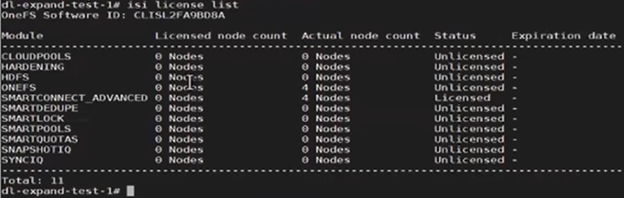
This means that the nodes’ licenses have been reset, and can now be successfully re-registered when the nodes have been reprovisioned.

Correspondingly, the Dynamic Licensing gconfig status now reflects that the cluster is no longer registered (licensing.dl_registered (bool) = false), and the default licensing method is now set to ‘offline’ (licensing.license_method (char*) = offline). For example:

# isi_gconfig -t licensing
[root] {version:1}
(empty dir licensing.features)
licensing.swid (char*) = <null>
licensing.license_method (char*) = offline
licensing.migration_required (bool) = false
licensing.last_send_time (int64) = 0
licensing.interval_hours (int64) = 24
licensing.dl_registered (bool) = false
ignore_signature (bool) = false
last_upgrade_commit_epoch (int64) = -1

If a cluster needs to be reimaged for whatever reason, first the cluster admin must deregister the PowerScale license registration. Failure to do so results in the product registration call failing, as the hardware entitlements are tied to a different cSWID. In cases where the customer fails to deregister the license and proceeds with reimaging the cluster, Dell support will need to remove the older cSWID. Note that a future solution is in progress to handle this scenario without requiring Dell Support’s involvement.

The license topology can be modified at any time, and whenever a topology change occurs the pertinent Dynamic Licensing gconfig settings are updated to reflect the new topology details. When the licensing mode is set to Direct and connectivity is enabled, the system behaves as follows in case of a temporary disconnection:

  • The licensing mode remains as ‘Direct’, even if a temporary disconnect occurs.
  • The cron job continues to perform its scheduled tasks without interruption.
  • As soon as the connectivity is re-established, all workflows resume their normal operation.

Clusters with DTCS/SRS enabled and connected to the Dell backend are automatically migrated to Dynamic Licensing upon upgrade to OneFS 9.13 or later, using the Key-to-Dynamic Upgrade Product Registration. For connected customers, the migration process occurs seamlessly, with the cluster handling the transition to Dynamic Licensing as part of the upgrade process.

Conversely, when a disconnected cluster upgrades to OneFS 9.13 or later, it continues to use the legacy XML-based licensing. However, the option is available to migrate to Dynamic Licensing at a later time, using either the direct-connected’ or offline registration modes.

Under the hood, Dynamic Licensing introduces a new ‘migration_required’ flag, which has a default value of ‘false’. In the event of an upgrade to OneFS 9.13 or later, the value of this flag is set to ‘true’.

In OneFS 9.13 or later with Dynamic Licensing enabled, a ‘cron’ scheduling job runs on an hourly and daily basis. Running as root, this cron job’s primary responsibilities include:

  • Collecting consumption data on an hourly basis
  • Sending the collected data to the Dynamic Licensing (DL) backend at least once a day, or at intervals defined in the global configuration (gConfig)

The cron job uses the OneFS licensing state machine’s ‘send_consumption’ subtask to send the consumption data to the backend.

The cron job monitors for changes to the node configuration, including additions or removals, and updates the registration in the Dynamic Licensing backend accordingly. This involves registering new nodes or decreasing the registration count when nodes are removed. If no changes are detected during expansion or reduction, the cron job will call the get registration API to retrieve the latest licensing information from the backend. The cron job utilizes the ‘dynamic_license_update_registration’ subtask of the license state machine for expansion, reduction, and get-registration operations.

The cron job uses the following gconfig parameters to send consumption data, and the job typically runs as root to allow it to operate in OneFS compliance mode:

Parameter Default Value Description
int64_t last_send_time 0 Timestamp when last consumption data was sent.
int64_t interval_hours 24 Time interval in hours to send consumption data.

For example:

# isi_gconfig -t licensing | grep int
licensing.last_send_time (int64) = 0
licensing.interval_hours (int64) = 24

Security-wise, Dynamic Licensing is available and supported in the following PowerScale cluster security modes:

  • Compliance
  • Hardening
  • Root Lockdown Mode (RLM)

Additionally, the ‘ISI_PRIV_LICENSE’ OneFS RBAC privilege is required.

When it comes to monitoring and/or troubleshooting Dynamic Licensing, there are several events, alerts, and healthchecks to provide warning, in addition to diagnostic logs. There are also WebUI banners that provide warnings and context for licensing issues. For example, the following will be displayed if the node serial numbers are already registered:

OneFS sends the meter licensed feature consumption/usage across the cluster as regular license health checks, and send it to the Dynamic Licensing back-end in a timely manner (typically at least once per day). The response to a license consumption call provides the latest state of the reservation pool (i.e., what entitlements exist) and compliance events generated after running the license assessment.

The assessment results are provided to the PowerScale cluster, which sends the latest consumption information to the Dynamic Licensing system.

The License Assessment measures result in 5 levels of concern, as mentioned below, with Level 1 being the lowest level of concern (OK) and Level 5 indicating the highest level of concern (critical). These tiers/concern levels need to be mapped to threshold values accordingly in the license policy based on what messaging & enforcement actions the products want to define.

A PowerScale cluster processes compliance events from the consumption response from Dynamic Licensing and will raise the events for Warn, Alert and Critical in the Direct mode. In the offline case, alerting is based on local compliance, which is determined by capacity usage.

The cluster creates events for all licensed features, and based on the compliance response, will raise an event for a particular feature if it fails compliance. Once the customer purchases new entitlements and compliance failures are resolved, the cluster quiesces the pertinent events for those licensed features.

OneFS raises a ‘SW_SUPPORTASSIST_DISCONNECTED’ event whenever connectivity is lost between the PowerScale cluster and the Dell Backend (DTCS/ESE). Additionally, OneFS also raises ‘WARN’ and ‘CRITICAL’ alerts when it is unable to connect to the Dell Backend.

The following diagnostic logs can provide considerable insight into Dynamic Licensing operation and issues, too:

Component Logfile Description  
ESE /usr/local/ese/var/log/ESE.log ESE communication log.
RICE /var/log/isi_rice_d.log Dynamic Licensing tasks log.
CRISPIES /var/log/isi_crispies_d.log RICE and ESE startup logs.
CRON /var/log/isi_license_d.log Cron log for expansion/reduction/consumption.
pAPI /var/log/isi_papi_d.log Platform API log.

Some additional Dynamic Licensing caveats and considerations that are worth noting include:

Consideration Details
Compliance Customers at dark sites who have manually migrated to Dynamic Licensing are required to upload consumption data quarterly to remain compliant.
Deregistration If a customer fails to complete Dynamic Licensing de-registration for an asset, any future registration attempts (e.g., after a cluster re-image) will fail.
Entitlements After migration to Dynamic Licensing, feature-level expiration dates are no longer be visible in the cluster WebUI. Customers must use the SLC Portal to view entitlement details.
Reverting Reverting from Dynamic Licensing to the legacy licensing model is not officially supported and cannot be performed by the customer. If required, manual intervention by Dell Support will be needed.

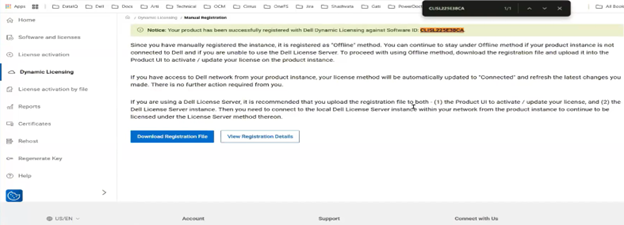
If registration with Dynamic Licensing fails, customers may instead manually register their PowerScale cluster through the Dell Software Licensing portal and upload the corresponding license file to the system from there.

Note that the legacy evaluation mechanism remains in OneFS 9.13 and later for enabling limited time trial licenses for specific data services. For example, to enable trial licenses for SmartPools and SyncIQ from the CLI:

# isi license add --evaluation SyncIQ --evaluation SmartPools
OneFS Dynamic Licensing Configuration

As we saw in the previous article in this series, Dynamic Licensing in OneFS 9.13 replaces the legacy, key‑based licensing model used in prior releases. Next, we’ll turn our attention to the configuration of Dynamic Licensing.

This updated Dynamic Licensing workflow supports both directly connected and offline environments, enabling customers to register licenses and manage entitlement reservations based on their connectivity capabilities, while providing real‑time entitlement updates and enhanced operational insight.

Key benefits of Dynamic Licensing include:

  • A unified licensing model that spans appliance, hybrid, and cloud deployments through a centralized reservation pool.
  • Near‑instant time‑to‑value with a cloud‑like consumption experience.
  • Seamless portability of licensed capabilities across clusters.
  • Reduced complexity throughout the licensing lifecycle.
  • Lower serviceability and support overhead through expanded automation.

Dynamic Licensing supports two operational modes to accommodate varying customer environments:

Licensing Mode Requires DTCS/SRS Details
Connected Yes Cluster <- Dell Technologies Connectivity Service -> Dell backend
·         Automatic registration to the Dell backend

·         Real-time entitlement updates

Offline No Cluster <- No connectivity -> Dell backend

·         Still requires manual upload of registration file for entitlement

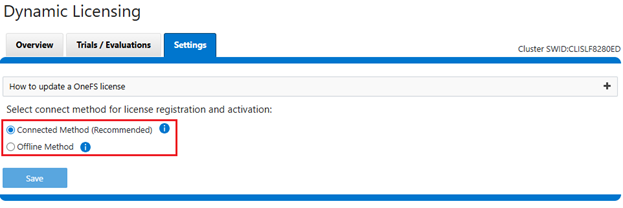
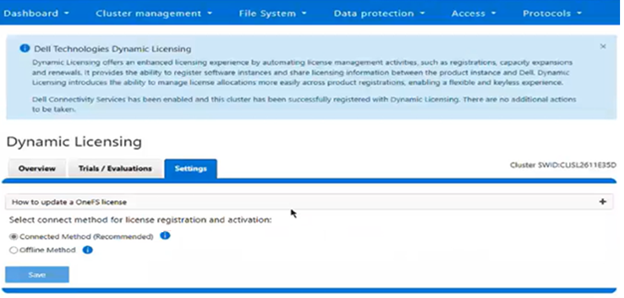
The currently configured method can be viewed from the WebUI under Cluster management > Dynamic licensing > Settings:

Or from the CLI with the following syntax:

# isi license list | grep -i method

   License Method: Offline

First, we’ll take a look at the direct, or ‘connected’, mode:

The basic process to configure OneFS Dynamic Licensing in ‘Connected Method’ is as follows:

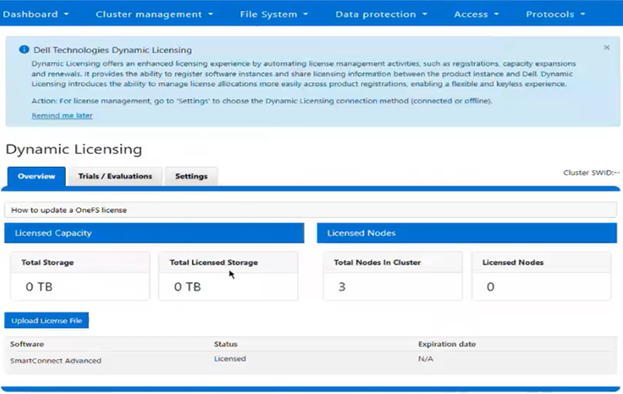
  1. From a fresh cluster running OneFS 9.13 or later, navigate to Cluster management > Dynamic Licensing > Overview:

The banner above will be displayed if Dynamic Licensing has not yet been activated on the cluster.

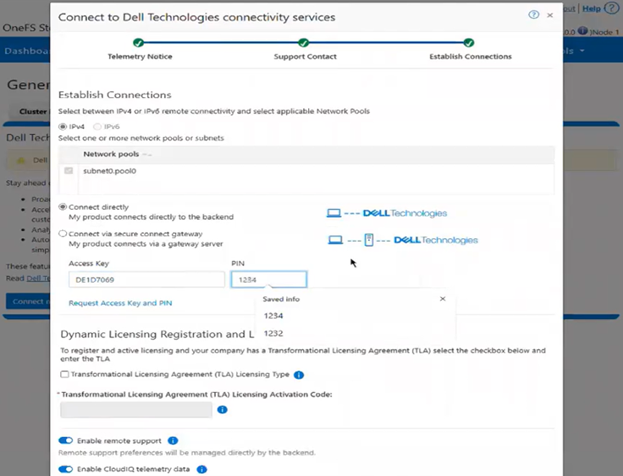
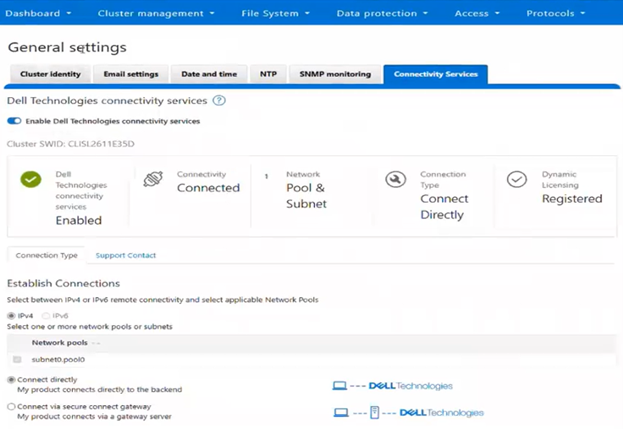
  1. Ensure that Dell Technologies Connectivity Services (DTCS) are enabled. This can be accomplished via the WebUI’s connectivity services wizard, under General Settings > Connectivity Services:

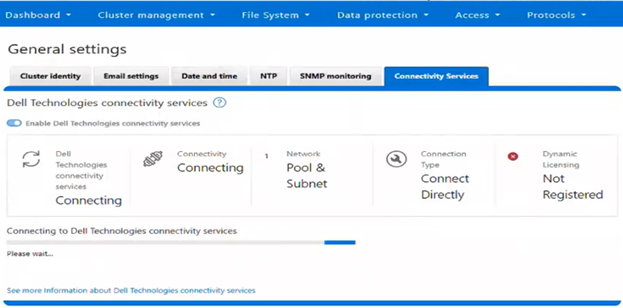
This may take some time while the cluster connects to DTCS, during which the following will be displayed:

Once the wizard has completed and connectivity has been established, the DTCS status will report ‘Enabled’, and the Dynamic Licensing status will show as ‘Registered’:

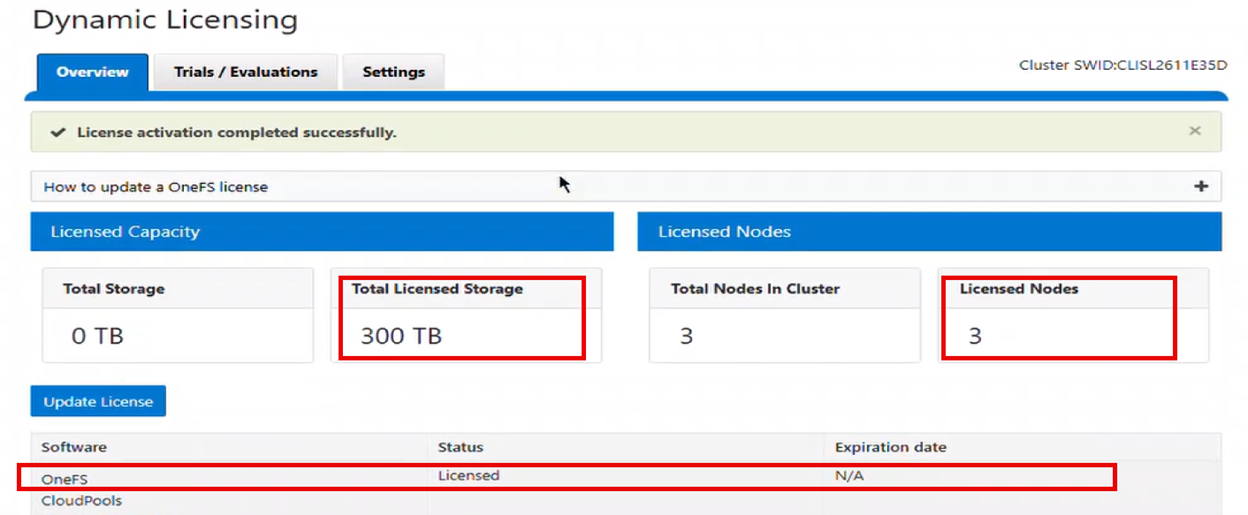
  1. From the WebUI under General Settings > Dynamic Licensing > Overview, the cluster now reports its licensed storage and nodes:

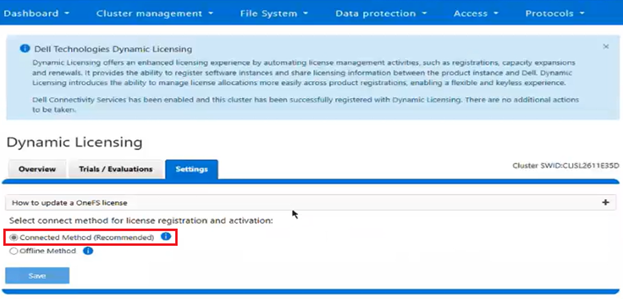
  1. Under General Settings > Dynamic Licensing > Settings, the connectivity status is now reported as ‘Connected Method (Recommended)’.

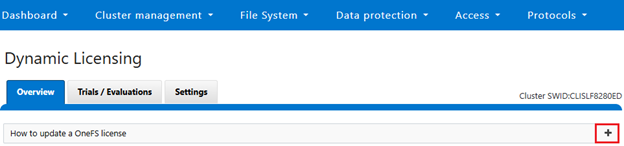
Note the ‘+’ icon within the ‘How to update a OneFS license’ text box:

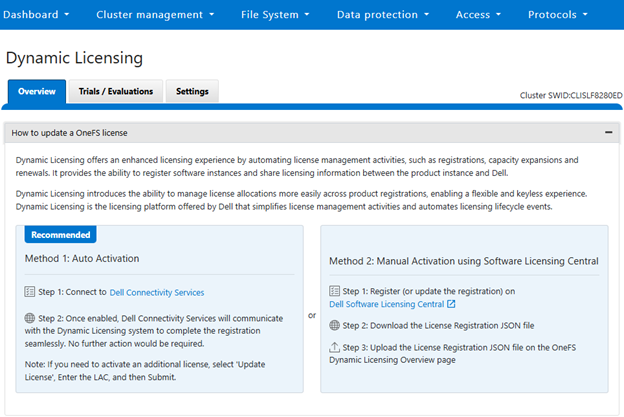
Clicking this plus icon will display the following overview of the two license update option:

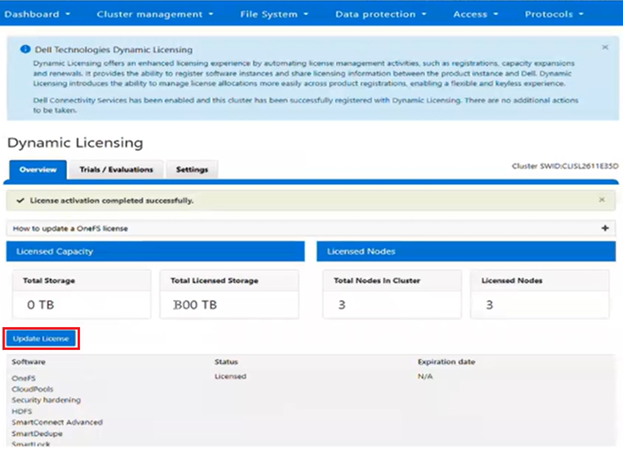
  1. Changes to a cluster’s license(s) can be easily made any time, by clicking the ‘Update License’ button:

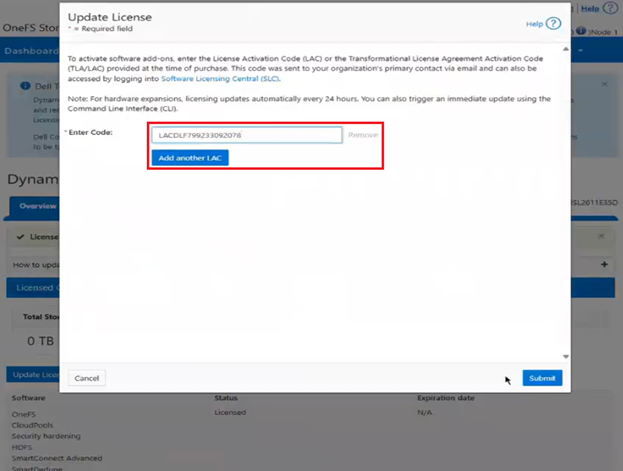
  1. This brings up the ‘Update License’ window, which allows the additional OneFS software and data services licenses to be activated. The License Activation Code (LAC) can be added for each licensed entity:

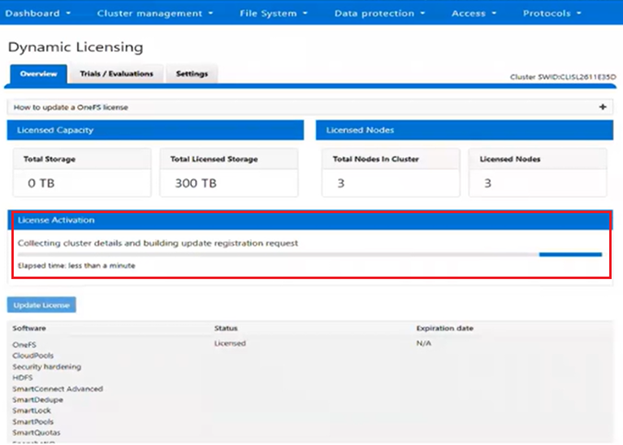
This may take some time, during which the license activation status will be displayed:

  1. Once complete, the new license status and entitlements will be displayed on the ‘Overview’ page:

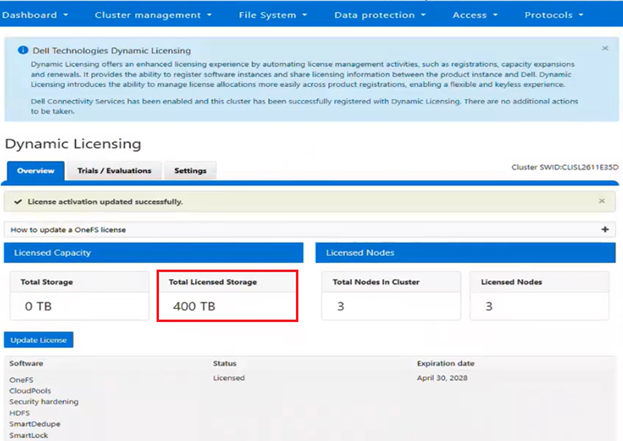
In this case, the total licensed storage has now increased to 400TB.

Alternatively, Dynamic Licensing can be enabled via the CLI in OneFS 9.13 or later, using the ‘isi license add’ syntax. Options for this command include:

License Add Option Details
–path <path> License file path. File must be located under /ifs. Can be relative or absolute path.
–evaluation <string> License to evaluate. Specify ‘–evaluation’ for each additional license to evaluate.
–lacs <lac> A license authorization code or LAC, that is associated with software and hardware entitlements within Dell Licensing. The format is an alphanumeric 20 character ASCII string.

Specify ‘—lacs’ for each additional license authorization code for software entitlements.

–tla <boolean> Transformational Level Agreement (TLA) status flag.

 If running Dynamic Licensing in ‘connected’ mode is not feasible or desired, the alternative is to configure ‘offline’ mode.

In this case, the cluster admin has to access the Dell Licensing Portal (SLC), provide the cluster inventory, download the licensing file, and then perform the registration as follows:

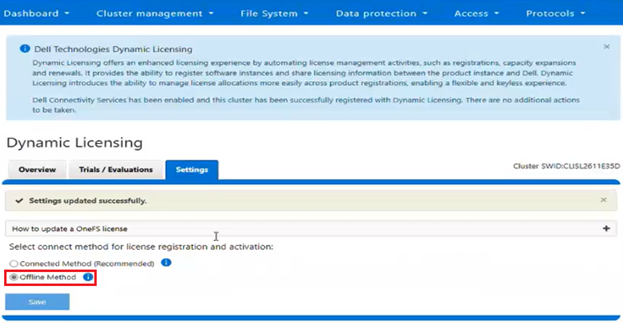
  1. From a cluster running OneFS 9.13 or later, select Dynamic Licensing ‘Offline Method’ from the WebUI under Cluster management > Dynamic Licensing > Settings:

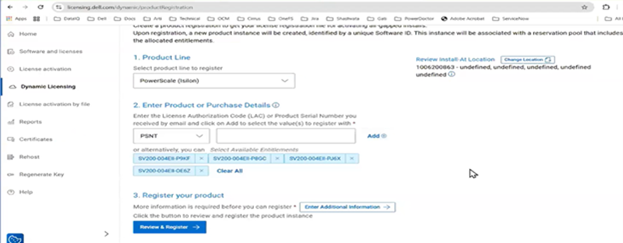
  1. From the Dell Licensing Portal, provide the serial number and all the service tags of the PowerScale cluster that is to be registered offline.

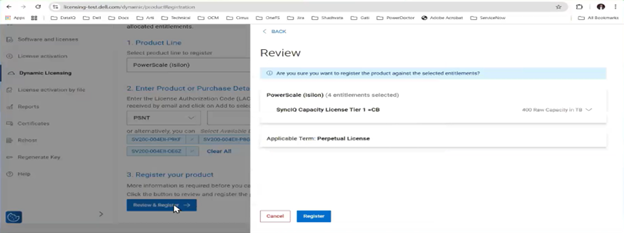
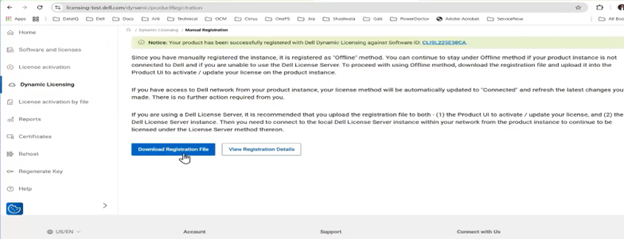
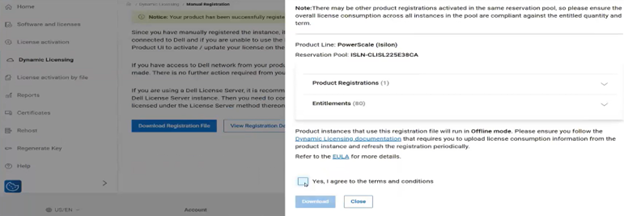
  1. Next, download the registration file.

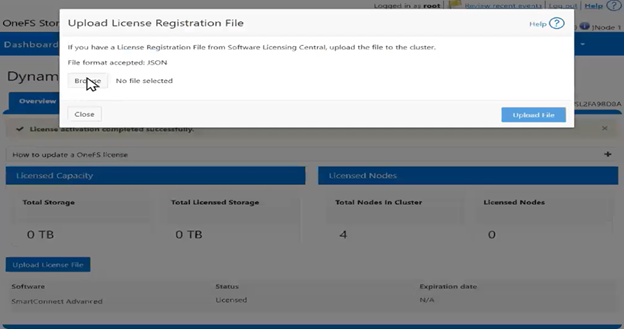
  1. Once this registration file is available, upload it to the PowerScale cluster:

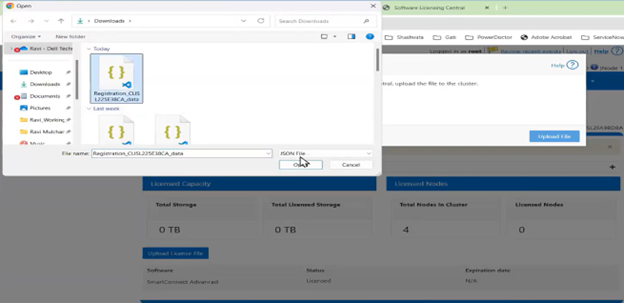
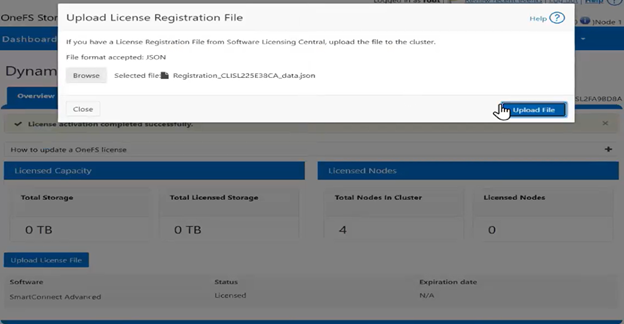
  1. Next, from the ‘upload license registration file’ window, the JSON file is located, and the ‘upload file’ button clicked to apply the license registration to the PowerScale cluster:

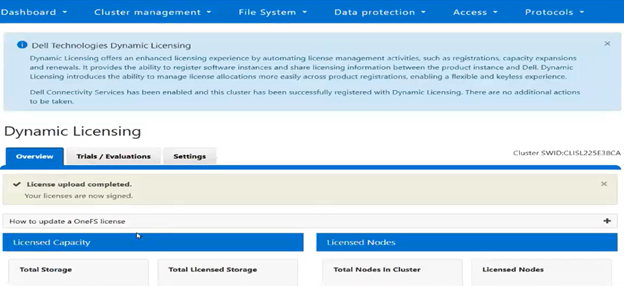
  1. From the ‘Overview’ screen, a banner confirms that the license upload was successfully completed:

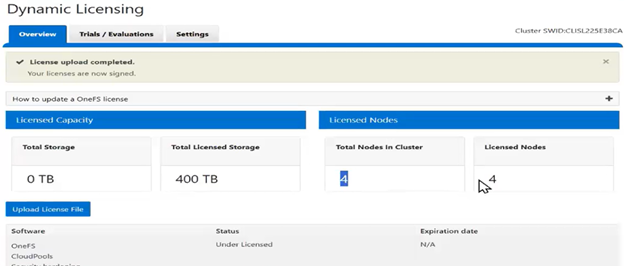
  1. This screen also reports the cluster’s entitlements, indicating that the cluster now has four licensed nodes and licensed capacity of 400 TB:

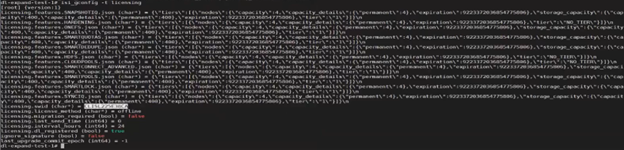
The Dynamic License gconfig parameters can be queried from the CLI to confirm that the PowerScale cluster is both registered with the dynamic licensing back end, and that the license method is ‘offline’:

This software identifier can also be verified from the Dell Licensing Portal.

In summary, clusters running Dynamic Licensing in offline mode require the administrator to download an updated registration file whenever license changes occur. When additional entitlements are purchased, a new registration file must be created in the Dell Licensing Portal and uploaded to the PowerScale cluster:

In the next and final article in this series, we’ll turn our attention to Dynamic Licensing management and troubleshooting.

OneFS Dynamic Licensing

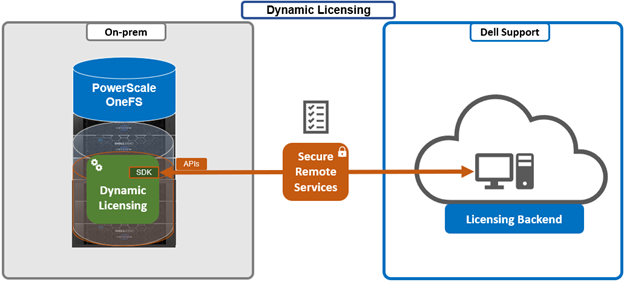
As part of Dell’s broader common architecture initiative, OneFS 9.13 introduces Dynamic Licensing for PowerScale, providing a unified and modernized licensing framework. Dynamic Licensing standardizes licensing mechanisms across Dell’s storage portfolio, streamlining customer interactions and reducing operational overhead through an automated, frictionless licensing experience. This approach is especially advantageous for customers operating multiple Dell Technologies products.

In OneFS 9.13, the legacy key‑based licensing model used in prior releases is replaced by Dynamic Licensing. The new system supports both direct‑connected and offline modes, allowing customers to manage license registration and entitlement reservations according to their connectivity capabilities while enabling real‑time entitlement updates and improved operational intelligence.

Key advantages of Dynamic Licensing include a shared licensing model across appliance, hybrid, and cloud deployments through a centralized reservation pool; near‑instant time‑to‑value with a cloud‑like experience; seamless mobility of licensed assets across clusters; reduced friction throughout the licensing lifecycle; and minimized serviceability requirements or support interventions through increased automation.

Dynamic Licensing supports two operational modes to accommodate varying customer environments:

Licensing Mode Requires DTCS/SRS Details
Direct Yes PowerScale cluster running OneFS 9.13 or later is connected to the Dell Licensing backend via Dell Technologies Connectivity Service (DTCS).

·         Automatic registration to the Dell backend

·         Real-time entitlement updates

Offline No There is no connectivity between the PowerScale cluster and the Dell Licensing Backend.

·         Requires manual upload of registration file for entitlement, as with legacy OneFS versions.

The direct, or connected, model serves customers who can establish connectivity to Dell Technologies through Dell Technologies Connectivity Services (DTCS), enabling automated entitlement updates and dynamic allocation of software assets. The Offline model supports environments without external connectivity by allowing customers to manually register PowerScale instances through registration files uploaded directly to the system.

The current licensing method can be viewed from the WebUI under Cluster management > Dynamic licensing > Settings. For example, the following cluster which is still configured for ‘Offline’ licensing:

PowerScale’s integration with Dell Dynamic Licensing relies on several core operations exposed through backend API workflows. The Create Registration operation establishes a Common Software ID (cSWID) and associates the system with the appropriate reservation pool and entitlements. Update Registration adjusts licensing data in response to environmental changes such as cluster expansion, entitlement extensions, reductions, or try‑and‑buy scenarios. Get Registration performs periodic checks with the Dell Dynamic Licensing backend for entitlement updates. Send Consumption transmits usage telemetry to Dell and processes compliance notifications.

Deregistration removes a PowerScale instance from the reservation pool during cluster deprovisioning or uninstallation, ensuring proper lifecycle management of the associated components. As such, the focus of Dynamic Licensing is on delivering a frictionless licensing experience and reducing serviceability overhead and support requests through an automated, streamlined licensing workflow. Dynamic Licensing delivers the ability to activate licensing during connectivity provisioning for appliance-based deployments, and through License Activation Codes (LACs) for PowerScale for public cloud virtual instances. When a PowerScale cluster is upgraded to OneFS 9.13 or later, the system will automatically migrate to Dynamic Licensing if external connectivity is available. If the cluster becomes disconnected, XML‑based licensing continues to function as a fallback during the upgrade process.

The Dynamic Licensing framework supports entitlement expansion and reduction by registering or deregistering nodes as they are added to or removed from the cluster, and it also supports software capacity expansion through additional LACs. In the Direct model, the system automatically generates alerts whenever Dell Technologies Connectivity Services (ESE/DTCS) become unavailable. The cluster also generates alerts in cases of licensing compliance failures. Administrators have the ability to view complete license information—including expiration dates, licensed capacity, and associated entitlements—directly within the cluster interface.

The prerequisites for Dynamic Licensing require that the Direct model establishes connectivity through Dell Technologies Connectivity Services. Software‑only deployments require a License Authorization Code or valid order number for registration, while hardware‑based installations require node serial numbers to complete registration.

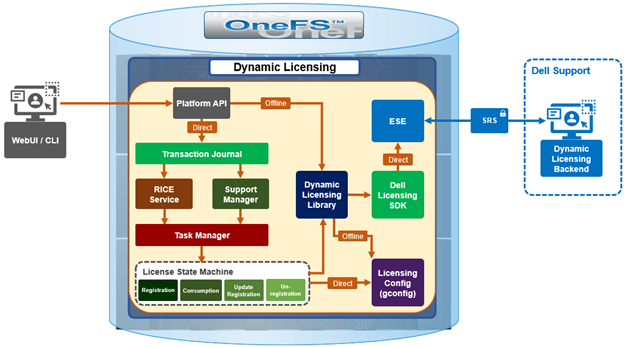
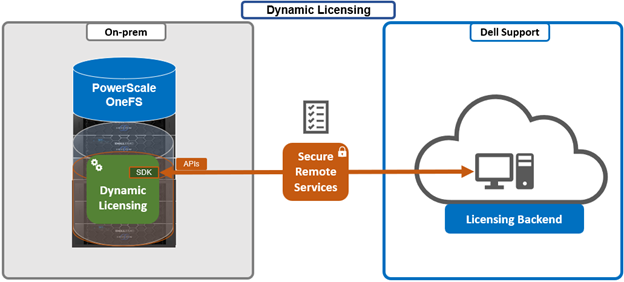
Architecturally, the OneFS Dynamic Licensing workflow is as follows:

Whenever a PowerScale cluster receives a dynamic licensing request from the OneFS WebUI or CLI, it is quarterbacked by its corresponding platform API (pAPI) method. In this way, dynamic licensing tasks are added in the transaction journal. The OneFS isi_rice_d connectivity service, which is part of the secure remote services (SRS), is responsible for picking up the task and assigning it to a task manager. Internally, the licensing state machine performs the job of registration, consumption update, registration and deregistration. This licensing state machine talks to Dell’s backend dynamic licensing library which is implemented on top of the dynamic licensing SDK. If the cluster is already connected via the Dell Technologies Connectivity Services (DTCS), then all requests to the dynamic licensing backend are routed through SRS. Alternatively, if the cluster is offline then OneFS makes the pAPI call directly. Once the response is received back from the dynamic licensing back end, the data is stored in the licensing section of OneFS gconfig.

OneFS 9.13 and later support switching between Dynamic Licensing modes, allowing transitions from connected (Direct) to disconnected (Offline) operation in the initial phase. Once Direct mode is established, the administrator may switch to Offline mode, at which point OneFS relies on the licensing data stored in gconfig—populated by the Direct workflows—and begins executing the Offline Dynamic Licensing processes. In this state, the system bases alerting on the local configuration and stops transmitting consumption information to the Dynamic Licensing backend. Transitioning back from the disconnected Offline mode to the connected Direct mode is also supported; once connected, the system resumes sending consumption telemetry and generating alerts based on backend compliance responses.

When changing the licensing model, a PowerScale cluster that maintains DTCS connectivity automatically converts to Dynamic Licensing during the upgrade workflow, specifically within the post‑upgrade commit phase. Disconnected clusters continue using the legacy XML‑based licensing model and are not migrated until connectivity is enabled. If ESE connectivity is present, Dynamic Licensing is automatically activated and cannot be disabled; if ESE connectivity is absent, the system continues using XML‑based licensing. License violation reporting remains consistent with current behavior: Direct‑mode systems generate alerts based on backend compliance reports, while Offline systems rely on the most recently uploaded static license file. Dynamic Licensing becomes fully active only after all nodes in the cluster complete the upgrade commit process; until that point, key‑based licensing continues to function.

The transition path to Dynamic Licensing varies by deployment type. Greenfield environments activate Dynamic Licensing immediately upon enabling ESE connectivity, or, in the absence of connectivity, operate in Offline mode using a manually uploaded JSON license file. Brownfield clusters with existing entitlements convert them as part of the Dynamic Licensing transition. Connected systems convert automatically once ESE connectivity becomes available, while disconnected systems continue using XML‑based licensing until connectivity is established or the administrator manually selects the Offline Dynamic Licensing mode through the WebUI or CLI. If Dynamic Licensing activation fails, the system notifies the administrator while maintaining a consistent user experience. In‑product activation through LACs continues to operate as it does today, and trial activation remains local to the cluster. If registration or backend communication fails at any point, the user receives a notification.

When upgrading to the latest OneFS release, connected PowerScale clusters automatically transition to Dynamic Licensing. Newly deployed connected clusters running OneFS 9.13 or later enroll in Dynamic Licensing without additional steps. Administrators retain visibility into trial and licensing data consistent with earlier releases, including expiration details, licensed capacity, and pre‑upgrade entitlement information. However, because of Dynamic Licensing’s design, per‑feature expiration dates no longer appear in the WebUI; instead, features are labeled ‘Licensed’ or ‘Unlicensed.’ Direct‑mode compliance continues to rely on backend feature‑specific expiration data, even though the WebUI abstracts this into license state indicators. Offline systems also hide per‑feature expiration dates and base compliance solely on the static license file or the entitlement information stored locally.

Customers may still view detailed per‑feature expiration data through the Software Licensing Central (SLC) portal. For disconnected environments, the licensing workflow generally mirrors earlier OneFS versions, except for the removal of visible per‑feature expiration dates. Trial functionality continues to operate independently of Dynamic Licensing, and in‑product activation via LACs behaves the same from a user‑experience perspective, with the addition of backend telemetry when connectivity is available. When customers add nodes or capacity, Dynamic Licensing ensures that new nodes are licensed automatically, assuming the appropriate entitlements exist, maintaining the experience of current LAC‑based workflows.

Additionally, admins are notified if the cluster becomes disconnected, prompting them either to restore connectivity or manage entitlements manually through the ‘offline mode. For cloud deployments, customers must provide a LAC and related parameters to activate licensing through a two‑step sequence in which connectivity is first established without full registration, followed by registration of the cluster with the Dynamic Licensing backend using the LAC.

Alerting behavior differs between modes. In Direct mode, alerts are driven by backend compliance responses for both feature term and capacity. In Offline mode, alerts rely solely on the capacity and entitlements defined in the static registration file uploaded to the cluster.

At a high level, the new functionality in OneFS 9.13 that allows PowerScale to take advantage of Dell Dynamic Licensing includes:

Dynamic Licensing Condition Details
Offer onboarding ·         Understand the License Policy & use it effectively within the product to control behaviors.

·         Identify all features that are measured for consumption & configure them in the offers.

Product provisioning ·         Perform a call to the Dynamic Licensing Product Registration APIs for Direct registration, or manually upload a file for offline registration to enroll the product with a unique cSWID.
Product use ·         Meter the consumption of different features of the product.

·         Send consumption home from each tenant.

·         Receive audit response & act on compliance results.

The Dell Licensing backend provides a Common Licensing Platform (CLP) for integrating licensing into each product, enabling a standard licensing solution across the Dell portfolio. This SDK relies on third-party utilities and libraries such as cjson, curl, libxml, openssl, and xmlsec which, with the exception of cjson, are available by default in OneFS, located under /usr/local/lib/.

Product registration registers the installed product instance with Licensing to get a unique Software ID (cSWID) by passing the product’s ‘model-id’ plus additional information.

Introduced as part of Dynamic Licensing, the cSWID is a combination of the legacy iSWID and eSWID. As such, it draws benefits from both, with its ability to automatically register with Dell licensing like an iSWID as part of product registration, and also link to commerce entitlements like an eSWID.

The type of identifier used for product registration depends on the cluster type:

Cluster Type Identifier Details
Hardware appliance Service tag For Hardware Clusters, the Service Tag is used as the identifier and is automatically detected, with a Model ID of POWERSCALE_HW.
Software defined (cloud) LAC / Order Number Software Clusters rely on the LAC (License Authorization Code) or Order Number as the identifier, which requires the customer to provide the LAC and have a Model ID of POWERSCALE_VE.

The product registration process validates whether the customer has existing entitlements against the identifiers provided (i.e., Service Tag, Order Number, LAC) and then attempt to create a Reservation between the product’s Software ID and the entitlements related to the identifiers provided.

As mentioned previously, there are two product registration modes available: Direct and Offline. Each mode offers a distinct approach to registering products, catering to different customer needs and environments. Product registration is facilitated using the licensing library built on top of the Dynamic Licensing SDK.

With Direct mode, product registration occurs automatically through ESE as soon as the customer enables connectivity. In contrast, Offline Mode requires the customer to manually accesses the Dell Software Licensing Central (SLC) portal, select the product line, enter the LAC (TLA Agreement ID), and provide additional information (e.g., late-binding HW serial, node locking, etc.), then click ‘Register’ to obtain a file. The customer must upload the Dynamic Licensing file to activate the license on the PowerScale cluster, making this mode suitable for dark sites, and other environments with limited internet connectivity.

Upon completing the registration process, the registration response, including the entitled state, is stored in the gconfig under the licensing tree, along with the licensing topology and other pertinent info.

# isi_gconfig -t licensing
[root] {version:1}
(empty dir licensing.features)
licensing.swid (char*) = <null>
ignore_signature (bool) = true
last_upgrade_commit_epoch (int64) = -1
# Additional Attributes
license_topology = "direct"
license_technology = "dynamic"

The product registration process migrates existing key-based installations to dynamic licensing for customers who wish to upgrade to the latest version of PowerScale. By leveraging the registration process, customers can seamlessly transition from traditional key-based licensing to the more flexible and scalable dynamic licensing model.

A Transformational License Agreement (TLA) is an enterprise-level licensing model that allows customers to purchase large volumes of capacity for an extended term, typically five years. Under a TLA, customers receive software-only entitlements that are not associated with specific hardware at the time of purchase. Instead, hardware binding occurs later in the process during license registration and activation, when Service Tags are applied. A single registration request can support multiple TLA License Activation Codes (LACs).

TLA orders are characterized by their software-only nature, meaning entitlements are not tied to particular systems at the point of sale. Additionally, the late-binding model ensures that license entitlements are associated with hardware only during the registration and activation phase rather than at purchase time.

To register a TLA order, specific information is required, including the TLA License Activation Code, which uniquely identifies the license for activation purposes, and the relevant Service Tags, which are used to bind the entitlements to the appropriate hardware during the late-binding process.

The Dynamic Licensing system periodically conducts a License Assessment to compare a customer’s usage of Dell products with their allocated entitlements. If the assessment reveals any Compliance Failures, it will trigger an event/alert. Once registered with the Dell Dynamic Licensing backend, the PowerScale cluster transmits consumption data to the Dell backend at regular intervals. Specifically:

Reporting type Frequency
Collect Once per hour
Hardware cluster Once per day
Software-defined Once per hour

Consumption data is collected hourly and transmitted to the Dell Dynamic Licensing backend on a daily basis (for hardware clusters). For capacity-based features associated with a tier, the reported used capacity represents the aggregate of all nodes linked to that tier. In contrast, for features licensed on a base-only model, such as CloudPools, OneFS hardening, and HDFS, the quantity reported is the actual number of nodes. The license consumption call response provides the current state of the reservation pool, including existing entitlements. PowerScale processes compliance events based on consumption responses from Dynamic Licensing (DL), generating alerts for licensing violations and clearing them once violations are resolved. After processing compliance results, PowerScale acknowledges the audit back to the Dynamic Licensing APIs, completing the audit cycle.

Cluster that are running in Offline mode have their license assessment conducted against a customer-uploaded JSON license file. The License Assessment is evaluated based on capacity usage, not on a term basis.

So, as we’ve seen, Dynamic Licensing in OneFS 9.13 replaces the legacy, key‑based licensing model used in prior releases. In the next article in this series, we’ll turn our attention to its configuration and use.

OneFS One-click Upgrade

Among the array of features and functionality which debut in the OneFS 9.12 release lies One-Click Upgrade. This feature simplifies OneFS software lifecycle management on a PowerScale cluster by enabling automated package discovery, download, and installation via the WebUI, providing a seamless upgrade experience.

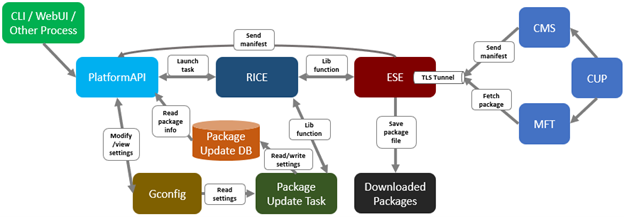
When Dell Connectivity Services (DTCS) are enabled and the cluster registered via its unique software ID, telemetry data is securely transmitted to the Dell support backend. This enables the Cluster Update Platform (CUP) to determine the appropriate upgrade packages for each cluster.

Based on this telemetry, CUP generates a manifest containing package metadata, which is distributed by the Converged Management System (CMS) via Dell Managed File Transfer (MFT) to the Embedded Service Enabler (ESE) component on the target cluster.

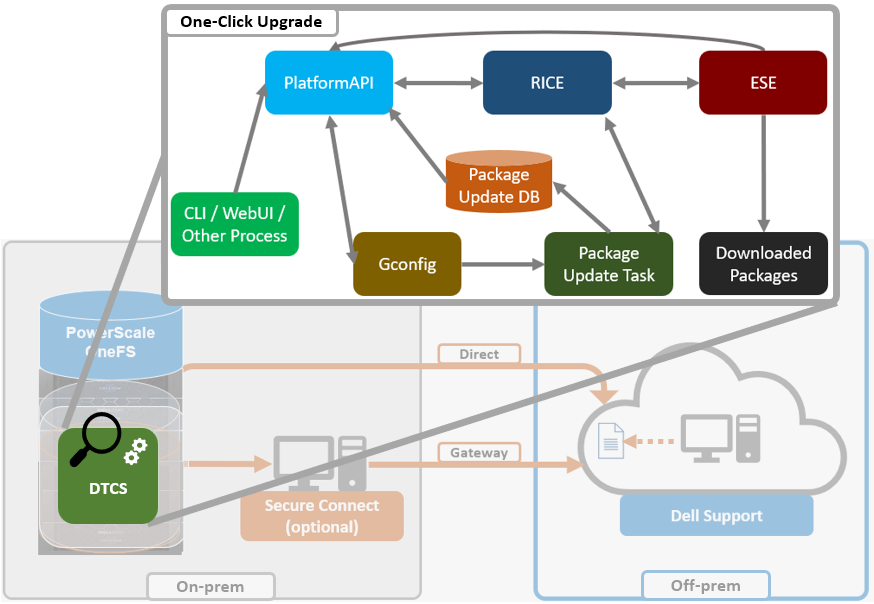
Under the hood, the one-click upgrade feature’s architecture and workflow is as follows:

The upgrade package is staged on the MFT locker for retrieval. Upon receiving the manifest, ESE invokes the OneFS platform API (pAPI) to forward the data to the ‘Rice’ service. The rice daemon parses the manifest, stores package details in the local database, and exposes them to the WebUI.

As such, cluster admins can view available packages, including version, release stage, and firmware options, and initiate downloads or installations directly from the WebUI.

OneFS 9.12 supports optional auto-download policies, allowing customers to select preferences such as latest release or LTS versions. Installation is triggered with a single click, leveraging the isi upgrade workflow to orchestrate node reboots and apply updates. This process is as follows:

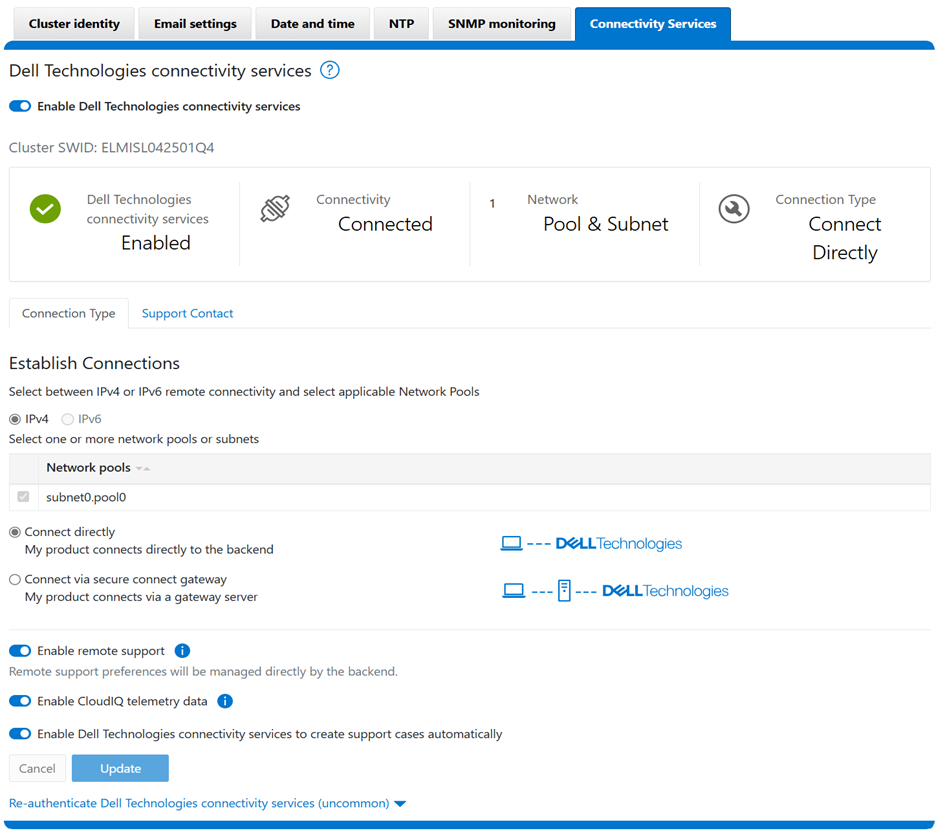
  1. Configure Dell Connectivity Services (DTCS) using the WebUI wizard located under Cluster Management > General Settings > Connectivity Services:

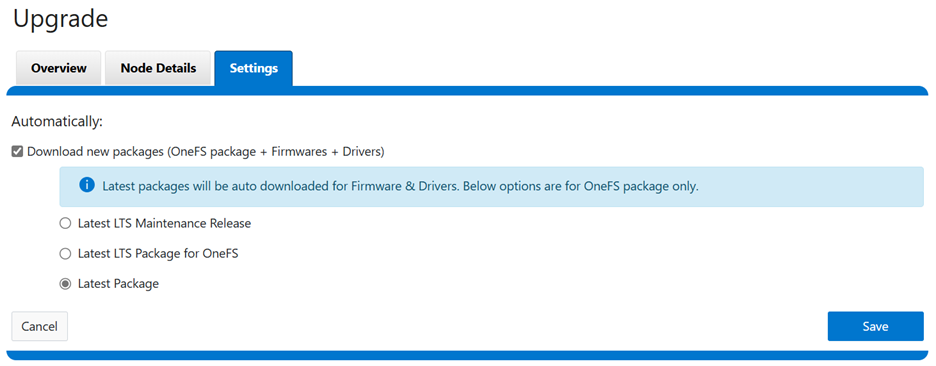
  1. Configure the download settings, located under Cluster Management > Upgrade > Settings:

  1. Enable or disable one-click upgrade functionality:
# isi upgrade package setting modify --enable-subscription <true|false>

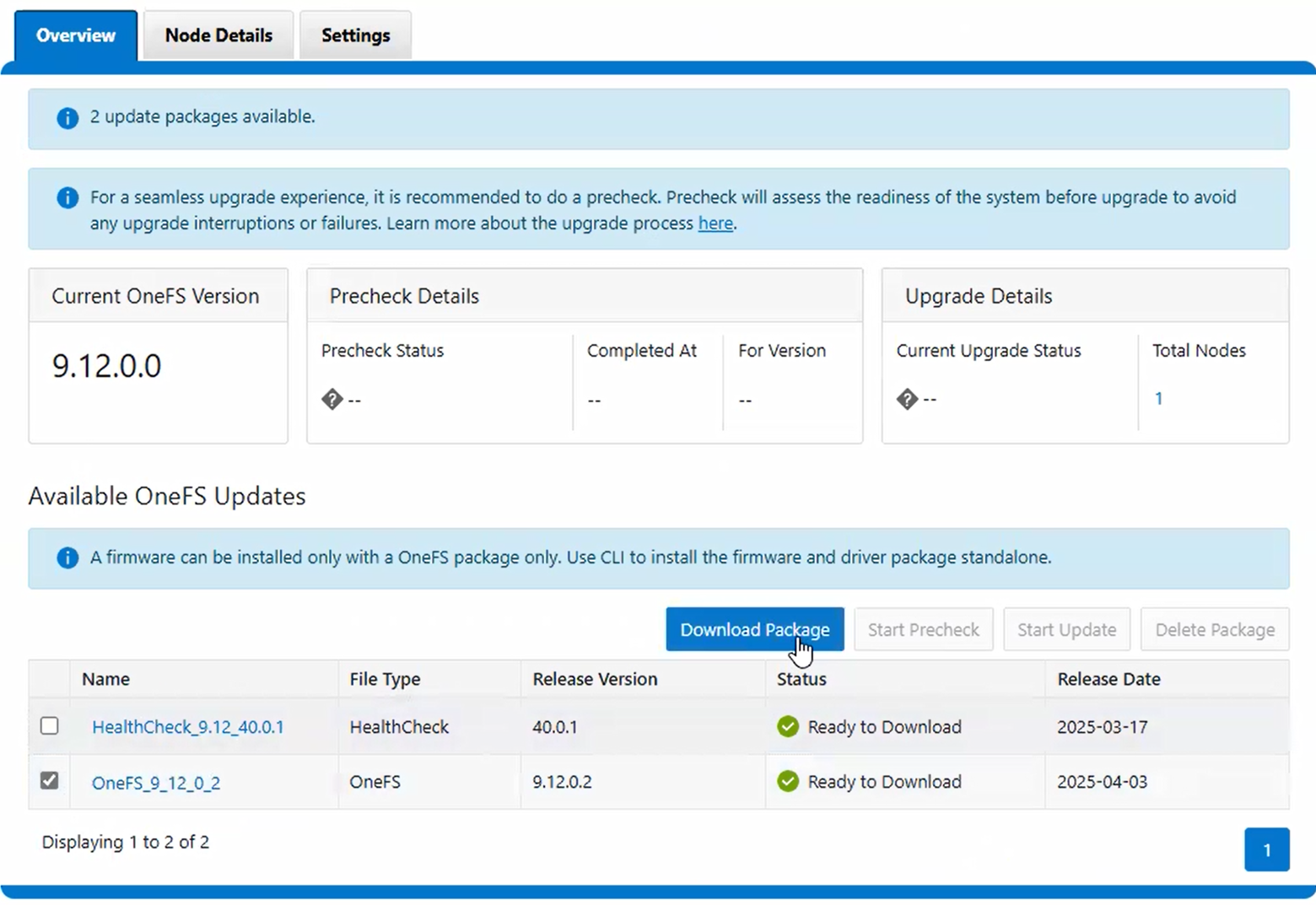
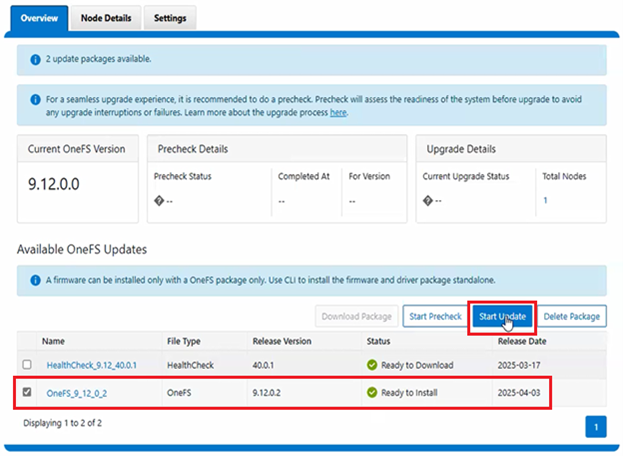
Once enabled, one-click upgrade can be easily invoked by selecting the desired release version and clicking on the ‘Start Update’ button under Cluster Management > Upgrade > Overview:

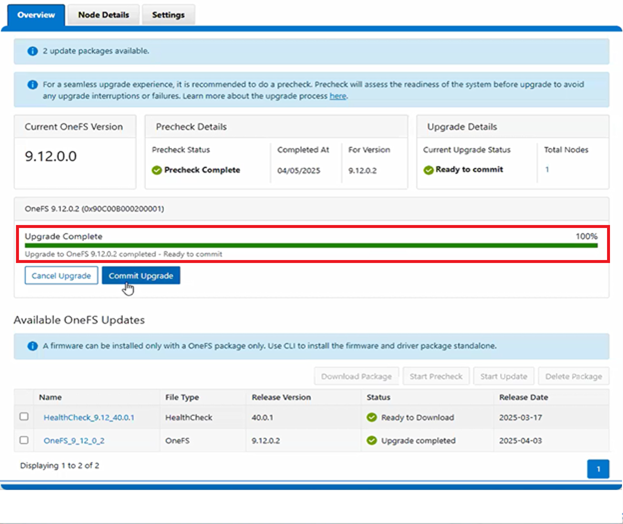
  1. Upgrade status will be visually communicated in the WebUI via the completion status bar under Cluster Management > Upgrade > Overview:

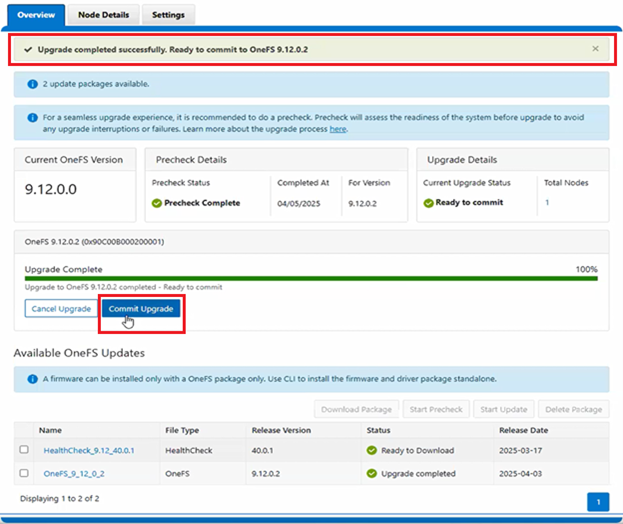
5. Once completed, a banner similar to the following will be displayed by the WebUI under Cluster Management > Upgrade > Overview, indicating that the upgrade was successful. When ready, the upgrade can then be committed by clicking on the ‘Commit Upgrade’ button:

Post-upgrade, users can commit or roll back changes through the same interface. If there’s an anomaly or issue, investigation and troubleshooting can be performed from the CLI with the following commands.

To verify the Connectivity service status:

# isi connectivity view

To check the rice service log file:

# cat /var/log/isi_rice_d.log

To view the check upgrade log:

# isi upgrade view

# isi_upgrade_logs

The following tables presents some potential solutions for common issue resolution.

Issue Background Possible Solutions
Package not displayed Verify connectivity service status
Package download error Check isi_rice_d log
Package installation error Check upgrade log

In summary, the one-click upgrade architecture in OneFS 9.12 and later ensures secure, telemetry-driven package delivery, minimizes manual intervention, helping to accelerate upgrade cycles while maintaining cluster integrity.