As we saw in the previous article in this series, Dynamic Licensing in OneFS 9.13 replaces the legacy, key‑based licensing model used in prior releases. Next, we’ll turn our attention to the configuration of Dynamic Licensing.
This updated Dynamic Licensing workflow supports both directly connected and offline environments, enabling customers to register licenses and manage entitlement reservations based on their connectivity capabilities, while providing real‑time entitlement updates and enhanced operational insight.
Key benefits of Dynamic Licensing include:
- A unified licensing model that spans appliance, hybrid, and cloud deployments through a centralized reservation pool.
- Near‑instant time‑to‑value with a cloud‑like consumption experience.
- Seamless portability of licensed capabilities across clusters.
- Reduced complexity throughout the licensing lifecycle.
- Lower serviceability and support overhead through expanded automation.
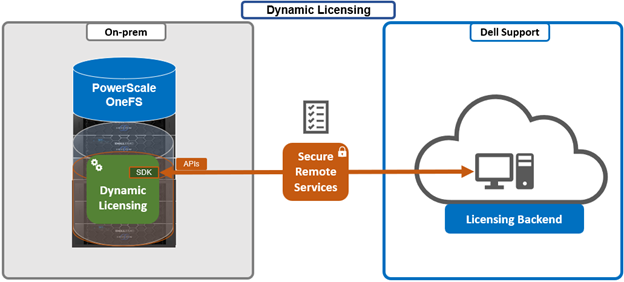
Dynamic Licensing supports two operational modes to accommodate varying customer environments:
| Licensing Mode | Requires DTCS/SRS | Details |
| Connected | Yes | Cluster <- Dell Technologies Connectivity Service -> Dell backend
· Automatic registration to the Dell backend · Real-time entitlement updates |
| Offline | No | Cluster <- No connectivity -> Dell backend
· Still requires manual upload of registration file for entitlement |
The currently configured method can be viewed from the WebUI under Cluster management > Dynamic licensing > Settings:
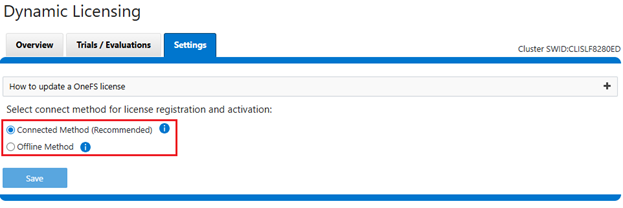
Or from the CLI with the following syntax:
# isi license list | grep -i method

   License Method: Offline
First, we’ll take a look at the direct, or ‘connected’, mode:

The basic process to configure OneFS Dynamic Licensing in ‘Connected Method’ is as follows:
- From a fresh cluster running OneFS 9.13 or later, navigate to Cluster management > Dynamic Licensing > Overview:
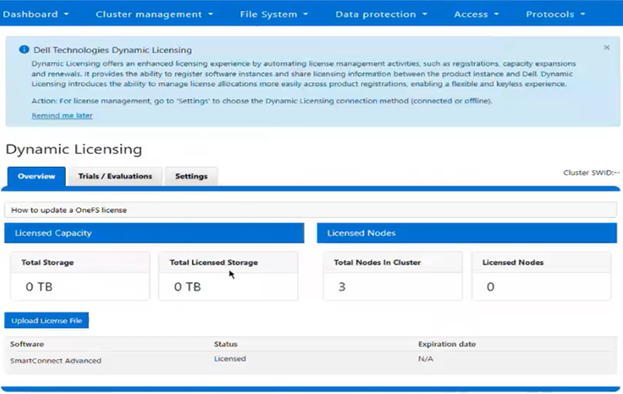
The banner above will be displayed if Dynamic Licensing has not yet been activated on the cluster.
- Ensure that Dell Technologies Connectivity Services (DTCS) are enabled. This can be accomplished via the WebUI’s connectivity services wizard, under General Settings > Connectivity Services:
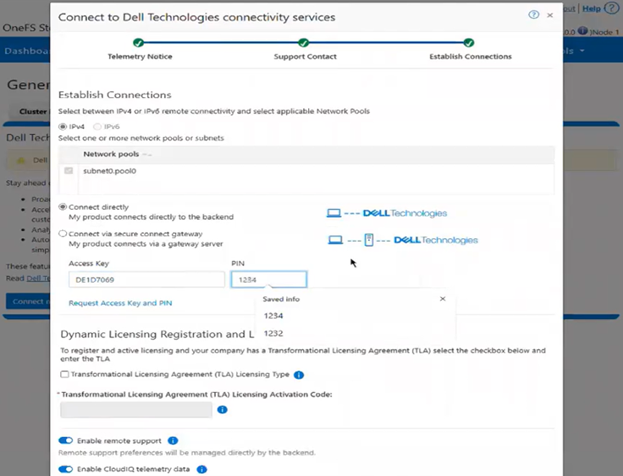
This may take some time while the cluster connects to DTCS, during which the following will be displayed:
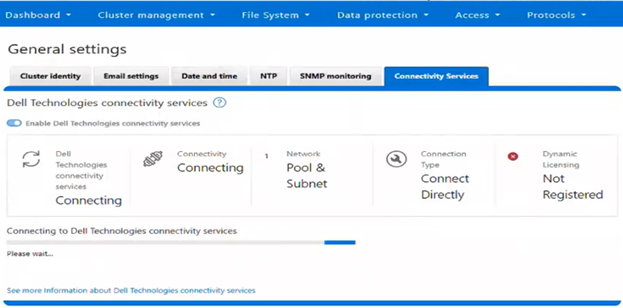
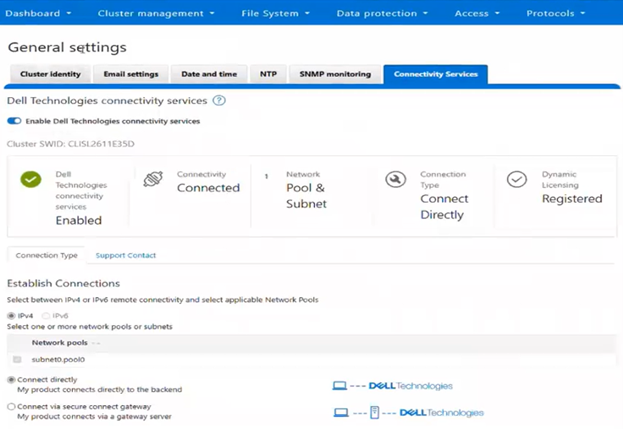
Once the wizard has completed and connectivity has been established, the DTCS status will report ‘Enabled’, and the Dynamic Licensing status will show as ‘Registered’:
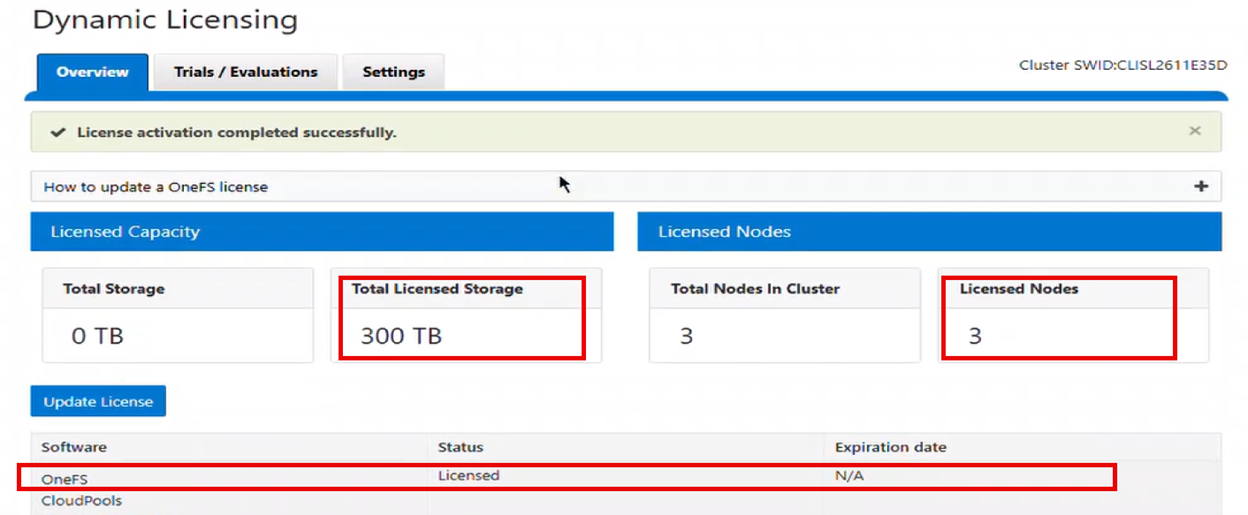
- From the WebUI under General Settings > Dynamic Licensing > Overview, the cluster now reports its licensed storage and nodes:
- Under General Settings > Dynamic Licensing > Settings, the connectivity status is now reported as ‘Connected Method (Recommended)’.
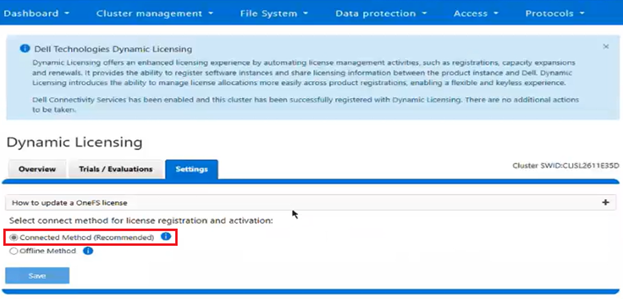
Note the ‘+’ icon within the ‘How to update a OneFS license’ text box:
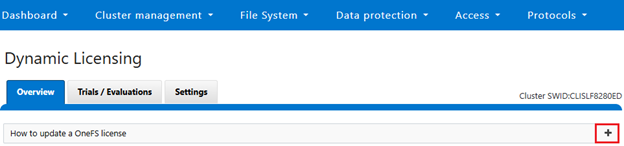
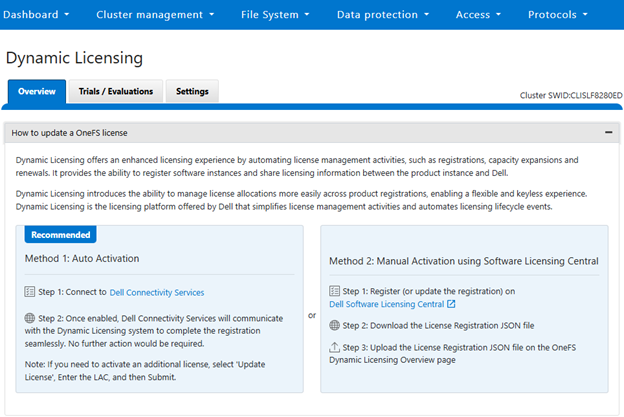
Clicking this plus icon will display the following overview of the two license update option:
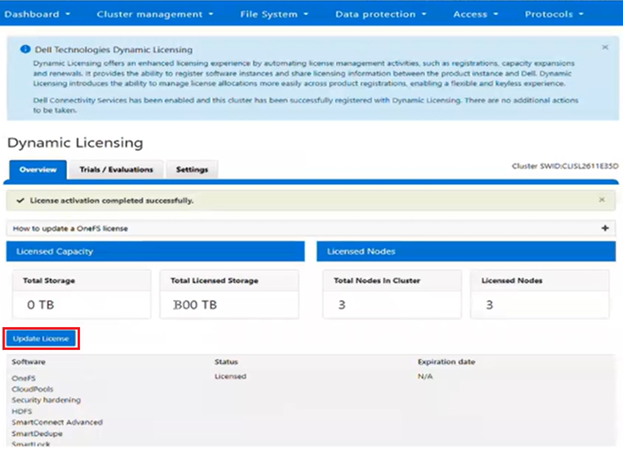
- Changes to a cluster’s license(s) can be easily made any time, by clicking the ‘Update License’ button:
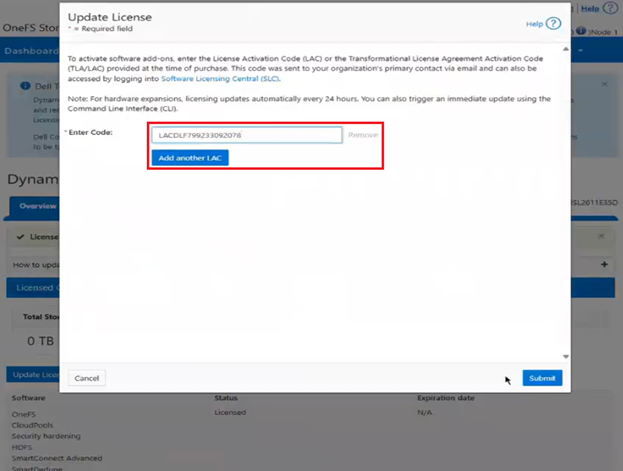
- This brings up the ‘Update License’ window, which allows the additional OneFS software and data services licenses to be activated. The License Activation Code (LAC) can be added for each licensed entity:
This may take some time, during which the license activation status will be displayed:
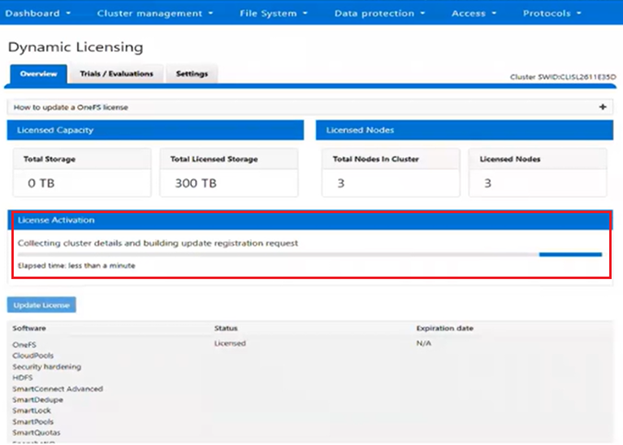
- Once complete, the new license status and entitlements will be displayed on the ‘Overview’ page:
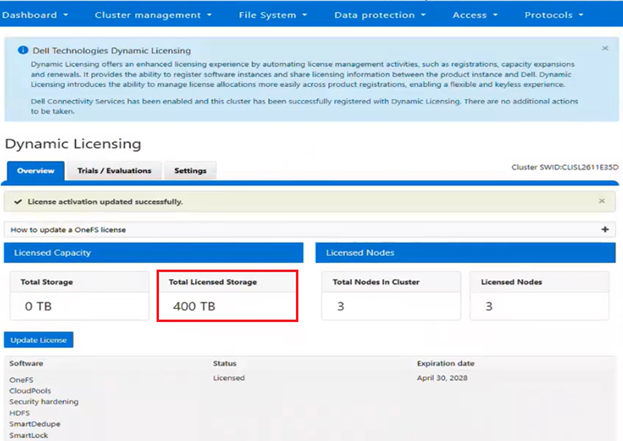
In this case, the total licensed storage has now increased to 400TB.
Alternatively, Dynamic Licensing can be enabled via the CLI in OneFS 9.13 or later, using the ‘isi license add’ syntax. Options for this command include:
| License Add Option | Details |
| –path <path> | License file path. File must be located under /ifs. Can be relative or absolute path. |
| –evaluation <string> | License to evaluate. Specify ‘–evaluation’ for each additional license to evaluate. |
| –lacs <lac> | A license authorization code or LAC, that is associated with software and hardware entitlements within Dell Licensing. The format is an alphanumeric 20 character ASCII string.
Specify ‘—lacs’ for each additional license authorization code for software entitlements. |
| –tla <boolean> | Transformational Level Agreement (TLA) status flag. |
If running Dynamic Licensing in ‘connected’ mode is not feasible or desired, the alternative is to configure ‘offline’ mode.

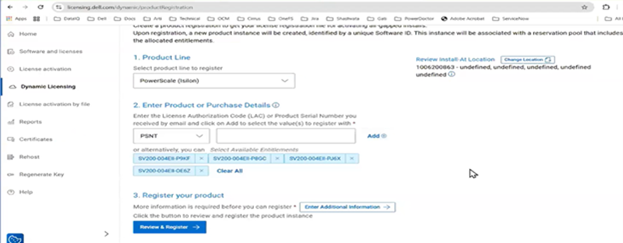
In this case, the cluster admin has to access the Dell Licensing Portal (SLC), provide the cluster inventory, download the licensing file, and then perform the registration as follows:
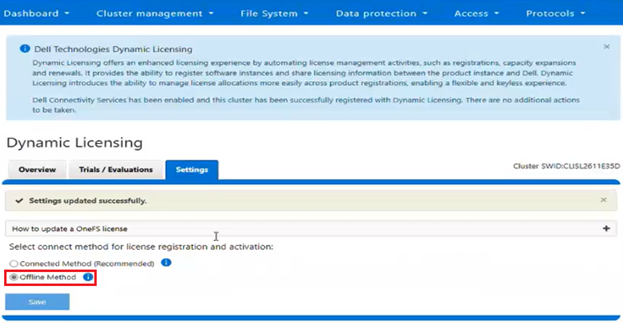
- From a cluster running OneFS 9.13 or later, select Dynamic Licensing ‘Offline Method’ from the WebUI under Cluster management > Dynamic Licensing > Settings:
- From the Dell Licensing Portal, provide the serial number and all the service tags of the PowerScale cluster that is to be registered offline.
- Next, download the registration file.
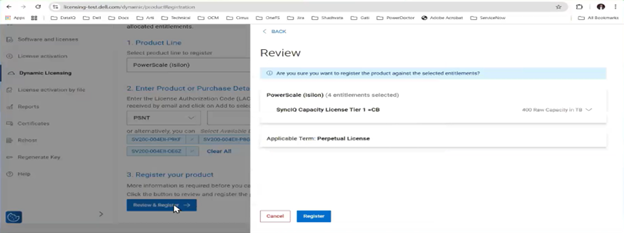
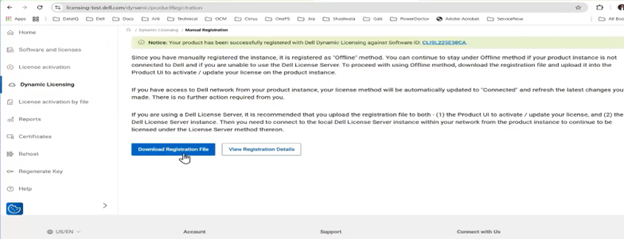
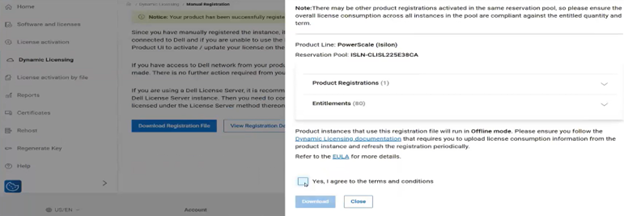
- Once this registration file is available, upload it to the PowerScale cluster:
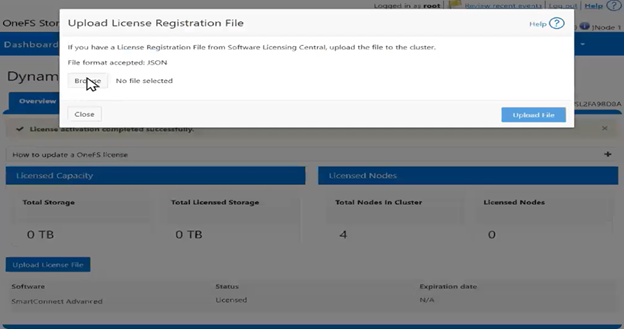
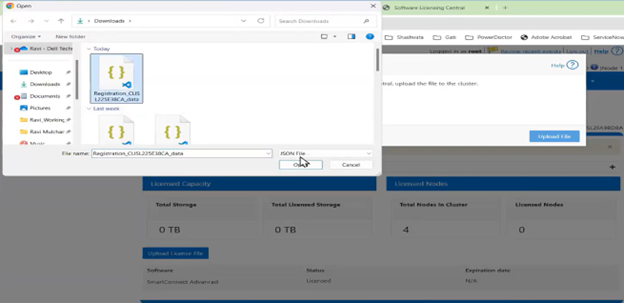
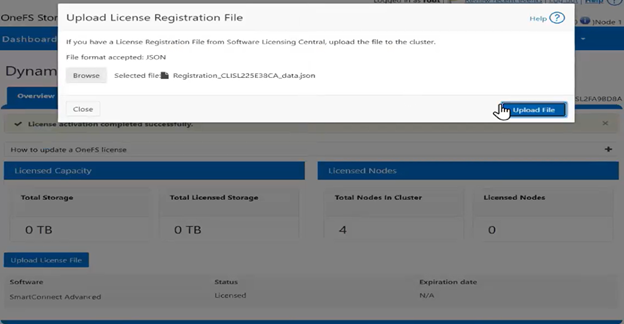
- Next, from the ‘upload license registration file’ window, the JSON file is located, and the ‘upload file’ button clicked to apply the license registration to the PowerScale cluster:
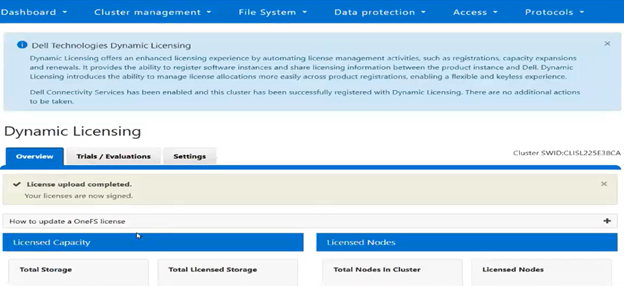
- From the ‘Overview’ screen, a banner confirms that the license upload was successfully completed:
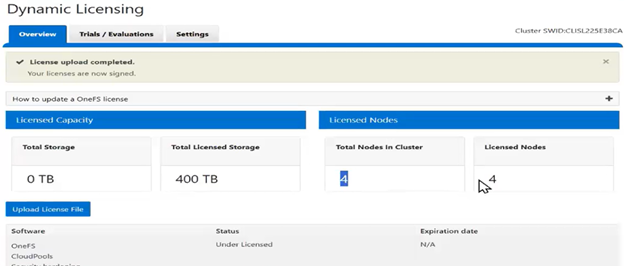
- This screen also reports the cluster’s entitlements, indicating that the cluster now has four licensed nodes and licensed capacity of 400 TB:
The Dynamic License gconfig parameters can be queried from the CLI to confirm that the PowerScale cluster is both registered with the dynamic licensing back end, and that the license method is ‘offline’:
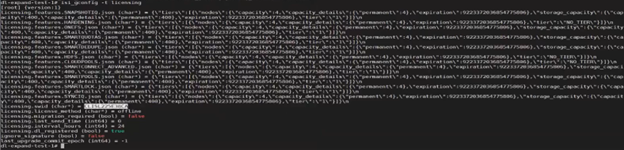
This software identifier can also be verified from the Dell Licensing Portal.
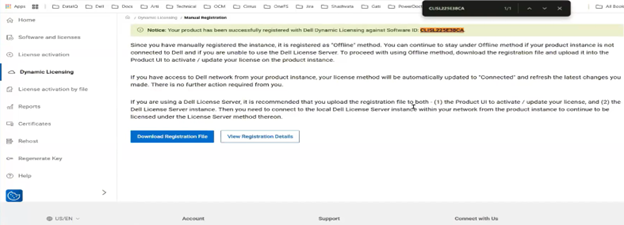
In summary, clusters running Dynamic Licensing in offline mode require the administrator to download an updated registration file whenever license changes occur. When additional entitlements are purchased, a new registration file must be created in the Dell Licensing Portal and uploaded to the PowerScale cluster:
In the next and final article in this series, we’ll turn our attention to Dynamic Licensing management and troubleshooting.