OneFS S3 Object Lock and Bucket Lock Configuration and Management

As we saw in the previous article in this series, OneFS 9.12 introduces support for S3 Object Locks. This feature enables write-once-read-many (WORM) protection for objects, ensuring critical data remains immutable and safeguarded against accidental or malicious deletion. By applying Object Locks, organizations can prevent object deletion or modification for a specified duration, or indefinitely, helping maintain data integrity and meet regulatory retention requirements. This capability is particularly valuable for industries such as finance services, where compliance and secure data preservation are essential.

The S3 bucket and object locking features become available after the OneFS 9.12 release has been committed, and no additional licensing is required. To enable them, the pertinent access zone is configured to support bucket or object locks, during which, if not already active, the compliance clock is automatically enabled in support of locking. Within the S3 zone configuration, three new options are introduced.

Name Value Description
Object lock support boolean Allows Object Lock or Immutable Buckets to be created in the zone
Default lock protection mode ObjectLock | BucketLock Default object lock mode for Buckets with object lock enabled.
Compliance clock support NULL Automatically enables compliance clock if not already enabled

‘Object-lock-support’ is disabled by default and must be enabled to allow the creation of locked buckets, while ‘default-lock-protection-mode’ determines the default lock type when none is specified in an API call. ‘Compliance-clock-support’ enables the compliance clock if it is not already active, and these are all represented in the OneFS 9.12 S3 CLI as follows:

# isi s3 settings zone modify -h | grep -i lock

[--object-lock-support <boolean>]

[--default-lock-protection-mode (ObjectLock | BucketLock)]

[--compliance-clock-support]

For example:

# isi s3 zone settings modify –object-lock-support 1

Similarly, the new S3 bucket settings include:

Name Value Description
Object lock enabled boolean Enable Locking on the bucket. Cannot be disabled afterwards.
Lock protection mode ObjectLock | BucketLock Bucket Lock Mode
Default Retention Mode GOVERNANCE | COMPLIANCE Only Governance is supported in OneFS 9.12
Default Retention Days Int Retention period in days. Mutually exclusive with years.
Default Retention Years Int Retention period in years. Mutually exclusive with days.

These can be configured in the S3 CLI with the following arguments:

# isi s3 buckets modify <bucket>

        [--object-lock-enabled <boolean>]

        [--lock-protection-mode (ObjectLock | BucketLock)]

        [--default-retention-mode (GOVERNANCE | COMPLIANCE)]

        [--default-retention-days <integer>]

        [--default-retention-years <integer>]

The OneFS S3 per-access zone configuration settings can be viewed from the WebUI under Protocols > Object Storage (S3) > Zone Settings, as follows:
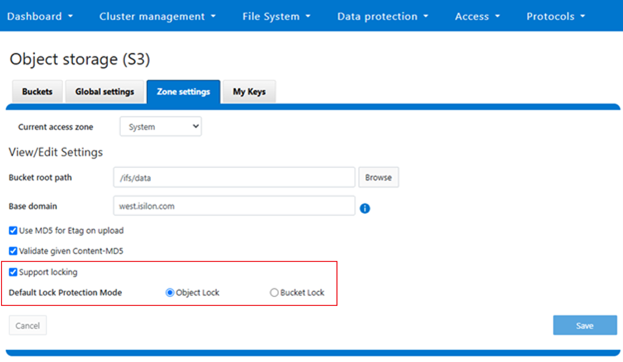
Or from the CLI:

# isi s3 settings zone view

                   Root Path: /ifs/data

                 Base Domain: tme.isilon.com

           Object ACL Policy: replace

Bucket Directory Create Mode: 0777

            Use Md5 For Etag: Yes

        Validate Content Md5: Yes

         Object Lock Support: Yes

       Syslog Access Logging: No

Default Lock Protection Mode: Object Lock

These settings can modified, for example to change the default lock protection mode from object to bucket:

# isi s3 settings zone view | grep -i protection

Default Lock Protection Mode: Object Lock

# isi s3 settings zone modify --default-lock-protection-mode=BucketLock

# isi s3 settings zone view | grep -i protection

Default Lock Protection Mode: Bucket Lock

At the bucket level, new settings include ‘object-lock-enabled’, which, once set, cannot be disabled. The ‘lock-protection-mode’ setting specifies whether Object Lock or Bucket Lock is used. The default-retention-mode is currently limited to ‘Governance’ mode, since ‘Compliance’ mode is not currently supported in the OneFS 9.12 release. Retention periods can be specified in either days or years, with a maximum duration of 100 years.

From the WebUI, object or bucket locks and their retention period can be configured on buckets as follows:
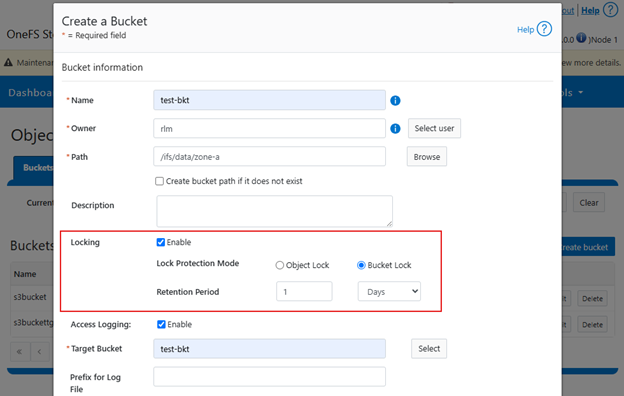
Followed by a warning that locking cannot be disabled and confirmation:
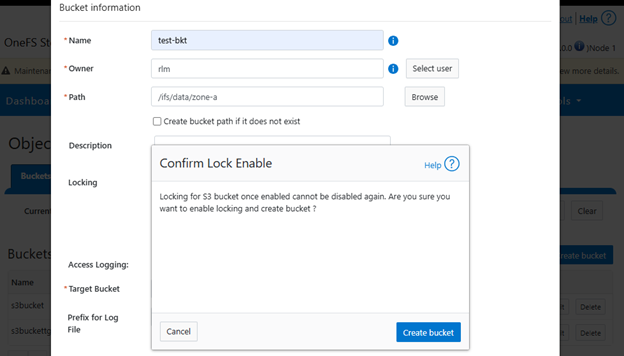
Then confirmation of creation:
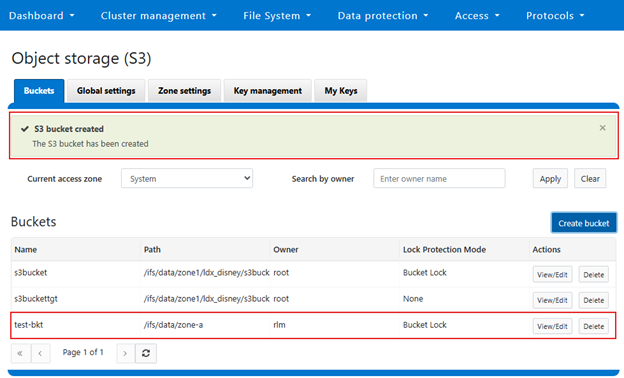
Or from the CLI:

# isi s3 buckets create test-bkt /ifs/data/zone-a --owner rlm --object-lock-enabled 1 --lock-protection-mode BucketLock

The S3 buckets and their lock status can be reported as follows:

# isi s3 buckets list

Bucket Name  Path                                    Owner  Object ACL Policy  Object Lock Enabled  Lock Protection Mode  Description

--------------------------------------------------------------------------------------------------------------------------------------

test-bkt     /ifs/data/zone-a                        rlm    replace            Yes                  Bucket Lock 

test-bkt-b   /ifs/data/zone-b                        rlm    replace            Yes                  Bucket Lock

--------------------------------------------------------------------------------------------------------------------------------------

Total: 4

And to view the details of a specific bucket:

# isi s3 buckets view test-bkt

         Bucket Name: test-bkt

                Path: /ifs/data/zone-a

               Owner: rlm

   Object ACL Policy: replace

 Object Lock Enabled: Yes

Lock Protection Mode: Bucket Lock

         Description:

Default Retention

                 Mode: GOVERNANCE

                Years: -

                 Days: 1

Access Logging Enabled: Yes

         Target Bucket: test-bkt

            Log Prefix:

Additionally, the following CLI syntax can be used to confirm the presence of a lock on the bucket:

# isi get -DDD /ifs/data/zone-a | grep -i ObjectLock

 IFS Domain IDs:     {2.0100(Snapshot), 1d.0900(ObjectLock) }

The following error will be displayed if attempting to create a bucket lock on a target bucket:
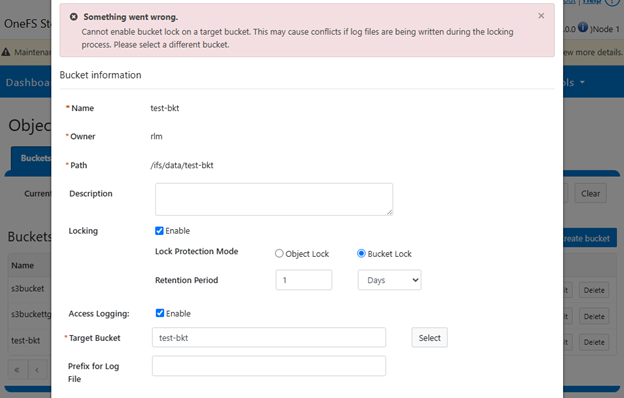
There are a couple of caveats and proclivities to bear in mind with S3 bucket and object locking in OneFS 9.12. Specifically, certain S3 clients may require additional configuration to support custom headers for BucketLock buckets.

Header Description
x-amz-bypass-governance-retention PutObjectLockConfiguration when lowering retention for BucketLock bucket
x-isi-lock-protection-mode Specifying the lock-protection-mode of a bucket

Standard tools might require modification in order to support these special headers. For example, with the ubiquitous Boto3 client, callback handlers may need to be registered using the Boto toolkit to include these headers in requests.

If a client HTTP request is invalid, or goes awry, OneFS follows the general AWS S3 error codes format – albeit with modifications to remove any AWS-specific info. The OneFS S3 implementation also includes some additional error codes for its intrinsic behaviors. These include:

Since OneFS S3 Object Lock does not support legal hold and compliance retention mode, any attempts to use it will return an HTTP 501 ‘Not Implemented’ error. Additionally, due to the current absence of versioning support, attempts to overwrite a locked object will result in an HTTP 403 ‘Access Denied’ error.

For investigative and troubleshooting purposes, all relevant operations are logged in the standard S3 server logs, located at /var/log/s3.log.

In summary, the general behavior of the new OneFS S3 object locking feature in OneFS 9.12 includes the following:

OneFS S3 Specific Behavior AWS S3-compliant Behavior
·         Object locks may not be enabled for older buckets or non-empty buckets.

·         Only a bucket’s owner can enable object lock for the bucket. The owner must match the file system directory owner of the directory bucket since there’s no concept of directory ownership in AWS S3.

·         Unlike AWS S3 where lock modes (i.e. Governance and Compliance) are directly linked to S3 objects, in OneFS they are bucket-specific, with the same mode applying to all objects within a bucket.

·         Compliance mode for buckets is not supported when the system is in enterprise state.

·         Compliance mode buckets are not supported in OneFS 9.12.

·         Object locks will be enabled at “Bucket” level.

·         Once Object locks are enabled, they CANNOT be disabled.

·         Every S3 bucket will have a default retention that will apply to all objects inside the bucket.

·         Objects inside a bucket can have different retention periods.

·         Retention period can be extended or lowered (privileged action) for S3 objects.


As a further level of Bucket lock security, OneFS multi-party authorization (MPA) includes the following S3 privileged actions that, if enabled, require an additional administrator to approve the reduction of an immutable bucket’s retention time configuration and/or changes to a bucket’s access logging configuration.

Service /

Component

Action Description 
S3 reduce_immutable_bucket_retention Reduce bucket retention for an immutable bucket.
S3 modify_server_access_logging_config Change a bucket’s access logging configuration.

MPA helps to mitigate the risk of data loss or system configuration damage from critical actions, by vastly reducing the likelihood of accidental or malicious execution of consequential operations. MPA enforces a security control mechanism wherein operations involving critical or sensitive systems or data require explicit approval from multiple authorized entities. This ensures that no single actor can execute high-impact actions unilaterally, thereby mitigating risk and enhancing operational integrity through enforced oversight. As such, many enterprises require MPA in order to meet industry data protection requirements, in addition to internal security mandates and best practices.

MPA S3 privileged actions supporting immutable bucket retention and logging are available for selection in the MPA configuration, for example from the WebUI MPA Requests dropdown menu, located under Access > Multi-Party Authorization > Requests:

Introduced in OneFS 9.12, MPA can be configured and managed from the CLI, WebUI or platform API, but the feature is not enabled by default. Once MPA is enabled and configured, all predefined ’privileged actions’ require additional approval from an authorizing user. So this is markedly different from earlier OneFS releases, where the original requester would likely have had the basic rights and been able to execute that action in its entirety themselves.

Note that MPA is incompatible with, and therefore not supported on, a PowerScale cluster that is already running in Compliance Mode.
OneFS S3 Object Lock and Bucket Lock

Within the OneFS 9.12 feature payload lies the introduction of support for S3 Object Locks, providing the ability to enforce write-once-read-many (WORM) protection on objects, ensuring the immutability of critical data to protect against accidental or malicious deletions. Object deletion or modification can be prevented for a defined period (or indefinitely), ensuring data integrity and allowing enterprises, such as financial institutions, to meet regulatory requirements for data retention.

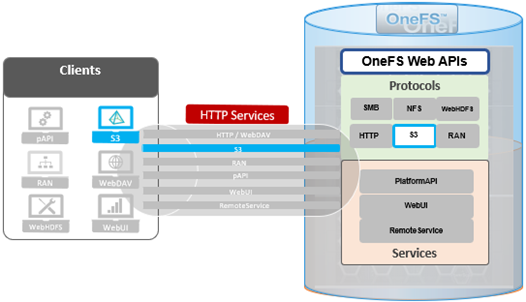
But first some background. PowerScale OneFS has provided native support for the AWS S3 object API for several years now, as part of its suite of unstructured data access protocols. This integration enables OneFS clusters to support hybrid workloads that interact with the same underlying dataset using both traditional file-based protocols—such as NFS, HDFS, or SMB—and object-based access via S3. Data written through one protocol can be seamlessly accessed through another, allowing for flexible and efficient data workflows.

At the file system level, S3 objects and buckets are represented as files and directories. As a result, OneFS data services—including snapshots, replication, WORM (Write Once Read Many) immutability, and tiering—are fully integrated and available to both file and object workloads. Identity management, permissions enforcement, and access control policies are consistently applied across both access paradigms, ensuring unified security and governance.

This dual-protocol capability allows applications and workloads to access the same data through either file or object interfaces without requiring data duplication, migration, or transformation. This significantly simplifies data management and reduces operational overhead, particularly in environments with diverse access requirements.

To meet enterprise security and compliance standards, OneFS supports HTTPS/TLS for encrypted data transmission. The S3 protocol is implemented as a first-class citizen within OneFS, delivering performance characteristics comparable to those of the SMB protocol.

By default, the S3 service listens on port 9020 for HTTP and port 9021 for HTTPS. These ports are configurable to accommodate specific deployment requirements, if required.

In OneFS 9.12, the S3 protocol sees the introduction of two key security enhancements:

  • S3 Object Lock
  • S3 Bucket Lock

The Object Lock feature is an implementation of Amazon S3’s Object Lock functionality within the PowerScale S3 server that’s built implemented on top of the OneFS SmartLock feature within the file system. When configured, it allows individual objects to be locked, preventing their deletion, modification, or movement until their retention period expires. Retention is configured on a per-object basis, and users with the ‘ISI_PRIV_IFS_BYPASS_RETENTION’ privilege can reduce the retention period or delete locked objects.

# isi auth privileges | grep -i retention

ISI_PRIV_IFS_BYPASS_RETENTION                                            Bypass the retention setting of WORM committed files

Without such privileges, locked objects remain immutable until the retention period concludes. Note that OneFS S3 Object Lock does not support legal hold and compliance retention mode.

In contrast, Bucket Lock enforces immutability at the bucket level. Under this model, retention periods are not set per-object but are instead defined for the entire bucket. Any changes to the retention period apply uniformly to all objects within the bucket. Once Bucket Lock is enabled, it cannot be disabled or converted to Object Lock. Additionally, privileged deletion of locked objects is not supported under Bucket Lock. Objects can only be deleted once the bucket-level retention period has expired or has been explicitly reduced.

S3 object and bucket locking in OneFS has a slightly esoteric terminology, including the following abbreviations and definitions:

Term Description
Bucket An S3 term that refers to a container of S3 objects. For OneFS, it can be mapped to top level directory containing files.
Bucket Policy Set of defined rules in S3 that govern which user will access which bucket or object. Supports regex and allows granular controls.
Compliance Mode Stricter mode for S3 object locked file. No one can delete/modify an object locked file. Similar to compliance mode of WORM.
Data Protection Mode In this mode, privileged users need Multi-party Authorization (MPA) to delete an S3 object locked file or to lower file retention in GOVERNANCE mode.
Default Retention The default retention period associated with a bucket. Any new object within the bucket will inherit this retention period.
Governance Mode Regular mode for S3 object locked file. ‘Privileged Users’ can delete locked files. Similar to “enterprise” mode of WORM
Legal Hold When an S3 object is under legal hold, it remains locked until it is unlocked by a privileged user. No retention period is required.
Object An S3 term that refers to a blob that contains data. For OneFS, it can be mapped to a file.
Object Lock A feature in Amazon S3 that allows users to lock objects for a duration. When locked, files cannot be modified/deleted.
Object Versioning In S3, any modification of an S3 object creates a new version of the object. The new version can have its own Object Lock configuration.
Privileged Users Users who have special permissions/privileges, allowing them to delete files that are locked under some circumstances.
Retention Period Time during which a file or object is locked. After this period, the file can be deleted if required
WORM Domain A directory that is enabled for WORM
WORM File A file that is locked or committed for WORM. A WORM file cannot be modified or deleted.

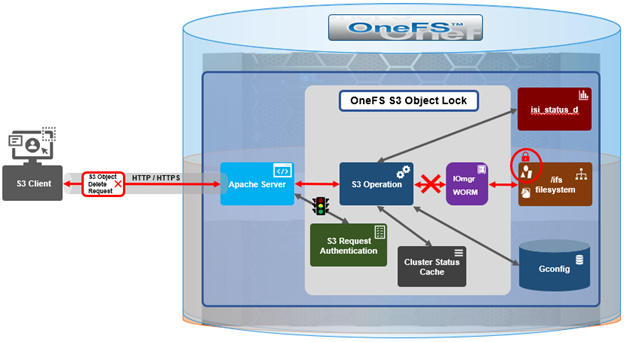
Architecturally, OneFS S3 consists of six main components, which are:

Component Description
FS Layer The kernel FS layer that performs WORM actions. All WORM domains and files are managed at this layer.
Iomgr The platform agnostic IO manager that is connected to protocol heads. Exposes IO APIs that perform platform specific operations through file system drivers created for each platform. Object locking is only supported in OneFS file system driver.
CLI/WebUI/pAPI The entry points for configuration S3 object locking as well as enabling/disabling object locking. PAPI interacts with S3 protocol head for S3 operation and Tardis for setting/getting configuration.
S3 Clients Clients connected to OneFS cluster for S3 operations. Requests from S3 clients are in the form of ReST APIs. These clients can be local to the node or can be external entity.
S3 Protocol Head The Powerscale S3 server. Processes requests from S3 clients and performs required actions.
Tardis Stores the configuration of object locks. Every configuration item for object locking is stored inside a bucket entry under S3 namespace.

Both Object Lock and Bucket Lock are managed through a new locking domain based on the WORM (Write Once Read Many) domain. Unlike AWS S3, versioning is neither required nor supported in this implementation. Retention date calculations rely on the OneFS compliance clock, which must be enabled before these features can be used.

When configuring Object Lock, administrators can define a default retention period at the bucket level. This default applies to newly added objects unless overridden via the S3 API.

S3 API Endpoint Description
CreateBucket Creates a regular S3 bucket.

•       If header parameter ‘x-amz-bucket-object-lock-enabled’ is present, bucket is object lock enabled.

•       If header parameter ‘isi-lock-protection-mode’ is present for specifying lock mode type.

PutObjectLockConfiguration Enables object lock on a regular bucket. Sets bucket default retention. Sets lock-protection-mode.
GetObjectLockConfiguration Gets current object lock information with bucket retention for a bucket
PutObjectRetention Locks a regular object with given retention period. Also used to extend/lower retention period of a locked object.

Note that this is a disabled and invalid operation for Bucket Lock buckets.

Within an Object Lock-enabled bucket, objects may be either locked or unlocked. In contrast, Bucket Lock applies a dynamic retention model, where the retention period is calculated from each object’s creation time using the bucket-level setting.

Configuration of both Object Lock and Bucket Lock is supported through the OneFS CLI, WebUI, and platform API (pAPI). The S3 API has been extended to support these features.

S3 API Endpoint Description
CreateBucket Creates a regular S3 bucket.

•       If header parameter ‘x-amz-bucket-object-lock-enabled’ is present, the bucket is object lock-enabled.

•       If header parameter ‘isi-lock-protection-mode’ is present for specifying lock mode type.

PutObjectLockConfiguration Enables object lock on a regular bucket. Sets bucket default retention. Sets lock-protection-mode.
GetObjectLockConfiguration Gets current object lock information with bucket retention for a bucket
PutObjectRetention Locks a regular object with a given retention period. Also used to extend/lower the retention period of a locked object.

Note that PutObjectRetention is a disabled and invalid operation for Bucket Lock buckets.

For example, the CreateBucket operation now accepts the ‘x-amz-bucket-object-lock-enabled’ flag. Additionally, a custom header, ‘isi-lock-protection-mode’, allows the lock mode type to be specified. If this header is omitted, the system defaults to the zone’s configured protection mode.

The ‘HeadObject’ and ‘GetObject’ operations return retention metadata when locking is enabled. The ‘DeleteObject’ and ‘DeleteObjects’ operations support the ‘x-amz-bypass-governance-retention’ header, which is applicable only in Object Lock mode and requires the appropriate privileges. For object creation operations such as ‘PutObject’, ‘CopyObject’, and multipart uploads, the ‘x-amz-object-lock-retain-until-date’ header can be used to set object-level retention. This header is only valid in Object Lock mode, as Bucket Lock relies solely on the bucket-level retention setting.

New API operations have also been introduced. Specifically, PutObjectLockConfiguration’ and ‘GetObjectLockConfiguration’ allow administrators to manage bucket-level lock settings and default retention values.

S3 API Endpoint Description
PutObjectLockConfiguration Enables object lock or modify retention settings on a bucket. Custom header.
GetObjectLockConfiguration Gets current object lock information with bucket retention for a bucket.
GetObjectRetention Gets the retention period of a locked object.


PutObjectRetention Locks a regular object with a given retention period. Also used to extend/lower the retention period of a locked object.

Note that PutObjectRetention is a disabled and invalid operation for Bucket Lock buckets.

At the object level, ‘PutObjectRetention’ and ‘GetObjectRetention’ enable setting and retrieving retention information. Reducing an object’s retention period requires the ‘x-amz-bypass-governance-retention’ header and the appropriate privileges. These operations are not supported under Bucket Lock.

  • GetObjectLockConfiguration

The new ‘GetObjectLockConfiguration’ S3 endpoint retrieves the current object lock configuration of a bucket. If object lock is not enabled for the bucket, an HTTP 400 error code will be returned.

Request

GET /?object-lock HTTP/1.1
Host: <Bucket-address>
x-amz-expected-bucket-owner: Owner

Response

HTTP/1.1 200
<?xml version="1.0" encoding="UTF-8"?>
<ObjectLockConfiguration>
<ObjectLockEnabled>string</ObjectLockEnabled>
<Rule>
<DefaultRetention>
<Days>integer</Days>
<Mode>string</Mode>
<Years>integer</Years>
</DefaultRetention>
</Rule>
</ObjectLockConfiguration>

If object lock is enabled on a bucket the  ‘ObjectLockEnabled’ parameter, the ‘Mode’ field is set to either ‘GOVERNANCE’ or ‘COMPLIANCE’, and  ‘DefaultRetention’ period is expressed in either in Days or Years (but not both).

  • PutObjectLockConfiguration

The ‘PutObjectLockConfiguration’ endpoint sets object lock functionality on an existing bucket. It is also used to set the ‘Mode’ and  ‘DefaultRetention’ period on the bucket. Note that only the bucket owner can perform this operation.

Request

PUT /?object-lock HTTP/1.1
Host: <Bucket-address>
x-amz-expected-bucket-owner: Owner
<ObjectLockConfiguration>
<ObjectLockEnabled>string</ObjectLockEnabled>
<Rule>
<DefaultRetention>
<Days>integer</Days>
<Mode>string</Mode>
<Years>integer</Years>
</DefaultRetention>
</Rule>
</ObjectLockConfiguration>

If enabled, ‘ObjectLockEnabled’ activates object locking on bucket. Once enabled, object locking cannot be disabled. The ‘DefaultRetention’ parameter is set for the bucket, but this can also be manually configured, and expressed in either days or years. A maximum value of 100 years is permitted, while a value of 0 indicates no retention. The ‘mode’ parameter is either ‘GOVERNANCE’ or ‘COMPLIANCE’, while noting that only ‘GOVERNANCE’ mode is supported when a cluster is in enterprise state.

Response

HTTP/1.1 200
  • GetObjectRetention

The ‘GetObjectRetention’ endpoint fetches the retention date associated with an object locked S3 object. If the object is not locked, the API returns an HTTP 400 error.

Request

GET /{Key}?retention HTTP/1.1
Host: <Bucket-location>
x-amz-expected-bucket-owner: ExpectedBucketOwner

The mandatory ‘Key’ field contains the S3 object key. Also, unlike AWS, OneFS 9.12 does not support the  ‘VersionId’ parameter in this operation.

Response

HTTP/1.1 200
<?xml version="1.0" encoding="UTF-8"?>
<Retention>
<Mode>string</Mode>
<RetainUntilDate>timestamp</RetainUntilDate>
</Retention>

The ‘Mode’ field in the above is the bucket mode, and individual S3 objects share their common bucket mode. Also,
the ‘RetainUntilDate’ field contains the retention period of the object, of which the format type is a timestamp.

  • PutObjectRetention

The ‘PutObjectRetention’ endpoint sets the retention period of an S3 object, returning an error if object lock is not enabled on bucket.

Request

PUT /{Key}?retention HTTP/1.1
Host: <Bucket-location>
x-amz-expected-bucket-owner: ExpectedBucketOwner
x-amz-bypass-governance-retention: BypassGovernanceRetention
Content-MD5: ContentMD5
<?xml version="1.0" encoding="UTF-8"?>
<Retention xmlns="http://s3.amazonaws.com/doc/2006-03-01/">
<Mode>string</Mode>
<RetainUntilDate>timestamp</RetainUntilDate>
</Retention>

The ‘key’ field contains the S3 object key, and is required. Unlike AWS, ‘VersionId’ is not supported in the OneFS 9.12 S3 object lock implementation. If setting retention that is lower than current retention period of the object, the request must have the URI parameter ‘x-amz-bypass-governance-retention’ set to ‘BypassGovernanceRetention’. Additionally, ‘mode’ field must match the bucket mode, and ‘RetainUntilDate’ be a future timestamp.

Response

HTTP/1.1 200

In the next article in this series, we’ll take a closer look at the configuration and management of OneFS S3 object and bucket locking.

OneFS Root Lockdown Mode Configuration

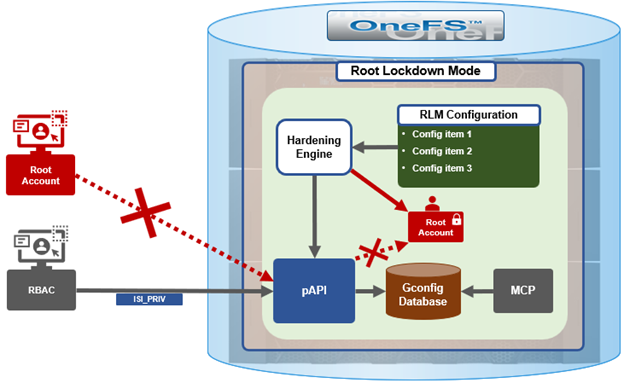
Root Lockdown Mode (RLM) is a security feature designed to disable and block access to the cluster’s root account. This new RLM functionality in OneFS 9.12 enforces role-based access controls (RBAC) for cluster administrators, thereby reducing the risk of a single privileged user bypassing security policies and performing potentially destructive operations on the cluster configuration or its data. Given that the root account has inherent, unaudited permissions to override security controls, restricting its access significantly strengthens the PowerScale’s security posture.

The basic process for enabling RLM is as follows:

Note that, in OneFS 9.12, RLM does not have a WebUI interface, and so is only configurable via the command line (CLI).

Several privileges are required to successfully deploy RLM. These include:

Privilege Description
ISI_PRIV_AUTH for account configuration
ISI_PRIV_LICENSE for license activation
ISI_PRIV_HARDENING for applying and disabling RLM
ISI_PRIV_SYS_SHUTDOWN for rebooting nodes or the cluster
ISI_PRIV_DEVICES for adding new nodes to the cluster
    The specific steps to activate RLM on a cluster are as follows:
  1. Once the cluster is running and committed to OneFS 9.12, create a dedicated user account to use in place of root (i.e. ‘RLM’, in the following example):
# isi auth users create RLM --enabled true --set-password

passwowrd: xxxxxxxx

confirm: xxxxxxxx
  1. Next, assign this new user (‘RLM’) the necessary RBAC roles, which include ‘SystemAdmin’ and ‘SecurityAdmin’.
# isi auth roles modify SystemAdmin --add-user RLM
# isi auth roles modify SecurityAdmin --add-user RLM
  1. Configure the new user and ‘compadmin’ account with a valid shell, such as ZSH:
# isi auth users modify compadmin --shell /usr/local/bin/zsh
# isi auth users modify RLM  --shell /usr/local/bin/zsh
  1. The required licenses for OneFS Hardening must be activated. For example:
# isi license add --evaluation HARDENING
  1. Once the above prerequisites are met, the root-lockdown hardening profile can be applied via the OneFS Hardening Engine.
# isi hardening apply root-lockdown

.Hardening operation complete.
  1. A full cluster reboot is then required to enforce the new configuration.
# isi cluster reboot -–lnn=all

This command will reboot the cluster. Are you sure? (yes/[no]?): yes
  1. Once rebooted, the status of RLM can be verified as follows:
# isi_for_array isi auth cache flush --all

# isi hardening list -az | grep -i lockdown

root-lockdown Enable security settings that disable the root account. Applied

# isi_for_array -s isi auth users view root | grep Enabled

tme-1:                  Enabled: No

tme-2:                  Enabled: No

tme-3:                  Enabled: No

Additionally, the hardening report associated with the root-lockdown profile will provide a more detailed status. For example:

# isi hardening reports create

# isi hardening reports view root-lockdown

Name                              Location  Status      Setting

--------------------------------------------------------------------------------

require_password_single_user_mode Node 1    Applied /etc/ttys

check_disable_root_account        Node 1    Applied /auth/users/root:enabled

check_root_shell_nologin          Node 1    Applied /auth/users/root:shell

check_rlm_sysctls                 Node 1    Applied -

require_password_single_user_mode Node 2    Applied /etc/ttys

check_disable_root_account        Node 2    Applied /auth/users/root:enabled

check_root_shell_nologin          Node 2    Applied /auth/users/root:shell

check_rlm_sysctls                 Node 2    Applied -

require_password_single_user_mode Node 3    Applied /etc/ttys

check_disable_root_account        Node 3    Applied /auth/users/root:enabled

check_root_shell_nologin          Node 3    Applied /auth/users/root:shell

check_rlm_sysctls                 Node 3    Applied -

set_rlm_cluster_wide              Cluster   Applied root-lockdown

require_disabled_STIG_profile     Cluster   Applied –

require_rlm_aclr_users            Cluster   Applied –

require_rlm_cluster_state         Cluster   Applied –

disable_kdb                       Cluster   Applied /etc/mcp/templates/sysctl.conf

disable_root_account              Cluster   Applied /auth/users/root:enabled

root_shell_nologin                Cluster   Applied /auth/users/root:shell

In addition to RLM, the OneFS 9.12 release also introduced Multi-party Authorization, or MPA, functionality. MPA is an administrative approval mechanism that requires at least one additional trusted party to sign off on a requested change, for certain privileged actions within a PowerScale cluster. As such, MPA helps to reduce the likelihood of data loss or system configuration damage from critical actions, by mitigating the risk of accidental or malicious execution of consequential operations.

A recommended practice is to configure and enable RLM in combination with, and complimentary to, the MPA feature. This will mean that any requested change to the RLM state will require additional approval. The application or removal of RLM necessitates a full cluster reboot to ensure that all relevant system controls (sysctls) are properly enforced or cleared. Administrators should consult the hardening report to determine which nodes require rebooting during this process.

OneFS Root Lockdown Mode

Tucked among the plethora of capabilities that debut in OneFS 9.12 is Root Lockdown Mode (RLM), a security feature designed to disable and block access to the cluster’s root account. This new RLM functionality enforces role-based access controls (RBAC) for cluster administrators, thereby reducing the risk of a single privileged user bypassing security policies and performing potentially destructive operations on the cluster configuration or its data. Given that the root account has inherent, unaudited permissions to override security controls, restricting its access can significantly strengthen PowerScale’s security posture.

RLM is managed through the OneFS hardening engine, which is part of a cluster’s compliance mode framework.

RLM leverages the OneFS compliance mode protections provided by the hardening engine and requires both the ‘Hardening’ and ‘SmartLock’ licenses to function. It introduces a new hardening profile, aptly named ‘root-lockdown’, which can be applied or disabled as desired. However, transitioning between RLM states does involve a complete cluster reboot. Plus, if MPA is active, the operation must be approved by multiple parties. OneFS services, and admins, can inspect ‘sysctl’ values to determine whether the cluster is operating in Compliance Mode or RLM.

Note that, unlike MPA, RLM in OneFS 9.12, does not have a WebUI interface, and so is only configurable via the command line (CLI).

Under the hood, when hardening is activated, the security hardening engine reads the desired configuration, such as RLM, from its config files. Sets of rules, or config items, are applied to the hardening configuration to increase security and, in the case of RML, ensure disablement of a cluster’s root account. These rules are grouped by profile, which contain collections of named rules. Profiles are stored in separate .xml files under /etc/isi_hardening/profiles.

# ls /etc/isi_hardening/profiles
profile_root-lockdown.xml       profile_stig.xml

As of OneFS 9.12, there are two hardening profiles available:

  • Root Lockdown Mode (RLM)
  • STIG compliance

Plus, the hardening infrastructure is in place to support additional profiles as and when they are required.

Individual rules are stored in separate .xml files under /etc/isi_hardening/rules:

# ls /etc/isi_hardening/rules

rules_apache.xml rules_celog.xml rules_root.xml

rules_audit.xml rules_fips.xml rules_shell_timeout.xml

rules_auth.xml rules_misc.xml rules_umask.xml

rules_banners.xml rules_password.xml

rules_cacpiv.xml rules_pki_ocsp.xml

For example, the ‘rules_root.xml’ file for disabling the root account:

# cat rules_root.xml
<!-- Copyright (c) 2024-2025 Dell Inc. or its subsidiaries. All Rights Reserved. -->
<CONFIG_ITEMS>
  <CONFIG_ITEM id="disable_root_account" version="1">
    <PapiOperation>
      <DO>
        <URI>/auth/users/root</URI>
        <BODY>{"enabled": false}</BODY>
        <KEY>users</KEY>
      </DO>
      <UNDO>
        <URI>/auth/users/root</URI>
        <BODY>{"enabled": true}</BODY>
        <KEY>users</KEY>
      </UNDO>
      <ACTION_SCOPE>CLUSTER</ACTION_SCOPE>
      <IGNORE>FALSE</IGNORE>
    </PapiOperation>
  </CONFIG_ITEM>
  <CONFIG_ITEM id="root_shell_nologin" version="1">
    <PapiOperation>
      <DO>
        <URI>/auth/users/root</URI>
        <BODY>{"shell": "/sbin/nologin"}</BODY>
        <KEY>users</KEY>
      </DO>
      <UNDO>
        <URI>/auth/users/root</URI>
        <BODY>{"shell": "/usr/local/bin/zsh"}</BODY>
        <KEY>users</KEY>
      </UNDO>
      <ACTION_SCOPE>CLUSTER</ACTION_SCOPE>
      <IGNORE>FALSE</IGNORE>
    </PapiOperation>
  </CONFIG_ITEM>
</CONFIG_ITEMS>

Rules are grouped by functional area affected, and can apply to platform API configuration ‘collections’. For example, a rule can be applied to all NFS exports or all SyncIQ policies. In addition to actionable rules, ‘check-only’ rules are supported which apply no changes.

The hardening engine rules allow comparator logic in addition to equality, and can evaluate conditions like whether a string is empty or non-empty, and if a given timeout is greater or equal to the required value. The RLM profile specifies the following hardening rule set:

# cat /etc/isi_hardening/profiles/profile_root-lockdown.xml
<?xml version="1.0" encoding="UTF-8"?>
<!-- Copyright (c) 2024-2025 Dell Inc. or its subsidiaries. All Rights Reserved. -->
<Profiles version="1">
    <Profile>
        <Name>root-lockdown</Name>
        <Description>Enable security settings that disable the root account.</Description>
        <Rule>set_rlm_cluster_wide</Rule>
        <Rule>require_disabled_STIG_profile</Rule>
        <Rule>require_password_single_user_mode</Rule>
        <Rule>require_rlm_aclr_users</Rule>
        <Rule>require_rlm_cluster_state</Rule>
        <Rule>disable_kdb</Rule>
        <Rule>disable_root_account</Rule>
        <Rule>root_shell_nologin</Rule>
        <Rule>check_disable_root_account</Rule>
        <Rule>check_root_shell_nologin</Rule>
        <Rule>check_rlm_sysctls</Rule>
    </Profile>
</Profiles>

Most of the above RLM rule definitions live in the ‘/etc/isi_hardening/rules/rules_misc.xml’ file. For example:

# grep -A 10 "disable_root" /etc/isi_hardening/rules/rules_misc.xml
  <CONFIG_ITEM id="check_disable_root_account" version="1">
    <PapiOperation>
      <CHECK>
        <URI>/auth/users/root</URI>
        <BODY>{"enabled": false}</BODY>
        <KEY>users</KEY>
      </CHECK>
      <ACTION_SCOPE>NODE</ACTION_SCOPE>
      <IGNORE>FALSE</IGNORE>
      <RETRIES>0</RETRIES>
    </PapiOperation>

The hardening engine also includes a reporting component, allowing detailed reports to be generated that indicate which hardening rules are applied or not, as well as overall compliance status.  Hardening report generation can be initiated with the following CLI command syntax:

# isi hardening reports create
...............Hardening operation complete.

# isi hardening reports list
Name   Applied  Status        Creation Date            Report Age
-----------------------------------------------------------------
root-lockdown  Yes  Compliant Fri Oct 24 14:28:40 2025 3m18s
-----------------------------------------------------------------
Total: 1

A recommended practice is to configure and enable RLM in combination with the OneFS Multi-Party Approval (MPA) feature. MPA is an administrative approval mechanism that requires at least one additional trusted party to sign off on a requested change, for certain privileged actions within a PowerScale cluster. MPA helps to mitigate the risk of data loss or system configuration damage from critical actions, by vastly reducing the likelihood of accidental or malicious execution of consequential operations. As such, enabling RLM on a cluster with MPA configured means that any requested change to the RLM state will require additional approval.

The application or removal of RLM necessitates a full cluster reboot to ensure that all relevant system controls (sysctls) are properly enforced or cleared. The hardening report (‘isi hardening reports create/view’) can be used to determine which nodes require rebooting during this process.

When expanding a cluster that has RLM enabled, only nodes that have already been rebooted into Compliance Mode using the setup wizard (option 4) are permitted to join. Any new node joining an RLM-enabled cluster must be manually rebooted to inherit the RLM configuration.

In the next article in this series, we’ll explore the processes and procedures for configuring and managing RLM.